
View the status of Z-Wave lights
GoSafer Security Knowledge Base
This operational reference is organized for GoSafer Security customers and staff. Alarm.com product names are retained where required for technical accuracy.
Overview
Light status of compatible Z-Wave devices can be viewed using the website or the app.
| Platform | App + Web |
|---|---|
| Content type | Reference |
| Source last updated | 2025-06-04 |
Procedure
Step-by-step guide: Screenshots and videos are placed with the instruction they illustrate.
The light status of compatible Z-Wave devices can be viewed using the Alarm.com app and GoSafer Security customer portal (powered by Alarm.com).
Important: To view Z-Wave light devices, the Lights add-on must be selected on your service package. If you do not see your Z-Wave light devices on your account, contact your service provider.
View the light status
To view the light status using the Alarm.com app:Icn Chevron Down
- Log in to the Alarm.com app.
- Tap Lights.
- On the Lights page:
- The light is on if Light On is highlighted as shown in the following image.

Light on in app - The light is off if Light Off is highlighted as shown in the following image.

Light off in app
- If the light on and light off buttons are greyed out, the light device may be in malfunction.
- The light is on if Light On is highlighted as shown in the following image.
To view the light status using the GoSafer Security customer portal (powered by Alarm.com):Icn Chevron Down
- Log in to the GoSafer Security customer portal (powered by Alarm.com).
- On the Lights card, click Details.
- On the Lights page, each light has its own status and states if the device is On or Off.
- Light On indicates the light is on.
- Light Off indicates the light is off.
- Light Unknown indicates the light device may be in malfunction.
Groups of lights
Using the GoSafer Security customer portal (powered by Alarm.com), it is possible to create groups of lights to view and control at the same time. When light groups are being used, the light status for each device in the group will appear as the following:
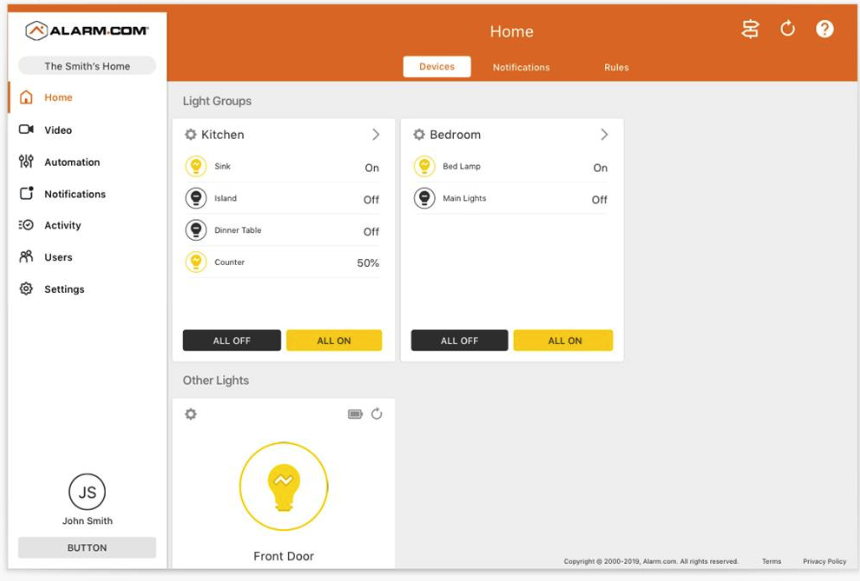
For more information on creating and managing light groups, see Create/edit a group of lights.
Troubleshooting
Not all Z-Wave lights are displaying a status
Some Z-Wave light devices require periodic polling. If there are more than 10 of these types of devices enrolled, you will need to manually designate which of those devices will display their status. By default, light status is enabled for the first 10 polling light devices. Light status can be enabled or disabled for specific devices after more than 10 polling light devices are enrolled to the system.
Note: There is no limit to the number of non-polling light devices that will display their status. These devices will not have the option to manage their status.
To manage a light device status display:
- Log in to the GoSafer Security customer portal (powered by Alarm.com).
- In the Lights card, click Details.
- Click Settings for the light to be managed.
- Click the Show Light Status toggle switch.
- Click Icn Close.
Source and support
For GoSafer Security assistance, visit gosafersecurity.com.
Original Alarm.com reference: https://answers.alarm.com/Customer/Website_and_App/Home_Automation/Lights/View_the_status_of_Z-Wave_lights
Always verify safety, installation, compatibility, and current UI details against the original manufacturer documentation before operational use.
No comments to display
No comments to display