
Transfer app settings from a previously connected device to a new device
GoSafer Security Knowledge Base
This operational reference is organized for GoSafer Security customers and staff. Alarm.com product names are retained where required for technical accuracy.
Overview
App Settings Migration allows end users who have either switched phones or deleted and re-downloaded the mobile app to avoid creating multiple instances of the same device under the User - Push …
| Platform | App + Web |
|---|---|
| Content type | How-to / Configuration |
| Source last updated | 2025-06-04 |
Procedure
Step-by-step guide: Screenshots and videos are placed with the instruction they illustrate.
App Settings Migration allows users who have either switched phones or deleted and re-downloaded the Alarm.com app to avoid creating multiple instances of the same device for Push Devices or Geo-Devices listed on the GoSafer Security customer portal (powered by Alarm.com).
The process will trigger automatically when the Alarm.com app registers if it was previously downloaded in the Google Play Store or Apple App Store from your account.
Note: This will work even if you switch app stores (i.e., Android to iPhone or vice versa).
To transfer app settings from a device previously connected to the Alarm.com account to a new device:
- Log in to the Alarm.com app.
Note: After logging in with your username and password, the app triggers the App Settings Migration process. - Tap Copy settings from another device on iOS, or Copy settings from an existing device on Android.
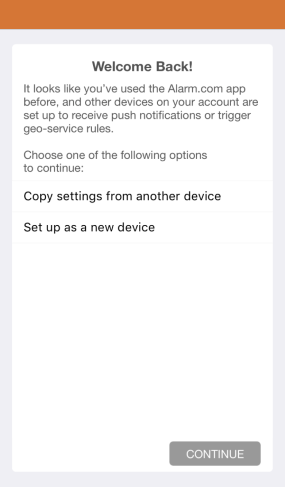
Copy settings
- Tap Continue.
- Tap the device you would like to copy.
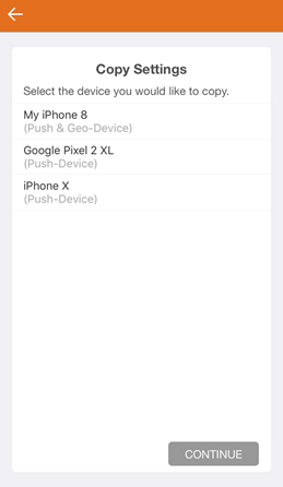
Copy settings 2
- Tap Continue. This process then takes you through turning on each option available for the device they requested to copy settings from.
- For each option, tap Turn On or No Thanks depending on your preference.
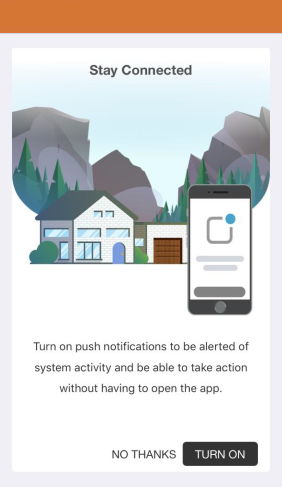
Stay connected 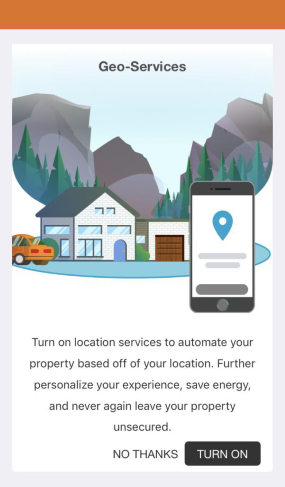
Geo services
- Once you have completed copying the settings from the old device, you can select to remove the old device from the push notifications and Alarm.com Places or keep it active.
Note: If the device is no longer in use, it is recommended to remove the old device to avoid confusion. If you choose not to delete the old device, it will still appear in your Users profile as a Push Device, with notifications previously set up with the old push device and Geo-Devices.- To remove the device, select Remove my old device from this account after my settings have been copied.
- To keep the device, select I want to keep using my old device in addition to the new device, then click Ok.
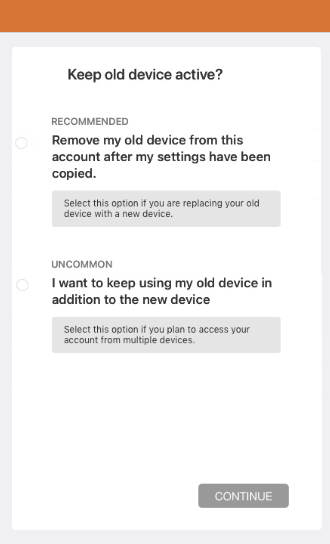
Keep old device active
- Tap Continue.
- Tap Finish.
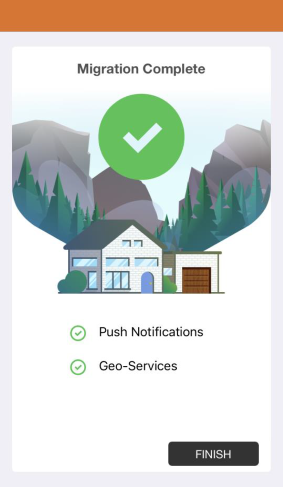
Migration complete
Once the Apps Settings Migration is complete, the initial setup screen will appear.
Important: The Passcode, Touch ID, Fingerprint, and Face ID do not transfer. On iOS, you are prompted to set these up. These settings can also be set up in App Settings through the Alarm.com app's menu.
Source and support
For GoSafer Security assistance, visit gosafersecurity.com.
Original Alarm.com reference: https://answers.alarm.com/Customer/Website_and_App/User_Management/Web_App_Users/Transfer_app_settings_from_a_previously-connected_device_to_a_new_device
Always verify safety, installation, compatibility, and current UI details against the original manufacturer documentation before operational use.
No comments to display
No comments to display