
View current sensor activity
GoSafer Security Knowledge Base
This operational reference is organized for GoSafer Security customers and staff. Alarm.com product names are retained where required for technical accuracy.
Overview
Sensors with Sensor Activity Monitoring enabled can have a variety of statuses.
| Platform | App + Web |
|---|---|
| Content type | Troubleshooting |
| Source last updated | 2025-06-04 |
Procedure
Step-by-step guide: Screenshots and videos are placed with the instruction they illustrate.
Sensors with Sensor Activity Monitoring (SAM) enabled can have a variety of statuses.
For more information about configuring Sensor Activity Monitoring, see Turn sensor activity monitoring on/off.
View current sensor activity using the Alarm.com app:
- Log in to the Alarm.com app.
- Tap Security System.
- Current sensor activity is displayed by panel partition.
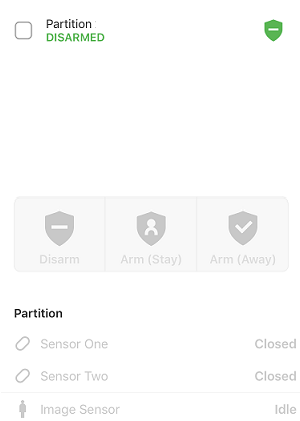
Security Systems page on app sensors
For more information about what the status indicates, see Description of sensor statuses.
View current sensor activity using the GoSafer Security customer portal (powered by Alarm.com):
- Log in to the GoSafer Security customer portal (powered by Alarm.com).
- Sensor statuses display on the Sensors card.
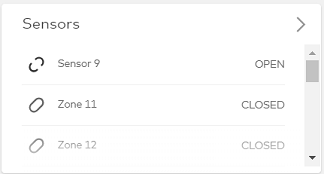
Sensors card
For more information about what the status indicates, see Description of sensor statuses.
Description of sensor statuses
| Status | Description | Sensor Types That Show This Status |
|---|---|---|
| OK | No alarm, error, or problem has been reported. If it is a door or window, it is closed. If it is a motion sensor, it has not been activated within the last 60 minutes. | All Sensors |
| Open | The door or window is currently open. | Door/Window Contacts |
| Activated | The motion sensor has detected activity within the last 60 minutes. | Motion Sensors |
| Idle | A motion sensor becomes idle when motion has not been detected for 60 minutes. The time shown is the time the motion last reported activity. | Motion Sensors |
| Alarm! | The sensor has been tripped and has set off an alarm. Important: Hardwired smoke sensors need to be disarmed twice in order to reset.
|
All Sensors |
| Bypassed |
A door/window sensor will be bypassed if it was open while the system was being armed (indirect bypass; usually occurs 4 minutes after the system arms). A user can directly bypass a sensor after the system is armed through the control panel. Refer to control panel operating instructions for information about bypassing sensors. When a sensor is bypassed either directly or indirectly, it is not active and therefore will not trigger an alarm even though the system is armed. To remove the Bypassed status, close the sensor and re-arm the system. |
All sensors except Fire and CO |
| Low Battery | The sensor is reporting a low battery. Carefully open the sensor cover, check the type of battery it uses, and replace the battery. | All Sensors |
| Tampering/ Malfunction | The sensor has been tampered with, or it has lost contact with the panel. If the status persists, contact your service provider. | All Sensors |
| N/A | The current state of the sensor is unknown. If this persists for more than a few hours, contact your service provider. | All Sensors |
Source and support
For GoSafer Security assistance, visit gosafersecurity.com.
Original Alarm.com reference: https://answers.alarm.com/Customer/Website_and_App/System_Management/System_Usage/View_current_sensor_activity
Always verify safety, installation, compatibility, and current UI details against the original manufacturer documentation before operational use.
No comments to display
No comments to display