
Operate the Alarm.com Smart Thermostat
GoSafer Security Knowledge Base
This operational reference is organized for GoSafer Security customers and staff. Alarm.com product names are retained where required for technical accuracy.
Overview
The Alarm.com Smart Thermostat (Smart Thermostat HD, ADC-T3000, and ADC-T2000) can be operated locally in addition to the remote control features on the GoSafer Security customer portal and Customer app.
| Platform | Mobile App |
|---|---|
| Content type | How-to / Configuration |
| Source last updated | 2023-12-13 |
Procedure
Step-by-step guide: Screenshots and videos are placed with the instruction they illustrate.
The Alarm.com Smart Thermostat (Smart Thermostat HD, ADC-T3000, and ADC-T2000) can be operated locally in addition to the remote control features on the GoSafer Security customer portal (powered by Alarm.com) and Alarm.com app.
Locally operate Alarm.com Smart Thermostats
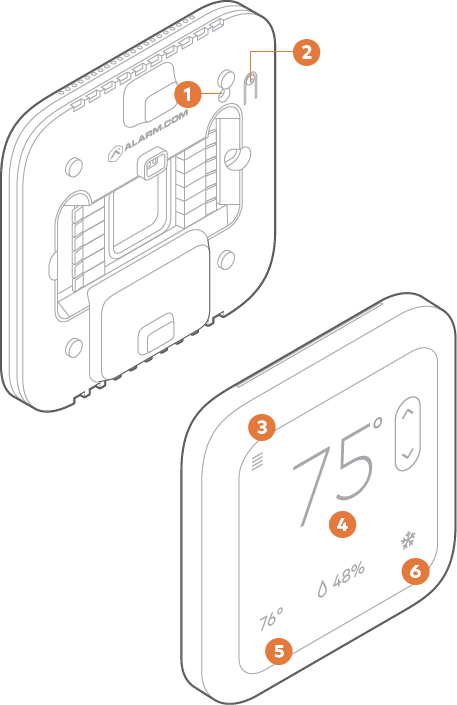
To locally operate the Smart Thermostat HD (T40K):Icn Chevron Up
Thermostat
❶ Status LED
❷ Reset Button
Display
❸ Settings menu
❹ Current setpoint
❺ Indoor temperature
❻ Current mode
For more information about each component of the Smart Thermostat HD, see What are the components of the Smart Thermostat HD (ADC-T40K-HD)?.
Wake up the device
- Tap the screen to wake the thermostat up.
- After waking, the thermostat will display the current temperature, mode, and a greeting.
Change the setpoint
- In the desired mode, tap Up or Down to adjust to the desired Target temperature.
Change the mode
- Tap Mode on the screen at any point to change the mode.
- In the Mode menu, tap to select the desired mode.
- The modes are:
- Heat
- Cool
- Auto
- Emer
Note: EMER mode is available for some Heat Pump systems. - Off
- The modes are:
- Tap Save.
To locally operate the ADC-T3000:
Icn Chevron Up

Wake up the device
- Press any button to wake the thermostat up.
Note: The ADC-T3000 display cannot stay on permanently, but it can be configured to wake when motion is detected nearby. For more information about enabling motion-detected wake, see Enable or disable motion-detected wake on an Alarm.com Smart Thermostat (ADC-T3000). - After waking, the display will show the current mode, room temperature, and setpoint.
Change the mode and setpoint
- Press the Minus button.
- Select MODE.
- The thermostat will only show the modes that are available based on the system configuration.
- The modes are:
- Heat Mode Heat
- Cool Mode Cool
- Heat ModeCool Mode Auto
- Heat Mode EMER
Note: When in EMER mode, the thermostat will flash EMER when the display wakes up, and it will show Heat Mode at the top of the screen. Changing the mode will leave EMER mode.
- Off
- Select the desired mode.
- Once in the desired mode, press the Up and Down buttons to adjust the desired setpoint.
- In AUTO mode when the system is idle, the screen will display AUTO. The thermostat will display HEATING when calling for heat and COOLING when calling for cool.
Changing the fan mode
- Press the Minus button.
- Select the FAN MODE option.
- The fan modes are AUTO, ON, and CIRCULATE. The thermostat will only show the fan modes if it has been configured to control a fan.
- AUTO mode will automatically turn the fan on when your system is either heating or cooling.
- ON mode will turn the fan on indefinitely.
Note: ON will only appear if the Enable fan ON mode setting has been enabled in the thermostat's configurations remotely. For more information about configuring the thermostat, see Enroll and configure the Alarm.com Smart Thermostat. - CIRCULATE will turn the fan on for 15 minutes every hour by default. The duration for CIRCULATE can be configured from the online account.
To locally operate the ADC-T2000:Icn Chevron Up

Wake up the device
- Press any button to wake the thermostat up.
Note: To configure the thermostat display to always be on, see Can the Alarm.com Smart Thermostat display stay on permanently?. - After waking, the display will show the current mode and room temperature.
Change the setpoint
- Press Up or Down once to display the current setpoint.
- The mode icon Heat Mode Heat or Cool Mode Cool will begin to pulse.
- Press Up or Down again to adjust to the desired set point.
- Press Mode at any time to change the mode.
- The modes are:
- Heat Mode Heat
- Cool ModeCool
- Heat ModeCool Mode Auto
Note: In Auto, the brighter icon will indicate which setpoint is currently displayed and active Heat Mode Heat or Cool Mode Cool.
- Heat Mode EMER
Note: EMER mode is available for some Heat Pump systems. Press and hold Mode while in Heat Mode to enter EMER.
When in EMER mode, the display will read EMER when the thermostat wakes up and the Heat Mode icon will be displayed. Changing the mode will leave EMER mode. - Off
- The modes are:
After 5 seconds the display will return to the current room temperature. The mode icon will become solid to indicate this. If powered by the C wire, the thermostat display will remain lit. If the thermostat is running on battery power only, the display will turn off after 5 seconds to conserve energy. The thermostat will continue to operate while the display is off.
Source and support
For GoSafer Security assistance, visit gosafersecurity.com.
Original Alarm.com reference: https://answers.alarm.com/Customer/Website_and_App/Home_Automation/Thermostats/Operate_the_Alarm.com_Smart_Thermostat
Always verify safety, installation, compatibility, and current UI details against the original manufacturer documentation before operational use.
No comments to display
No comments to display