
How can I set up fingerprint scanning on Android?
GoSafer Security Knowledge Base
This operational reference is organized for GoSafer Security customers and staff. Alarm.com product names are retained where required for technical accuracy.
Overview
As of app version 4.0, the app now supports fingerprint scanning on Android as an alternative for passcode access. This is another method to help with securing access to the app in case the device is lost or stolen.
| Platform | Mobile App |
|---|---|
| Content type | How-to / Configuration |
| Source last updated | 2025-06-04 |
Procedure
Step-by-step guide: Screenshots and videos are placed with the instruction they illustrate.
As of app version 4.0, the app now supports fingerprint scanning on Android as an alternative for passcode access. This is another method to help with securing access to the app in case the device is lost or stolen.
Compatibility
Android fingerprint scanning is compatible with the following Android devices running Android OS version 6.0+ with the app version 4.0+:
- Nexus 5X
- Nexus 6P
- Google Pixel
- Samsung Galaxy S7 (all versions)
Android fingerprint scanning may be compatible with other Android phones that have a fingerprint scanner. It is likely that an Android phone that was launched on Android 6 (Marshmallow) would be able to support this feature.
The determining factor is whether or not the device's firmware allows the fingerprint scanner to be accessed by apps. The previously listed devices all allow the fingerprint scanner to be accessed by apps, but older devices may not. It's possible that a device that once did not allow the fingerprint scanner to be accessed by apps may start allowing the fingerprint scanner to be accessed by apps after an Android OS update.
To verify if the device meets these requirements, test the fingerprint scanning functionality or contact the device manufacturer.
To set up Fingerprint Scanning on the Alarm.com app:
- Log in to the Alarm.com app.
- Tap Icn Menu.
- Tap App Settings.
- In App Settings, tap Passcode & Fingerprint.
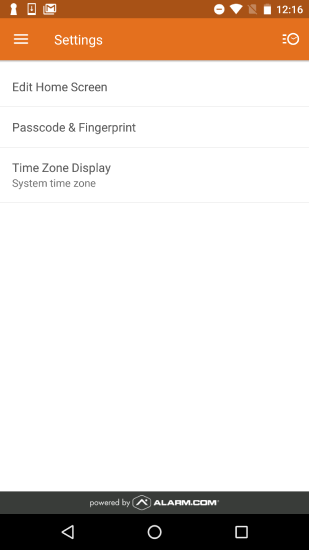
Settings
- In Passcode & Fingerprint, tap the fingerprint toggle to turn on Fingerprint Scanning.
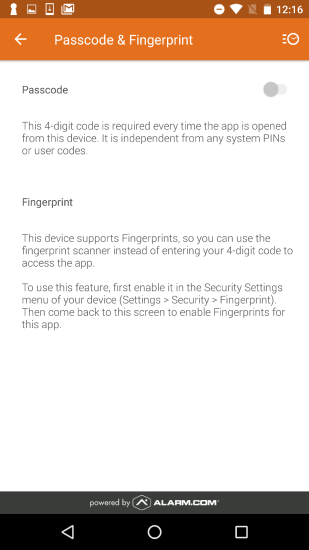
Passcode Off No Fingerprint
- Fingerprints can be added into Android phones by going to performing the following:
- Navigate to the device's Settings.
- Tap Security.
- Tap Fingerprint. Swipe the button to the right to enable.
- Fingerprints can be added into Android phones by going to performing the following:
- Enter in the desired four-digit passcode as a backup if the fingerprint fails, and then re-enter the passcode to verify it.
Note: The passcode can be any four-digit number.
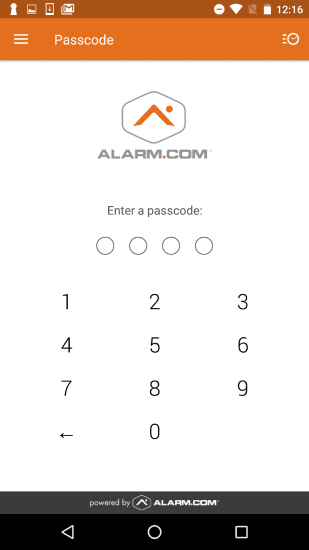
Enter Passcode
- Once passcode access is enabled and a fingerprint has been added to the phone, tap the fingerprint toggle to turn on Fingerprint Scanning.
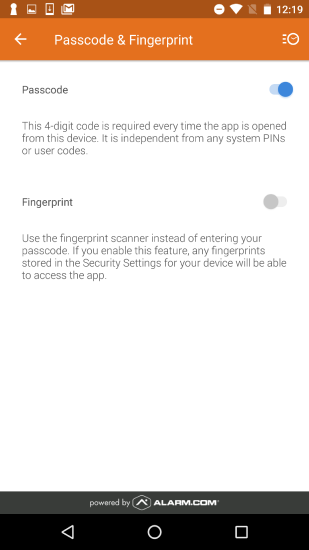
Only Passcode On
- To disable the feature, go back to the Passcode & Fingerprint page in the app and tap the fingerprint toggle to the left position. You will have to enter your passcode to disable the feature.
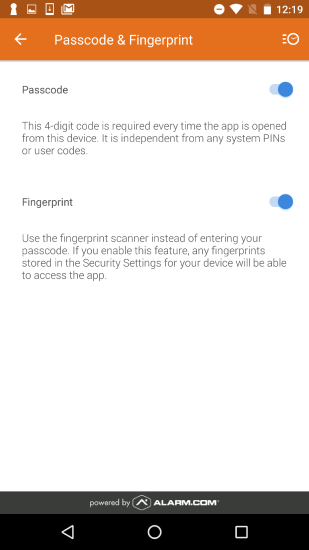
Both On
Source and support
For GoSafer Security assistance, visit gosafersecurity.com.
Original Alarm.com reference: https://answers.alarm.com/Customer/Website_and_App/User_Management/Web_App_Users/How_can_I_set_up_fingerprint_scanning_on_Android
Always verify safety, installation, compatibility, and current UI details against the original manufacturer documentation before operational use.
No comments to display
No comments to display