
Change a partition name
GoSafer Security Knowledge Base
This operational reference is organized for GoSafer Security customers and staff. Alarm.com product names are retained where required for technical accuracy.
Overview
Systems with multiple partitions can be more easily managed with customized partition names.
| Platform | App + Web |
|---|---|
| Content type | How-to / Configuration |
| Source last updated | 2025-06-04 |
Procedure
Step-by-step guide: Screenshots and videos are placed with the instruction they illustrate.
Systems with multiple partitions can be more easily managed with customized partition names. Partitions are ordered alphabetically in the app, so renaming a partition can help change a partition's position in a partition list.
To change a partition name:
Partition names can only be updated using the GoSafer Security customer portal (powered by Alarm.com). It cannot be updated using the Alarm.com app.
- Log in to the GoSafer Security customer portal (powered by Alarm.com).
- In the Security card, click Details as outlined in the following image:
Details Icon On Security Card - Click Settings for the partition to be edited.
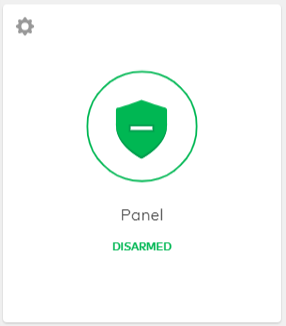
Panel partition card
- In Device Name, enter the new partition name.
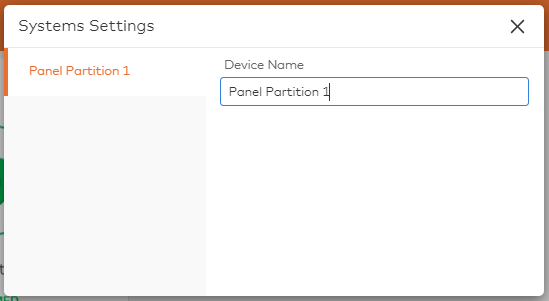
Partition settings
- Click Icn Close to close the Systems Settings window. This saves the changes automatically.
Source and support
For GoSafer Security assistance, visit gosafersecurity.com.
Original Alarm.com reference: https://answers.alarm.com/Customer/Website_and_App/System_Management/System_Usage/Change_a_partition_name
Always verify safety, installation, compatibility, and current UI details against the original manufacturer documentation before operational use.
No comments to display
No comments to display