
Delete a Geo-Fence
GoSafer Security Knowledge Base
This operational reference is organized for GoSafer Security customers and staff. Alarm.com product names are retained where required for technical accuracy.
Overview
Geo-Fences can be managed or deleted from the website.
| Platform | App + Web |
|---|---|
| Content type | How-to / Configuration |
| Source last updated | 2025-06-04 |
Procedure
Step-by-step guide: Screenshots and videos are placed with the instruction they illustrate.
A Geo-Fence is a virtual geographic boundary that by default, is set up around your installation address. This feature allows you to create location-based alerts and rules based on the location of one or more phones (Geo-Devices). A Geo-Fence can only be deleted using the GoSafer Security customer portal (powered by Alarm.com).
For more information about what Geo-Fences are, see What is a Geo-Fence?.
Important: Deleting a Geo-Fence also deletes any rules or notifications that are dependent on the Geo-Fence.
To delete a Geo-Fence using the Alarm.com app:
Note: The default Geo-Fence cannot be renamed or deleted.
- Log in to the Alarm.com app.
- Tap Menu.
- Tap Places.
- In Places, tap the name of the Geo-Fence to be deleted.
- Tap Edit Place.
- Tap Delete Place.
- Tap Delete Place when prompted to confirm that you want to delete the Geo-Fence.
To delete a Geo-Fence using the GoSafer Security customer portal (powered by Alarm.com):
Note: The default Geo-Fence cannot be renamed or deleted.
- Log in to the GoSafer Security customer portal (powered by Alarm.com).
- Click Settings.
- Click Places.
- In Manage Places, click the name of the Geo-Fence to be deleted.
- Click Delete.
- Click Ok when prompted to confirm that you want to delete the Geo-Fence.
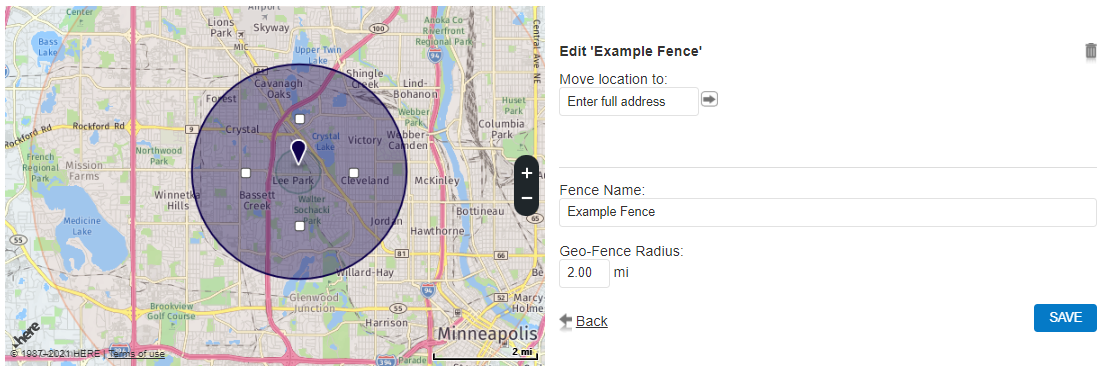
Delete a Fence
Source and support
For GoSafer Security assistance, visit gosafersecurity.com.
Original Alarm.com reference: https://answers.alarm.com/Customer/Website_and_App/Mobile_Features/Geo-Fences/Delete_a_Geo-Fence
Always verify safety, installation, compatibility, and current UI details against the original manufacturer documentation before operational use.
No comments to display
No comments to display