
View the connected Wi-Fi frequency of a video device
GoSafer Security Knowledge Base
This operational reference is organized for GoSafer Security customers and staff. Alarm.com product names are retained where required for technical accuracy.
Overview
You can view the frequency (i.e., whether the Wi-Fi band is 2.4 GHz or 5 GHz) of the network that some of your cameras are connected to using the website.
| Platform | App + Web |
|---|---|
| Content type | Reference |
| Source last updated | 2025-12-08 |
Procedure
Step-by-step guide: Screenshots and videos are placed with the instruction they illustrate.
Video device wireless signal strength can be checked remotely for devices on the customer account at any time using the Alarm.com app or GoSafer Security customer portal (powered by Alarm.com), or during device installation using the Alarm.com app. It is generally recommended for video devices to have at least 66% wireless signal strength.
Request a video device's Wi-Fi signal strength
During installation
A camera's Wi-Fi signal strength can be tested through the Alarm.com app during the installation process. To use this feature, you will need one of the following compatible Alarm.com cameras:
- ADC-V515
- ADC-V516
- ADC-V523/523X
- ADC-V530
- ADC-V723/723X
- ADC-V724/724X
- ADC-V730
- ADC-V731B
- ADC-VDB750
- ADC-VDB770
- ADC-VDB775
How to request a video device's Wi-Fi signal strength during installation:
- Log in to the Alarm.com app.
- Tap Video.
- Tap Settings.
- Tap Add Device.
- Tap the specific device or enter the MAC address to start the installation wizard.
- Enter a name for the device.
- Tap Next.
- In Configure Device, tap Next after the device is installed.
- Tap Request Signal Strength to request an updated Wi-Fi signal strength.

Wi Fi Signal Strength Test Customer App
- Tap Next to continue and configure the camera as desired.
Alarm.com app
- Log in to the Alarm.com app.
- Tap Video Camera.
- Ta Settings.
- Tap to select the desired video device.
- Tap the Wi-Fi signal strength card.
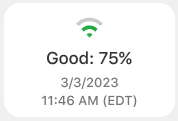
Wi Fi signal strength card
Note: The online status and Wi-Fi signal strength cards automatically display the date and time of the most recent check-in. - Tap Request Signal Strength.
GoSafer Security customer portal (powered by Alarm.com)
- Log in to the GoSafer Security customer portal (powered by Alarm.com).
- Click Video.
- Click Settings.
- Select the desired video device.
- Click the Wi-Fi signal strength card.

cx website wi fi signal strength card
Note: The online status and Wi-Fi signal strength cards automatically display the date and time of the most recent check-in. - Click Request Signal Strength.
Source and support
For GoSafer Security assistance, visit gosafersecurity.com.
Original Alarm.com reference: https://answers.alarm.com/Customer/Website_and_App/Video/Video_Settings/View_the_connected_Wi-Fi_frequency_of_a_video_device
Always verify safety, installation, compatibility, and current UI details against the original manufacturer documentation before operational use.
No comments to display
No comments to display