
How can I opt-into or out of 24/7 Managed Access?
GoSafer Security Knowledge Base
This operational reference is organized for GoSafer Security customers and staff. Alarm.com product names are retained where required for technical accuracy.
Overview
Save time and money while preserving your business's security by allowing your service provider to manage your system for you. Using 24/7 Managed Access, you will remain in control of your account, including the ability to determine the security categories your service provider manages (e.g., Arming & Disarming, View Live Video and Images, User Code Management, Login Management), while maintaining the ability to update or revoke your service provider's access at any time.
| Platform | Customer Website |
|---|---|
| Content type | FAQ / Explanation |
| Source last updated | 2025-06-04 |
Procedure
Step-by-step guide: Screenshots and videos are placed with the instruction they illustrate.
Save time and money while preserving your business's security by allowing your service provider to manage your system for you.
Using 24/7 Managed Access, you will remain in control of your account, including the ability to determine the security categories your service provider manages (e.g., Arming & Disarming, View Live Video and Images, User Code Management, Login Management), while maintaining the ability to update or revoke your service provider's access at any time.
To grant access to your service provider:
- Contact your service provider to let them know you are interested in 24/7 Managed Access.
- When they request access to your business accounts or Community management accounts, you will receive an email with a link to log in and approve access.
- Once logged in, agree to the terms and conditions.
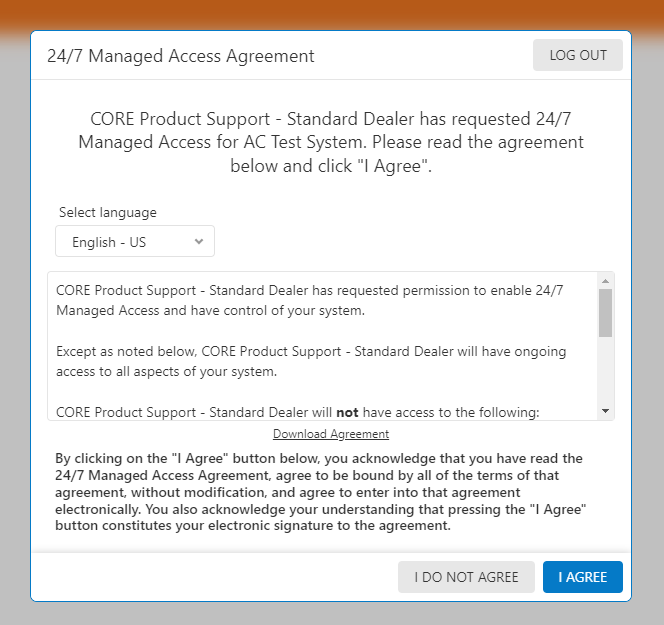
Customer Managed Access agreement
To manage access settings:
- Log in to the GoSafer Security customer portal (powered by Alarm.com).
- Click Settings.
- Click 24/7 Managed Access Settings.
- Click Opt-Out of Managed Access or select which specific features should be excluded.
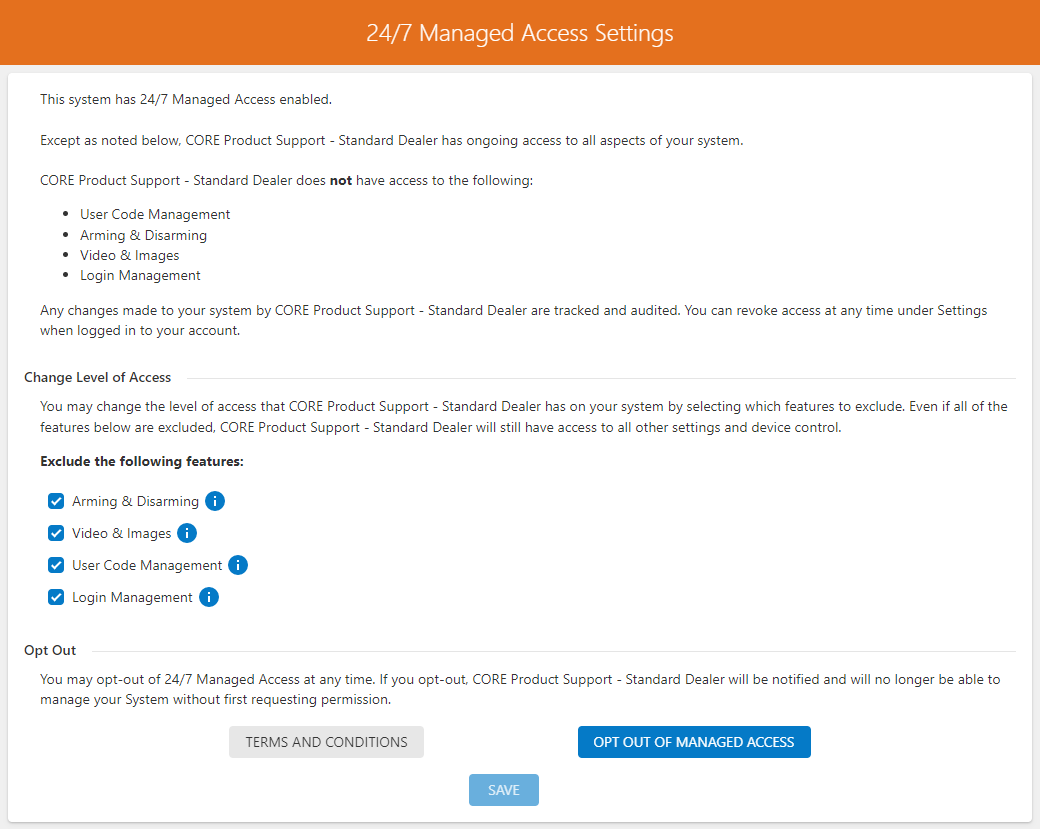
Managed Access Settings
- Click Save.
Source and support
For GoSafer Security assistance, visit gosafersecurity.com.
Original Alarm.com reference: https://answers.alarm.com/Customer/Website_and_App/Commercial/Commercial_Management/How_can_I_opt-in_or_out_of_24_7_Managed_Access
Always verify safety, installation, compatibility, and current UI details against the original manufacturer documentation before operational use.
No comments to display
No comments to display