
Trigger a panic using the app
GoSafer Security Knowledge Base
This operational reference is organized for GoSafer Security customers and staff. Alarm.com product names are retained where required for technical accuracy.
Overview
The In-App Panel Panic monitoring station supported feature can expedite the dispatch of emergency personnel when help is needed at home. When the panel is not in arm’s reach, and the keyfob is …
| Platform | Mobile App |
|---|---|
| Content type | How-to / Configuration |
| Source last updated | 2025-06-04 |
Procedure
Step-by-step guide: Screenshots and videos are placed with the instruction they illustrate.
The In-App Panel Panic and In-App Property Panic monitoring station supported features can expedite the dispatch of emergency personnel when help is needed at your account's location. If enabled on your account, In-App Panics are available on the home dashboard of the Alarm.com app.
Important: Sending a panic with the In-App Panic interface will act as if a panic is being sent from the account location. Emergency personnel will not arrive at your geographic location. They will only go to the address listed on your monitoring station account. It is encouraged to keep that information up-to-date.
Triggering a panic
This feature depends on if your account has a security panel. For more information about opting-in to the In-App Panic feature, contact your service provider.
If your account has a security panel: Icn Chevron Up
Considerations:
- Some panels send an audible alarm when Police, Fire, or Auxilary panics are sent.
- If your account has Two-Way Voice enabled, Two-Way Voice is initiated through the panel when a Police Panic is sent.
To trigger a panel panic:
- Log in to the Alarm.com app.
Important: To interact with In-App Panel Panic, a customer login with Master, Full Control, or Custom logins with the In-App Panel Panic permission must be used. Any other permission level cannot view or use the feature. - In the Security System card, tap Panic.
- Press and hold the type of panic to be triggered.
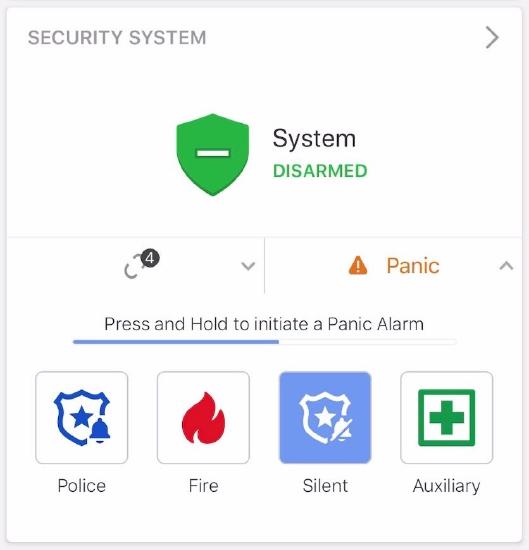
In app Panel panic sending a Silent Police Panic
- After a 3 second countdown in which the panic can be canceled or immediately sent, the panic is sent to the monitoring station and an audible alarm occurs at the panel, if applicable.
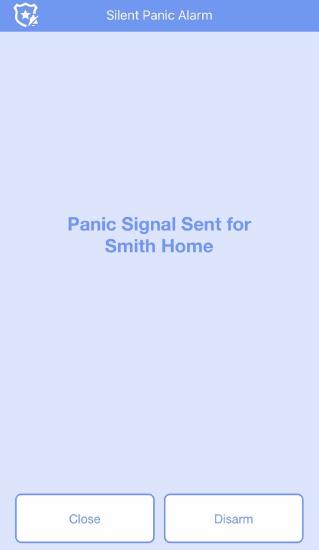
In app Panel panic Silent Police Panic sent
- Tap Close to wait for assistance or Disarm to disarm the panel.
- Tapping Disarm will negate the panic signal that was triggered.
If your account does not have a security panel:Icn Chevron Up
To trigger a property panic:
- Log in to the Alarm.com app.
- Only the primary login is able to interact with In-App Property Panic. Secondary logins cannot view or use the feature.
- In the Panic card, tap and hold the type of panic to be triggered.
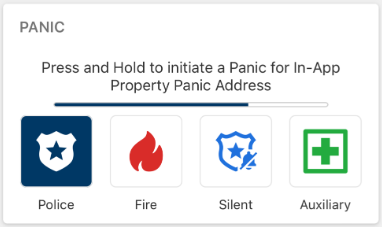
In App property Panic card Holding Police
- A 3 second countdown screen appears. Tap Cancel to cancel the panic, or Send Now to immediately send the panic.
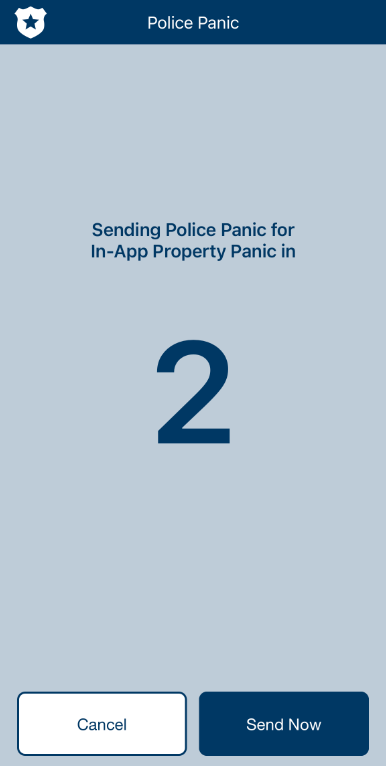
In App property Panic Countdown screen
- After the 3 second countdown, tap Close to wait for assistance.
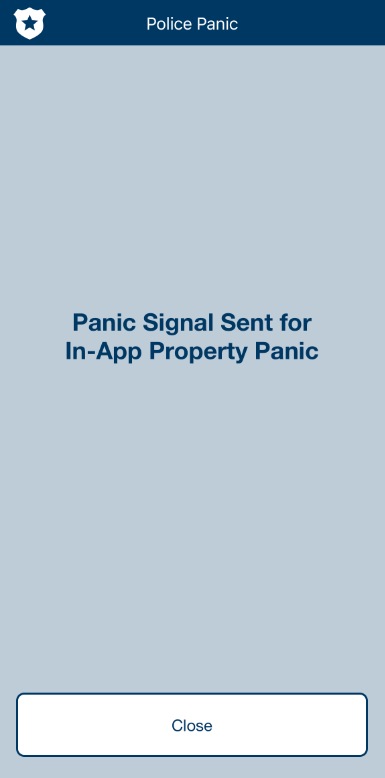
In App property Panic Close screen
Source and support
For GoSafer Security assistance, visit gosafersecurity.com.
Original Alarm.com reference: https://answers.alarm.com/Customer/Website_and_App/System_Management/System_Usage/Trigger_a_panic_using_the_app
Always verify safety, installation, compatibility, and current UI details against the original manufacturer documentation before operational use.
No comments to display
No comments to display