
View Wellness trends
GoSafer Security Knowledge Base
This operational reference is organized for GoSafer Security customers and staff. Alarm.com product names are retained where required for technical accuracy.
Overview
Wellness behaviors help users understand changing behavior trends.
| Platform | Customer Website |
|---|---|
| Content type | Reference |
| Source last updated | 2025-06-04 |
Procedure
Step-by-step guide: Screenshots and videos are placed with the instruction they illustrate.
Wellness enables you to look at multiple days’ worth of behaviors to get a better picture of long term behavior trends.
To view wellness trends:
- Log in to the GoSafer Security customer portal (powered by Alarm.com).
- Click Activity.
- Click Wellness.
- Click Behaviors.
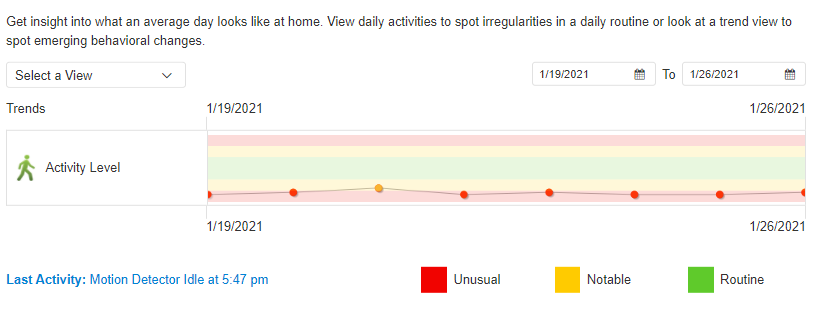
- Using the Select a View dropdown menu, click View trends to show possible emerging behavioral changes.
- The Trends page defaults to show the past week’s behaviors. To change the date range of the graph, click on the first calendar Date to select a starting date and then click on the second calendar Date to select an ending date.
While in Trends view, you have the ability to mouse over a specific data point to see the actual value, instead of its relative position on the graph. When you mouse over a specific data point, it displays the date the point represents and the value it represents.
Source and support
For GoSafer Security assistance, visit gosafersecurity.com.
Original Alarm.com reference: https://answers.alarm.com/Customer/Website_and_App/Wellness/Wellness_Management/View_Wellness_trends
Always verify safety, installation, compatibility, and current UI details against the original manufacturer documentation before operational use.
No comments to display
No comments to display