
Enable/edit Background Capture for an Image Sensor
GoSafer Security Knowledge Base
This operational reference is organized for GoSafer Security customers and staff. Alarm.com product names are retained where required for technical accuracy.
Overview
The Background Capture rule can be enabled/disabled using the GoSafer Security customer portal.
| Platform | Customer Website |
|---|---|
| Content type | How-to / Configuration |
| Source last updated | 2025-06-04 |
Procedure
Step-by-step guide: Screenshots and videos are placed with the instruction they illustrate.
Background Capture is designed to give a collection of images that covers occurrences that are not scheduled events. It can be used to capture images of first motion events periodically after sensor inactivity. The Background Capture rule for an Image Sensor can be enabled and edited using the GoSafer Security customer portal (powered by Alarm.com).
Note: To view Background Capture images, captured images need to be specifically requested for them to upload to the Event Gallery. For more information, see Upload captured images to the Image Sensor Gallery.
To enable Background Capture for an Image Sensor:
- Log in to the GoSafer Security customer portal (powered by Alarm.com).
- In the Image Sensor card, click Icn Chevron Right.
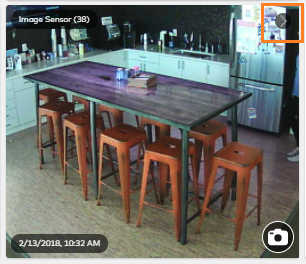
View Gallery button outlined - Click Rules.
- On the Background Capture rule, click the toggle switch to enable/disable the rule. The following image shows an enabled Background Capture rule:
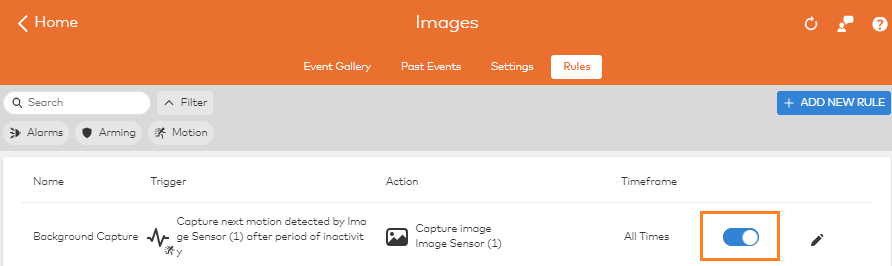
Enabled Background Capture rule
Note: If Background Capture is unable to be enabled on an Image Sensor, contact your service provider.
To edit Background Capture for an Image Sensor:
- Log in to the GoSafer Security customer portal (powered by Alarm.com).
- In the Image Sensor card, click Icn Chevron Right.
- Click Rules.
- Click Icn Editon the Background Capture rule.
- Click to select which Image Sensors will trigger the Background Capture rule.
- Click to select desired conditions when Background Capture will not capture images.
- For Arming State, you have the option to select for the system to not capture images when the system is Disarmed and when it is Armed Stay.
- For Alarm.com Places, you have the option to select for the system to not capture images when selected Geo-Devices are inside a selected Geo-Fence.
- For Time frame, you have the option to select hours of each day of the week that Background Capture will not be enabled to capture images.
- Verify all desired settings are selected.
- Click Save.
Source and support
For GoSafer Security assistance, visit gosafersecurity.com.
Original Alarm.com reference: https://answers.alarm.com/Customer/Website_and_App/Image_Sensor/Image_Sensor_Rules_and_Alerts/Enable_edit_Background_Capture_for_an_Image_Sensor
Always verify safety, installation, compatibility, and current UI details against the original manufacturer documentation before operational use.
No comments to display
No comments to display