
Disarm the system remotely
GoSafer Security Knowledge Base
This operational reference is organized for GoSafer Security customers and staff. Alarm.com product names are retained where required for technical accuracy.
Overview
The system can be disarmed or put into a non-alarm state for when the system is occupied.
| Platform | App + Web |
|---|---|
| Content type | How-to / Configuration |
| Source last updated | 2025-06-04 |
Procedure
Step-by-step guide: Screenshots and videos are placed with the instruction they illustrate.
The system can be remotely disarmed using the Alarm.com app or GoSafer Security customer portal (powered by Alarm.com). Disarming the system puts it into a non-alarm state when the location is occupied.
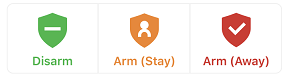
To disarm the system using the Alarm.com app:
- Log in to the Alarm.com app.
- In the Security System card, tap the shield icon that indicates the current arming state.
- Tap Disarm.
To disarm the system using the GoSafer Security customer portal (powered by Alarm.com):
- Log in to the GoSafer Security customer portal (powered by Alarm.com).
- In the Security card, click the shield icon that indicates the current arming state.
- Click Disarm.
To disarm the system using Scenes:
Scenes allow users to configure a button on the Alarm.com app and GoSafer Security customer portal (powered by Alarm.com) that triggers multiple actions across multiple devices at once. For more information about Scenes, see How do Scenes work?.
- Log in to the Alarm.com app or GoSafer Security customer portal (powered by Alarm.com).
- In Scenes, select the Scene you want to run that includes the disarm command.
- For more information about creating or editing Scenes, see Create/edit a Scene.
- Confirm that you want to run that Scene.
Source and support
For GoSafer Security assistance, visit gosafersecurity.com.
Original Alarm.com reference: https://answers.alarm.com/Customer/Website_and_App/System_Management/System_Usage/Disarm_the_system_remotely
Always verify safety, installation, compatibility, and current UI details against the original manufacturer documentation before operational use.
No comments to display
No comments to display