
How can a user code only be given access at certain times?
GoSafer Security Knowledge Base
This operational reference is organized for GoSafer Security customers and staff. Alarm.com product names are retained where required for technical accuracy.
Overview
Some systems allow for scheduled or temporary user access that will give specified users access to the system at certain times. If you do not see the following options, your system may not be compatible with scheduled or temporary user codes. For further questions, contact your service provider.
| Platform | App + Web |
|---|---|
| Content type | How-to / Configuration |
| Source last updated | 2025-06-04 |
Procedure
Step-by-step guide: Screenshots and videos are placed with the instruction they illustrate.
Some systems allow for scheduled or temporary user access that will give specified users access to the system at certain times.
If you do not see the following options, your system may not be compatible with scheduled or temporary user codes. For further questions, contact your service provider.
Scheduled panel user code access
Scheduled user codes allow a user to have access to the system during a specified timeframe every week.
Example: A scheduled user code can be given access to the system for every Monday and Wednesday between 8:00 AM to 4:00 PM.
Restrict a user code to a specific time period
To restrict a user code to a specific time period using the Alarm.com app:Icn Chevron Up
- Log in to the Alarm.com app.
- Tap Menu.
- Tap Users.
- Tap to select the user to restrict.
- Verify the user has Panel Access enabled, and a valid Access Code.
- In Access Information, tap Access Period.
- Tap Restricted schedule.
- In Weekly Schedule, configure the days and time to restrict the user's access to the system.
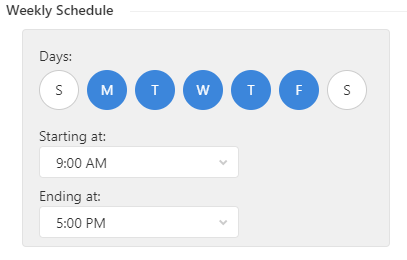
weekly schedule
- Tap Save.
To restrict a user code to a specific time period using the GoSafer Security customer portal (powered by Alarm.com):Icn Chevron Up
- Log in to the GoSafer Security customer portal (powered by Alarm.com).
- Click Users.
- Click More options for the user that will be restricted.
- Click Edit .
- Verify the user has panel access enabled with a valid access code.
- In Access Information, click Access Period.
- Click Restricted Schedule.
- In Weekly Schedule, configure the days and time to restrict the user's access to the system.
weekly schedule
- Click Save.
Temporary panel user code access
Temporary user codes have access to the system during only a specified start and end time.
Example: A temporary user code can be given access to the system for January 7, 2019, from 8:00 AM until January 10, 2019, at 4:00 PM. The code can arm and disarm the system at any time between the specified time period.
Add a temporary user code
To add a temporary user code using the Alarm.com app:Icn Chevron Up
- Log in to the Alarm.com app.
- Tap Menu.
- Tap Users.
- Tap to select the user to restrict.
- Verify the user has Panel Access enabled, and a valid Access Code.
- In Access Information, tap Access Period.
- Tap Temporary Access.
- Select the start and end date/time that the user will have access to the system.
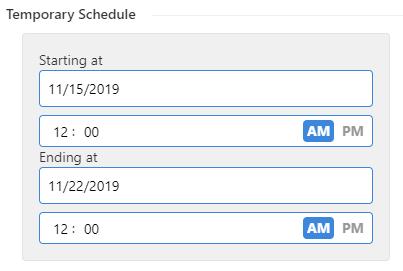
temporary schedule
- Tap Save.
To add a temporary user code using the GoSafer Security customer portal (powered by Alarm.com):Icn Chevron Up
- Log in to the GoSafer Security customer portal (powered by Alarm.com).
- Click Users.
- Click More options for the user that will be restricted.
- Click Edit .
- Verify the user has panel access enabled with a valid access code.
- In Access Information, click Access Period.
- Click Temporary Access.
- Select the start and end date/time that the user will have access to the system.
temporary schedule
- Click Save.
Source and support
For GoSafer Security assistance, visit gosafersecurity.com.
Original Alarm.com reference: https://answers.alarm.com/Customer/Website_and_App/User_Management/System_Users/How_can_a_user_code_only_be_given_access_at_certain_times
Always verify safety, installation, compatibility, and current UI details against the original manufacturer documentation before operational use.
No comments to display
No comments to display