
What is Two Factor Authentication?
GoSafer Security Knowledge Base
This operational reference is organized for GoSafer Security customers and staff. Alarm.com product names are retained where required for technical accuracy.
Overview
Two Factor Authentication is an optional security measure for an account that requires the entry of an additional code, received as an SMS text message or email, after logging into an account with a login name and password. The code can also be generated using an authenticator app. Note: It is recommended to create separate logins for additional users as Two Factor Authentication associates a username with a specific phone number or email address. For more information, see Create a new login.
| Platform | App + Web |
|---|---|
| Content type | How-to / Configuration |
| Source last updated | 2025-06-04 |
Procedure
Step-by-step guide: Screenshots and videos are placed with the instruction they illustrate.
Note: Two Factor Authentication can be referred to as 2FA, Multi-Factor Authentication, or MFA.
Two Factor Authentication adds an extra layer of security to protect access to your system. This makes it harder for potential intruders to gain access to your system, so your system and your property are even more secure. Whenever you sign into your system from a new or untrusted device, you will have to enter both your password and a code sent to your mobile phone.
Enable or disable Two Factor Authentication
Two Factor Authentication can be enabled or disabled using the Alarm.com app and GoSafer Security customer portal (powered by Alarm.com).
Note: If Two Factor Authentication is enabled, all active sessions on the Alarm.com app and GoSafer Security customer portal (powered by Alarm.com) will end. Two Factor Authentication will be required to log back in.
To enable or disable Two Factor Authentication for a login using the Alarm.com app: Icn Chevron Down
Note: If you have changed your phone number or email address, see If you change your cell carrier, phone number, or email address.
- Log in to the Alarm.com app.
- Tap Menu.
- Tap Login Information.
- Tap Two Factor Authentication.
- To disable Two Factor Authentication, tap Disable and then tap Confirm.
Note: Two Factor Authentication may be required or suggested by your service provider. For additional assistance, contact your service provider. - To enable Two Factor Authentication, select Text Message, Email, or Authentication app.
Note: It is recommended to set up Two Factor Authentication using multiple methods. If multiple methods cannot be enabled, contact your service provider- To enable Two Factor Authentication for text message:
- Tap Text Message.
- Tap Next.
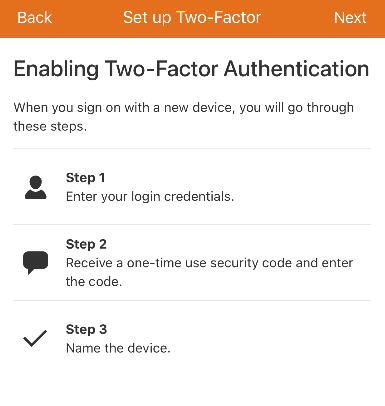
Mobile Two Factor Authentication Enable
- In Mobile Number, enter the mobile number to receive the Two Factor Authentication confirmation code.
- Using the Country dropdown menu, select either USA or Canada.
- Using the Provider dropdown menu, select the cellular carrier of the mobile phone number that will receive the Two Factor Authentication confirmation code.
Note: The Provider dropdown menu displays the full list of Two Factor Authentication compatible cellular carriers.- If the carrier is not listed, select Other.
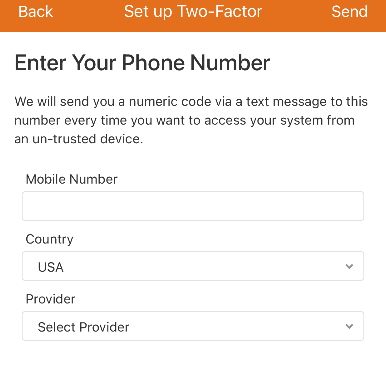
Mobile Two Factor Authentication Phone Number
Note: This displays the full list of Two Factor Authentication compatible cellular carriers.
- If the carrier is not listed, select Other.
- Tap Send to send the verification code to the mobile number entered.
- In Verification Code, enter the code that is provided in a text message to the mobile number entered.
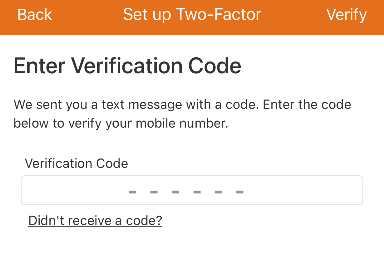
Mobile Two Factor Authentication Verification Code
- Tap Verify.
- To enable Two Factor Authentication for email:
- Tap Email.
- In Send Verification Code, verify the correct email is displayed. For more information about how to update the email address, see Change an email address.
- Tap Send.
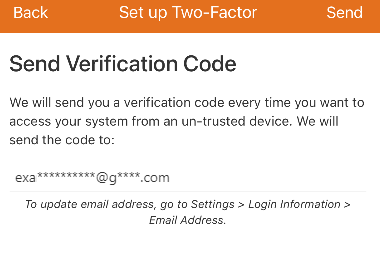
Mobile Two Factor Authentication Email
- In Verification Code, enter the code that is provided in the received email.
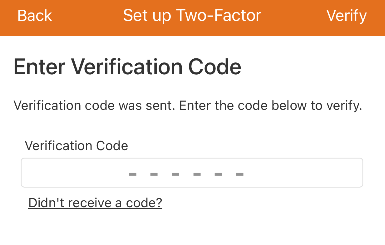
Mobile Two Factor Authentication Email Code
- Tap Verify.
- To enable Two Factor Authentication using an authentication app:
Important: An authenticator app is required to complete this process and the steps may vary based on the authenticator app in use.- Tap Authentication App.
- Generate an authentication code:
Note: The Duo authenticator app may experience unexpected behavior and it is recommended to use an alternative authenticator app.- Use an authenticator app to scan the QR code or manually enter the code provided on the Alarm.com app or GoSafer Security customer portal (powered by Alarm.com) into the authenticator app.
- In the Enter Code field, enter the code that is generated on the authenticator app to verify the device.
- Click Next.
- To enable Two Factor Authentication for text message:
- In Device Name, enter the desired name for the device that will be trusted.
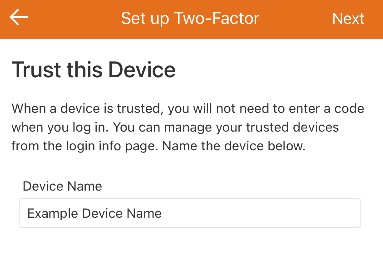
Mobile Two Factor Authentication Trust this Device
- Tap Next.
- In Linked Devices, tap Trust next to any additional devices that can be trusted.
- Tap Done.
To enable or disable Two Factor Authentication for a login using the GoSafer Security customer portal (powered by Alarm.com):Icn Chevron Down
Note: If you have changed your phone number or email address, see If you change your cell carrier, phone number, or email address.
- Log in to the GoSafer Security customer portal (powered by Alarm.com).
- Click Settings.
- Click Login Information.
- Click Two Factor Authentication.
- To disable Two Factor Authentication, click Disable.
Note: Two Factor Authentication may be required or suggested by your service provider. For additional assistance, contact your service provider. - To enable Two Factor Authentication, select Text Message, Email, or Authentication app.
Note: It is recommended to set up Two Factor Authentication using multiple methods. If multiple methods cannot be enabled, contact your service provider.- To enable Two Factor Authentication for text message:
- Click Text Message.
- Click Next.
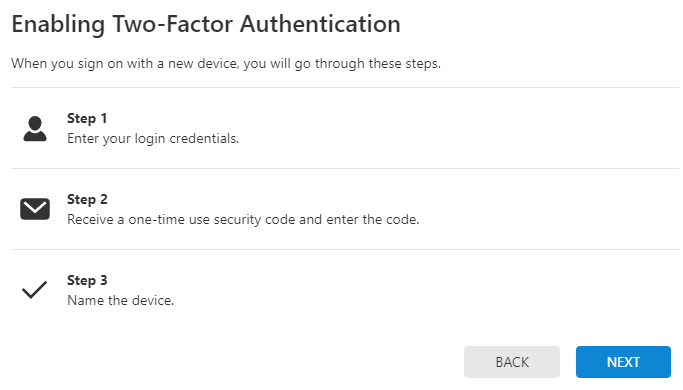
Two Factor Authentication GoSafer Security customer portal
- In Mobile Number, enter the mobile number to receive the Two Factor Authentication confirmation code.
- Using the Country dropdown menu, select either USA or Canada.
- Using the Provider dropdown menu, select the cellular carrier of the mobile phone number that will receive the Two Factor Authentication confirmation code.
Note: The Provider dropdown menu displays the full list of Two Factor Authentication compatible cellular carriers.- If the carrier is not listed, select Other.
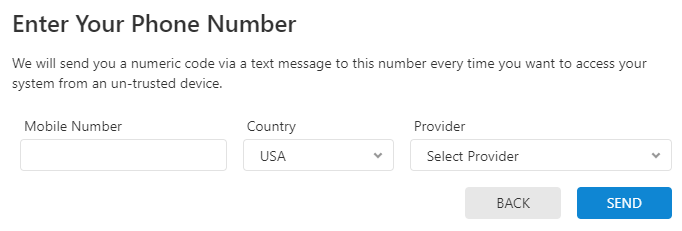
Two Factor Authentication Phone Number
- If the carrier is not listed, select Other.
- Click Send to send a verification code to the mobile number.
- In Verification Code, enter the code that is provided in a text message to the mobile number.
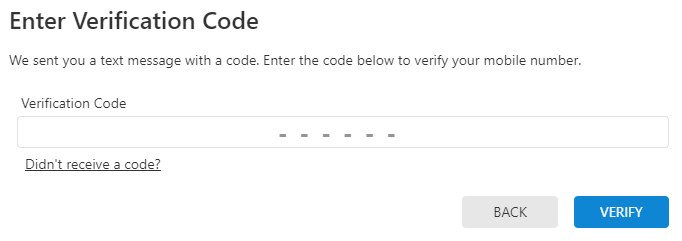
Two Factor Authentication Verification Code
- Click Verify.
- To enable Two Factor Authentication for email:
- Click Email.
- In Send Verification Code, verify the correct email is displayed. For more information about how to update the email address, see Change an email address.
- Click Send.
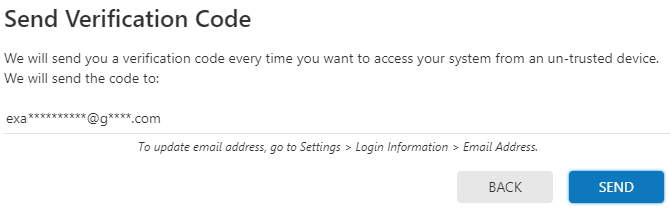
Two Factor Authentication Email Code
- In Verification Code, enter the code that is provided in the received email.
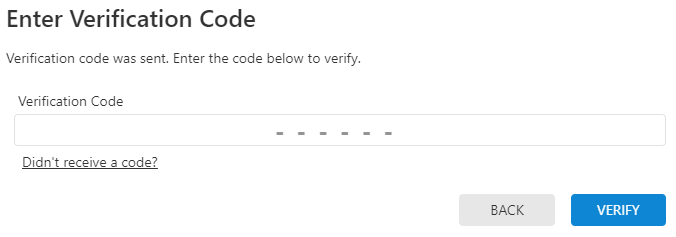
Two Factor Authentication Email Code Sent
- Click Verify.
- To enable Two Factor Authentication using an authentication app:
Important: A mobile device with an authenticator app is required to complete this process and the steps may vary based on the authenticator app in use.- Click Authentication App.
- Generate an authentication code:
Note: The Duo authenticator app may experience unexpected behavior and it is recommended to use an alternative authenticator app.- Use a mobile device with an authenticator app to scan the QR code or manually enter the code provided on the Alarm.com app or GoSafer Security customer portal (powered by Alarm.com) into the authenticator app.
- In the Enter Code field, enter the code that is generated on the authenticator app to verify the device.
- Click Next.
- To enable Two Factor Authentication for text message:
- In Device Name, enter the desired name for the device that is accessing the account.
- If the device is trusted, click to select Trust This Device.
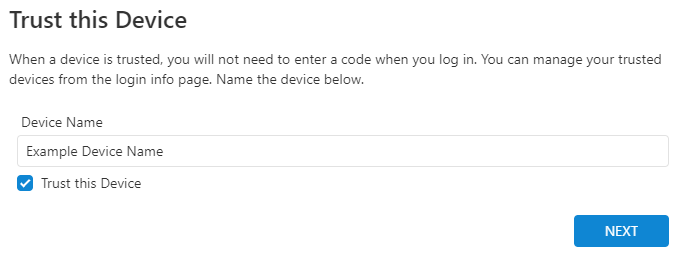
Two Factor Authentication Trust Device
- If the device is trusted, click to select Trust This Device.
- Click Next.
- In Linked Devices, click Trust next to any additional devices that can be trusted.
- Click Done.
Manage trusted devices
To manage trusted devices using the Alarm.com app:Icn Chevron Down
- Log in to the Alarm.com app.
- Tap Menu.
- Tap Login Information.
- Tap Two Factor Authentication.
- Tap Details next to the device name.
- Make the desired changes:
- To rename the device, enter the desired device name, then tap Save.
- To delete the device, click Delete Trusted Device, then tap Confirm.
To manage trusted devices using the GoSafer Security customer portal (powered by Alarm.com):Icn Chevron Down
- Log in to the GoSafer Security customer portal (powered by Alarm.com).
- Click Settings.
- Click Login Information.
- Click Two Factor Authentication.
- Click Details next to the device name.
- Make the desired changes:
- To rename the device, enter the desired device name, then click Save.
- To delete the device, click Delete Trusted Device, then click Confirm.
If you change your cell carrier or no longer have access to the phone number or authenticator app:
If you change your cell carrier or no longer have access to the phone number or authenticator app, Two-Factor Authentication can be reset using email. For more information, see Reset Two-Factor Customer.
If email Two Factor Authentication is set up and you no longer have access to your email address, contact your service provider for assistance with resetting your Two-Factor Authentication configuration.
Reset Two Factor Authentication
Two Factor Authentication can be reset using the Alarm.com app or GoSafer Security customer portal (powered by Alarm.com).
To reset Two Factor Authentication:Icn Chevron Down
- Log in to the Alarm.com app or GoSafer Security customer portal (powered by Alarm.com).
- In Enter Verification Code, click or tap Down next to Don't have access to your device?.
- Select to reset Two-Factor Authentication or to contact your service provider:
- If you have access to your email address associated with the login:
- In Option 1: Reset Two-Factor Authentication, tap or click Reset 2FA to send a reset link to the email address associated with the login.
- If you do not have access to your email address associated with the login:
- In Option 2: Contact your Service Provider, use the contact information listed to contact your service provider.
- If you have access to your email address associated with the login:
Note: The ability to reset your own Two-Factor Authentication configuration is only available to users using SMS or an authenticator application.
Source and support
For GoSafer Security assistance, visit gosafersecurity.com.
Original Alarm.com reference: https://answers.alarm.com/Customer/Website_and_App/User_Management/Web_App_Users/What_is_Two_Factor_Authentication
Always verify safety, installation, compatibility, and current UI details against the original manufacturer documentation before operational use.
No comments to display
No comments to display