
How does video storage work with Alarm.com cameras?
GoSafer Security Knowledge Base
This operational reference is organized for GoSafer Security customers and staff. Alarm.com product names are retained where required for technical accuracy.
Overview
Recorded clips can be uploaded to cloud storage for the customer to access from their account. Stored clips will be removed oldest first when capacity is reached. Upload limits cap the number of new …
| Platform | App + Web |
|---|---|
| Content type | FAQ / Explanation |
| Source last updated | 2025-06-04 |
Procedure
Step-by-step guide: Screenshots and videos are placed with the instruction they illustrate.
Alarm.com cameras can record video clips, which are then uploaded to the GoSafer Security customer portal (powered by Alarm.com) and Alarm.com app. Each video service package has two major components: monthly clip limit and storage limit. Each clip is treated the same regardless of its length, recording resolution, and quality.
To view video usage:
- Log in to the GoSafer Security customer portal (powered by Alarm.com).
- Click Video.
- Click Saved Video Clips.
- Monthly Clip Limit and Oldest Recorded Clip are displayed at the bottom of the page.
- Click Help on either for more detailed status information.
Online storage overview
| Monthly clip limit | Online storage |
|---|---|
 This is the number of new clips that users can upload per calendar month. If a user's account reaches its upload limit, all non-alarm and non-RVM recording rules are paused and cannot be resumed until the first day of the following month. |
 This is the number of uploaded clips the account can store online at any given time. If there is no space left, clips are deleted automatically oldest first as new clips get uploaded. |
It is possible for an account to display more monthly clips uploaded than the account limit if the uploaded clips are from alarm events.
Example: An account is configured to have 3000 monthly clips. If that clip limit is reached before the end of the month, and later in the same month an alarm event causes 3 recording rules to trigger, that account will show 3003 monthly clips.
Monthly uploads
Every time a camera recording is triggered, it uploads to Alarm.com. Each clip taken by the camera (i.e., motion detection, alarm recording, manual clip request) counts as a clip upload on the service package. Customers receive a predetermined number of monthly uploads based on the selected service package/add-on, and this limit resets on the first of every month.
Users cannot delete recordings to free up more upload space because the upload has already taken place.
Enhanced monthly clip limit alerts
Enhanced monthly clip-limit alerts are an early warning system that helps customers spot and fix recording rules before limits are reached and rules are paused. Email and push notifications are still sent when key benchmarks are reached, but notifications are also sent depending on how quickly the customer account reaches each benchmark. This ensures customers can address problem rules quickly.
Users can set up notifications to assist in monitoring their monthly upload usage. For more information about setting up video upload limit notifications, see Create a video upload limit notification.
If an account reaches its monthly clip limit
After an account's video clip upload limit is reached, the account recording rules are paused with the exception of Alarm-triggered rules and Remote Video Monitoring (RVM) rules. A pop-up appears on the Recording Rules page of the GoSafer Security customer portal (powered by Alarm.com) and the Alarm.com app warning the customer that their rules are paused.
If the customer has a service package that supports Video Analytics, recording rules will automatically restart capturing clips and uploading them on the first of the following month. They can also be resumed manually after the account's service package is upgraded to include additional video clips.
Note: While recording rules are paused, customers can still edit them to ensure they do not reach their clip limit as quickly upon restart.
Deleting clips after the limit has been reached will not cause clips to restart. Customers must wait for the first of the following month or upgrade their service package.
Online storage details
This is how many total clips Alarm.com stores on the account for all video devices on the customer's account.
If an account reaches its online storage limit
When an account's video clip storage is full, video clips continue to upload unless the recording rule is paused.
If a video clip is uploaded to an account with full online storage, the system overwrites the oldest unprotected video clip to make room for the newest clip. It is not necessary to free up online storage by deleting clips. If the user wishes to delete saved video clips, see Delete saved video clips.
Example: If a user has a service package that allows 1,000 clips to be stored online and they upload 500 clips in January and 500 clips in February, their online storage is full. Each time a new clip is recorded at this point, the oldest clip (in this case, starting from January) is overwritten unless it is protected. For information on how to protect clips, see Can certain clips be protected?.
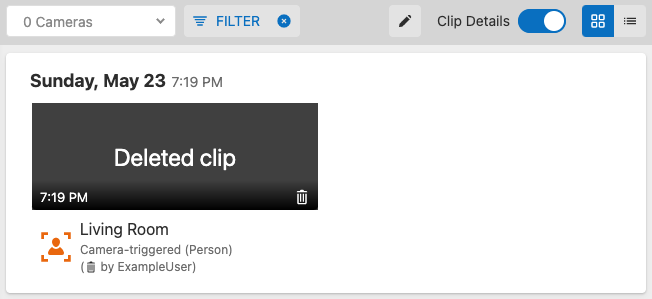
To find which user deleted a video clip:
Note: Details about deleted clips are only retained on the GoSafer Security customer portal (powered by Alarm.com) for 60 days and cannot be viewed afterwards.
- Log in to the GoSafer Security customer portal (powered by Alarm.com).
- Click Video.
- Click Saved Video Clips.
- Click Filter.
- In Clip Status, click to select Deleted. Deselect the other options in Clip Status to only show deleted clips.
- Click Apply.
- Click the Clip Details toggle switch.
- The username of the user who deleted the clip appears as (Delete by username). If the username does not appear in gallery view and Clip Details are enabled, the clip was automatically deleted to make room for online storage of new saved clips.
If the online storage/monthly clip limit is too low
Increase the online storage/monthly clip limit
Extra video storage is available with expansion packs, which allow the customer to have more cameras and provide additional online storage and monthly uploads per video expansion. The account's clip upload limit can also be temporarily increased if a permanent upgrade is not necessary.
Decrease the number of clip uploads
Careful camera placement and recording rule configuration reduces unwanted recordings and optimizes the use of online storage capacity. If Video Analytics is an option, it is recommended because it produces fewer recordings that are not important to the customer.
For more information about the ideal Video Analytics configuration, see Video Analytics best practices.
For more information about the proper Video Motion Detection (VMD) configuration, see Configure Video Motion Detection (VMD) settings for a video device.
Alternatively, Stream Video Recorders (SVRs) provide 24/7 recording that can either partially or fully replace the need to upload video clips at all. For more information about SVRs, see:
Can certain clips be protected?
Yes. Users can protect clips to ensure they are never automatically overwritten due to online storage reaching its limit. Users can also download clips and store them on a hard drive.
Caution: Changing a video device's Limit the number of days to keep clips setting to anything other than Unlimited will remove protected clips along with unprotected clips.
To protect a clip using the GoSafer Security customer portal (powered by Alarm.com):Icn Chevron Up
To protect a clip using the Alarm.com app:
Icn Chevron Up
To protect multiple clips using the GoSafer Security customer portal (powered by Alarm.com):
- Log in to the GoSafer Security customer portal (powered by Alarm.com).
- Click Video.
- Click Saved Video Clips.
- Click Bulk Actions.
- Click each desired clip or click Video Checkbox to select all the videos shown on the page.
- Click Icn Lock.
Source and support
For GoSafer Security assistance, visit gosafersecurity.com.
Original Alarm.com reference: https://answers.alarm.com/Customer/Website_and_App/Video/Saved_Video/What_happens_when_an_accounts_video_clip_online_storage_limit_is_reached
Always verify safety, installation, compatibility, and current UI details against the original manufacturer documentation before operational use.
No comments to display
No comments to display