
Create/edit a group of lights
GoSafer Security Knowledge Base
This operational reference is organized for GoSafer Security customers and staff. Alarm.com product names are retained where required for technical accuracy.
Overview
Light devices can be grouped so multiple devices can be managed at the same time.
| Platform | Customer Website |
|---|---|
| Content type | How-to / Configuration |
| Source last updated | 2025-06-04 |
Procedure
Step-by-step guide: Screenshots and videos are placed with the instruction they illustrate.
The GoSafer Security customer portal (powered by Alarm.com) can be used to create and manage light groups. Light devices can be grouped so multiple devices can be managed at the same time. Lights that are in a group have the option for All On, All Off, or can be toggled on or off individually.
To create a group of lights:
- Log in to the GoSafer Security customer portal (powered by Alarm.com).
- In the Lights card, click Details.
- Click Add Group.
- In Group Name, enter the name for the light group.
- Click to select the lights to include in the group.
- Click Add Group to create the group.
To manage a group of lights:
- Log in to the GoSafer Security customer portal (powered by Alarm.com).
- Click Settings for the desired group.
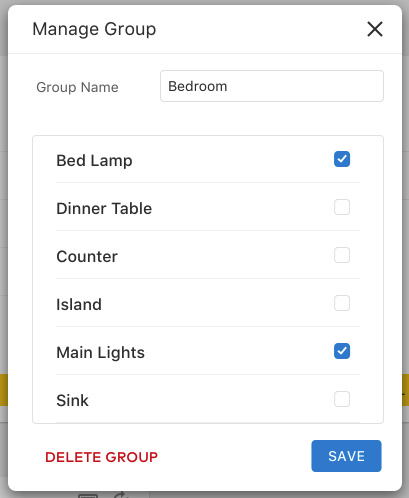
- In Manage Group:
- In Group Name, enter the desired group name.
- Click to select the lights to be included within the group.
- Click Save.
To delete a group of lights:
- Log in to the GoSafer Security customer portal (powered by Alarm.com).
- Click Settings for the desired group.
- In Manage Group, click Delete Group.
Source and support
For GoSafer Security assistance, visit gosafersecurity.com.
Original Alarm.com reference: https://answers.alarm.com/Customer/Website_and_App/Home_Automation/Lights/Create_edit_a_group_of_lights
Always verify safety, installation, compatibility, and current UI details against the original manufacturer documentation before operational use.
No comments to display
No comments to display