
Video Troubleshooting Wizard
GoSafer Security Knowledge Base
This operational reference is organized for GoSafer Security customers and staff. Alarm.com product names are retained where required for technical accuracy.
Overview
The Video Troubleshooting Wizard guides you through basic steps for bringing your video devices back online after they become disconnected.
| Platform | App + Web |
|---|---|
| Content type | Troubleshooting |
| Source last updated | 2025-06-04 |
Procedure
Step-by-step guide: Screenshots and videos are placed with the instruction they illustrate.
The Video Troubleshooting Wizard guides you through basic steps for bringing your video devices back online after they become disconnected. These troubleshooting steps include:
- Power-cycling the video device
- Power-cycling the router
- Re-configuring wireless information
The Video Troubleshooting Wizard can identify the type of video device and provide device-specific advice depending on the situation. It can also detect and notify you when the device comes back online during the troubleshooting process. For more information about general troubleshooting for a disconnected video device, see How can a camera be reconnected to a Wi-Fi network if the router, network equipment, or wireless settings change?.
All Alarm.com video devices are supported by the Video Troubleshooting Wizard available on the Alarm.com app and GoSafer Security customer portal (powered by Alarm.com). The Video Troubleshooting Wizard is not available until a video device is offline for at least five minutes.
Access the Video Troubleshooting Wizard
The Video Troubleshooting Wizard can be accessed using the Alarm.com app or GoSafer Security customer portal (powered by Alarm.com).
To access the Video Troubleshooting Wizard using the Alarm.com app:Icn Chevron Up
- Log in to the Alarm.com app.
- Tap Video.
- Tap to select the video device.
- Tap Troubleshoot.
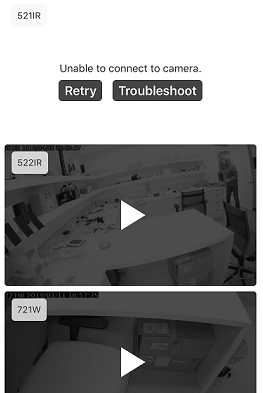
Troubleshoot wizard
- Tap Get Started.
.png?revision=1&size=bestfit&width=300)
Video Troubleshooting Wizard get started (customer app)
- Proceed through the wizard until the device is found and successfully connects.
To access the Video Troubleshooting Wizard using the GoSafer Security customer portal (powered by Alarm.com):Icn Chevron Up
- Log in to the GoSafer Security customer portal (powered by Alarm.com).
- Click Video.
- Click Live Video.
- In the camera feed window of the malfunctioning device, click Troubleshoot.

Unable to load video (customer site) - Click Get Started.
- Proceed through the wizard until the device is found and successfully connects.
If all troubleshooting steps fail to resolve the issue, contact your service provider for additional support. To learn more about how to contact your service provider, see Contact your service provider.
Source and support
For GoSafer Security assistance, visit gosafersecurity.com.
Original Alarm.com reference: https://answers.alarm.com/Customer/Website_and_App/Video/Video_Settings/Video_Troubleshooting_Wizard
Always verify safety, installation, compatibility, and current UI details against the original manufacturer documentation before operational use.
No comments to display
No comments to display