
View Wellness behaviors
GoSafer Security Knowledge Base
This operational reference is organized for GoSafer Security customers and staff. Alarm.com product names are retained where required for technical accuracy.
Overview
Wellness behaviors help users understand average daily behaviors and if behaviors are deviating from the norm.
| Platform | App + Web |
|---|---|
| Content type | Reference |
| Source last updated | 2025-06-04 |
Procedure
Step-by-step guide: Screenshots and videos are placed with the instruction they illustrate.
The Behaviors are created by gathering information from the sensors around the home. Behaviors are tied to sensors in specific rooms, which allow Wellness to only display relevant information that fits your needs. The dashboard is set up in an intuitive Red, Yellow, Green format, which indicates how close to average that day’s behaviors were. The farther the arrow that points into one of the five sections is from the middle, the more unusual that day’s behaviors were compared to that of an average day.
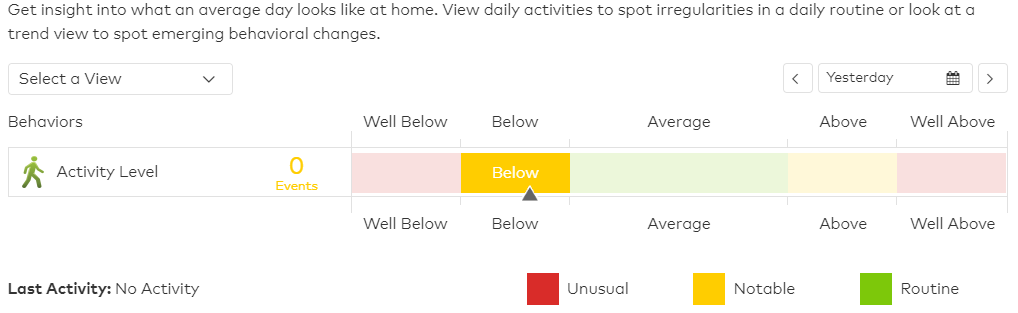
To compare the average and day’s behavior directly, simply scroll over the arrow that correlates to the desired behavior. This displays both the average and the behavior’s actual data.
To see past days, simply click the calendar and choose a date within the previous 2 months.
To view Wellness behaviors using the Alarm.com app:
- Log in to the Alarm.com app.
- Tap Wellness.
- Tap Behaviors.
- The graph with display unusual, notable, and routine behaviors over the specified period of time.
To view Wellness behaviors using the GoSafer Security customer portal (powered by Alarm.com):
- Log in to the GoSafer Security customer portal (powered by Alarm.com).
- Click Activity.
- Click Wellness.
- Click Behaviors.
- The graph with display unusual, notable, and routine behaviors over the specified period of time.
Note: Using the Select a View dropdown menu, click View Behaviors to show possible irregularities in a daily routine.
Source and support
For GoSafer Security assistance, visit gosafersecurity.com.
Original Alarm.com reference: https://answers.alarm.com/Customer/Website_and_App/Wellness/Wellness_Management/View_Wellness_behaviors
Always verify safety, installation, compatibility, and current UI details against the original manufacturer documentation before operational use.
No comments to display
No comments to display