
Protect a video clip
GoSafer Security Knowledge Base
This operational reference is organized for GoSafer Security customers and staff. Alarm.com product names are retained where required for technical accuracy.
Overview
Video clips can be protected from automatic, manual, or accidental deletion.
| Platform | Mobile App |
|---|---|
| Content type | Reference |
| Source last updated | 2025-06-04 |
Procedure
Step-by-step guide: Screenshots and videos are placed with the instruction they illustrate.
Video clips can be protected from automatic, manual, or accidental deletion. When the online storage is full, protected clips will be skipped when making room for new uploads. For more information about online storage, see What happens when an account's video clip online storage limit is reached?.
Caution: If the Limit the number of days to keep clips setting is set to a specific timeframe, protected clips are removed too if they reach the configured number of days. For more information, see Change the number of days to keep video clips before deletion.
To protect a video clip
Using the Alarm.com app:
On Android OS devices:Icn Chevron Up
- Log in to the Alarm.com app.
- Tap Video.
- Tap Saved.
- Long press on a clip to select it.
- To select multiple clips for bulk actions, tap Grey Circle Checkmark, then tap to select the desired clips.
- Tap Options.
- Tap Protect.
On iOS devices:Icn Chevron Up
- Log in to the Alarm.com app.
- Tap Video.
- Tap Saved.
- Long press on a clip to select it.
- To select multiple clips for bulk actions, tap Select, then tap to select the desired clips.
- Tap Lock.
Using the GoSafer Security customer portal (powered by Alarm.com):
- Log in to the GoSafer Security customer portal (powered by Alarm.com).
- Click Video.
- Click Saved Video Clips.
- Choose whether to protect individual clips or multiple clips.
- To protect individual clips:
- Mouse over the desired clip, then click Options.
- Click Protect clip.
Important: A Protected Clips Reminder may populate after selecting a clip to protect. Downloading the clip is recommended to ensure you retain access to it. Alternatively, you can change the Limited the number of days to keep clips setting to Unlimited. For more information, see Change the number of days to keep video clips before deletion.
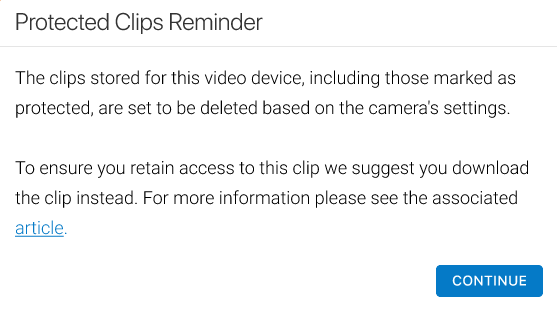
Protected Clips Reminder
If you do not see the option to change the number of days to keep video clips before deletion, reach out to your service provider for more information.
- To protect multiple video clips at once:
- Click Bulk Actions.
- Click each desired clip or click to select all the videos shown on the page.
- Click Lock.
- To protect individual clips:
Source and support
For GoSafer Security assistance, visit gosafersecurity.com.
Original Alarm.com reference: https://answers.alarm.com/Customer/Website_and_App/Video/Saved_Video/Protect_a_video_clip
Always verify safety, installation, compatibility, and current UI details against the original manufacturer documentation before operational use.
No comments to display
No comments to display