
Connect a Google Nest Thermostat to your account
GoSafer Security Knowledge Base
This operational reference is organized for GoSafer Security customers and staff. Alarm.com product names are retained where required for technical accuracy.
Overview
Google Nest Thermostats are Wi-Fi thermostats that can be connected to your subscriber account. Any questions about installing these thermostats, adding the thermostats onto a Google account, or features not available through your subscriber account on the Nest Thermostats should be directed to Google. Important: All thermostat schedules must be configured using the Google Nest platform. It is a basic integration that only allows control of the target temperature, thermostat mode, and fan mode. It does not support any additional rule-based automation, website-programmed thermostat or fan schedules, battery level reporting, or advanced configuration setting.
| Platform | App + Web |
|---|---|
| Content type | How-to / Configuration |
| Source last updated | 2025-06-04 |
Procedure
Step-by-step guide: Screenshots and videos are placed with the instruction they illustrate.
Google Nest Thermostats are Wi-Fi thermostats that can be connected to your subscriber account. Any questions about installing these thermostats, adding the thermostats onto a Google account, or features not available through your subscriber account on the Nest Thermostats should be directed to Google.
Important: All thermostat schedules must be configured using the Google Nest platform. It is a basic integration that only allows control of the target temperature, thermostat mode, and fan mode. It does not support any additional rule-based automation, website-programmed thermostat or fan schedules, battery level reporting, or advanced configuration setting.
Connect your subscriber account with an existing Google account
The primary Google login credentials must be used to integrate a Google account with your subscriber account.
Note: Works with Nest customers who have not yet migrated over to a Google Account must migrate to retain their Nest integration with Alarm.com. For information about this process, see Migrate a Works with Nest account to a Google account.
To add a Google Nest Thermostat using the subscriber GoSafer Security customer portal (powered by Alarm.com):
Note: If you are unable to add a Google Nest Thermostat, contact your service provider.
- Log in to the GoSafer Security customer portal (powered by Alarm.com).
- Click Settings.
- Click Manage Devices.

Manage Devices
- Click Add Device.
- Click Thermostat.
.png?revision=1)
Click Thermostat
- Click Google Nest Thermostat.

Click Google Nest Thermostat
- Click Begin Installation.
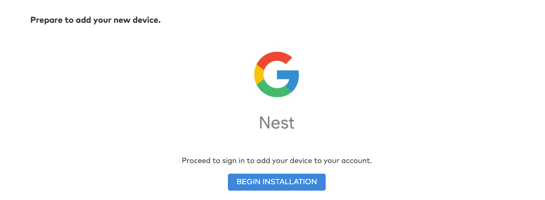
Click Begin Installation
- Enter the primary Google account login information.
Note: Google Nest accounts allow multiple user logins. If the primary Google login is not used, the message You can only connect with Nest to homes owned by you appears. - After authorization is complete, allow a couple of minutes for initialization before use in the Alarm.com app. The Nest Thermostat can be renamed using the Nest platform if desired.
Thermostat features available through your subscriber account
You can now control the Google Nest Thermostat through your subscriber Alarm.com app or GoSafer Security customer portal (powered by Alarm.com) for an integrated connected home experience. The Nest app still functions as before.
Features available with Nest Integration:
- Current target temperature control
- Current mode control (Heat, Cool)
- Scene thermostat control including:
- Temperature control
- Mode control
Nest Eco Mode display on the Alarm.com app and GoSafer Security customer portal (powered by Alarm.com):
Locally, the Nest Thermostat automatically switches to Eco mode after it senses that nobody is home. This feature is not supported through your subscriber Alarm.com app and GoSafer Security customer portal (powered by Alarm.com). When a Nest Thermostat is in Eco mode, it is shown as Off on the subscriber Alarm.com app and GoSafer Security customer portal (powered by Alarm.com).
To exit Eco mode, change the thermostat’s mode to Heat, Cool, or Auto. Eco Mode cannot be selected from your subscriber Alarm.com app and GoSafer Security customer portal (powered by Alarm.com).
Legal attribution
Google and Google Nest Thermostat are trademarks of Google LLC.
Source and support
For GoSafer Security assistance, visit gosafersecurity.com.
Original Alarm.com reference: https://answers.alarm.com/Customer/Website_and_App/Home_Automation/Thermostats/Connect_a_Google_Nest_Thermostat_to_your_account
Always verify safety, installation, compatibility, and current UI details against the original manufacturer documentation before operational use.
No comments to display
No comments to display