
Smart Humidity Control and Display User Guide
GoSafer Security Knowledge Base
This operational reference is organized for GoSafer Security customers and staff. Alarm.com product names are retained where required for technical accuracy.
Overview
Users with an eligible Smart Thermostat (Smart Thermostat HD, ADC-T2000, and ADC-T3000) can view and control the humidity level in their home or business using the website or app.
Procedure
Step-by-step guide: Screenshots and videos are placed with the instruction they illustrate.
Smart Humidity Control and Display brings exciting features to the Smart Thermostat. Users with an eligible Smart Thermostat (Smart Thermostat HD, ADC-T2000, and ADC-T3000) can view and control the humidity level in their home or business using the Alarm.com app or GoSafer Security customer portal (powered by Alarm.com).
Humidity notifications provide an extra layer of protection against mold growth. The Smart Humidity function is beneficial in varying climates from very hot and humid areas in the summer to very cold or dry areas in the winter.
For information about installing or configuring Smart Humidity, contact your service provider.
View current humidity level
Users with a Smart Thermostat and compatible security panel or hub can now see their current humidity level by clicking on the thermostat card on the Alarm.com app or GoSafer Security customer portal (powered by Alarm.com).
The ADC-T3000 can display the humidity percentage locally in all modes when the Display Option in the User Settings is set to Humidity and the temperature is set to Fahrenheit. Humidity display is not supported when in Celsius mode.
Note: To view the humidity level on the Customer Alarm.com app or GoSafer Security customer portal (powered by Alarm.com), a firmware version is not required for the Smart Thermostat. However, to control humidity, the ADC-T2000 requires version 1.50+ to be compatible with Smart Humidity Control. For information about how to find the thermostat firmware, contact your service provider.
The following image displays a thermostat with a 44% humidity reading on the Alarm.com app.
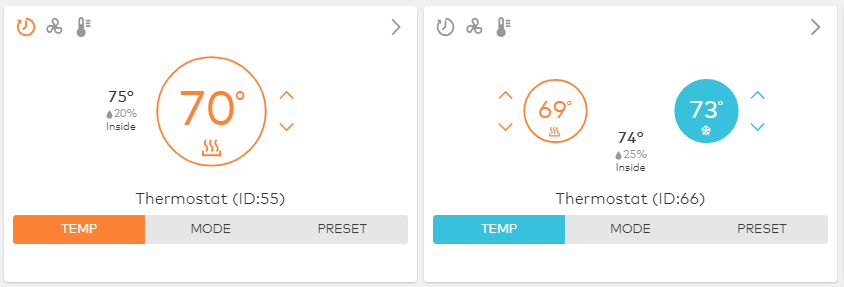
The following image displays two thermostats on the home page of the GoSafer Security customer portal (powered by Alarm.com). The first thermostat is in heat mode with a 20% humidity reading. The second thermostat is in auto mode with a 25% humidity reading.
Enable the Smart Humidity feature
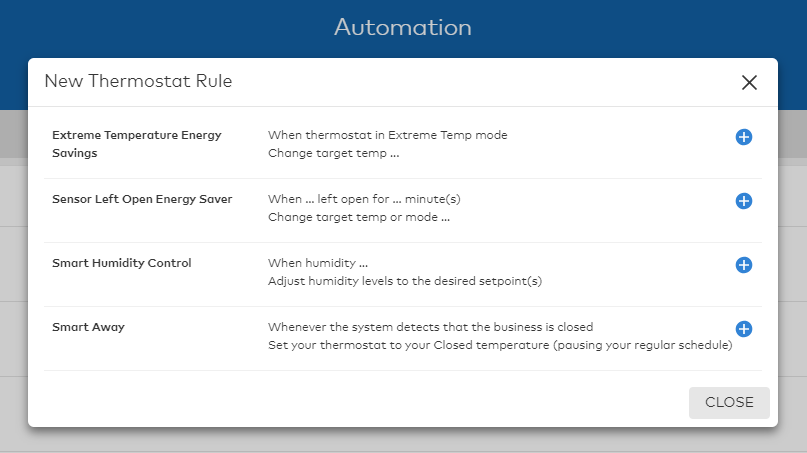
Customers can enable Smart Humidity Control using the Customer Alarm.com app or GoSafer Security customer portal (powered by Alarm.com).
Important: While the Smart Thermostat HD and ADC-T3000 are natively compatible with humidity control, the ADC-T2000 must be on version 1.50+. For information about how to find the thermostat firmware, contact your service provider.
To enable Smart Humidity Control using the Alarm.com appapp:Icn Chevron Up
To enable Smart Humidity Control using the GoSafer Security customer portal (powered by Alarm.com):Icn Chevron Up
- Click
Save.Save.
[
Set humidity target levels
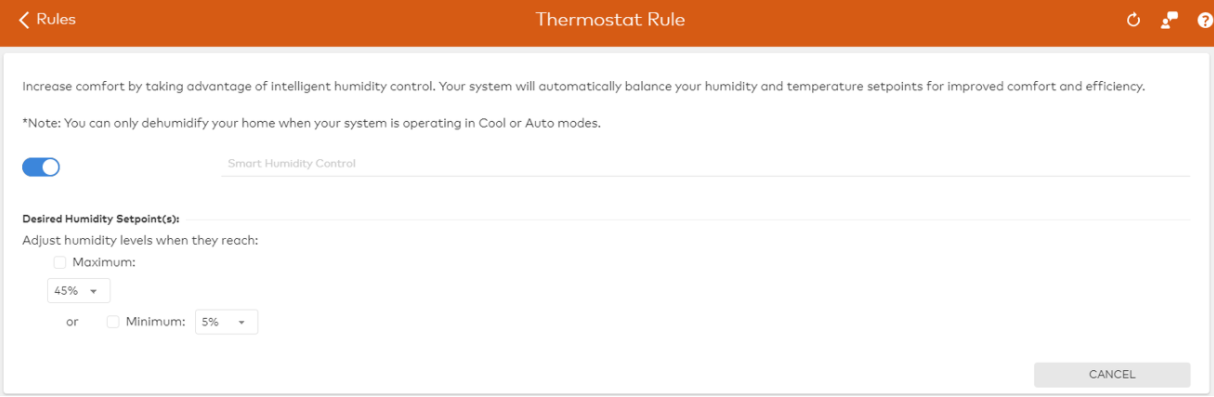
To regulate humidity levels in a home or business, the customer must select target humidity levels, similar to how a customer sets temperature targets for standard thermostat operation. The customer is prompted to set the humidity setpoints after enabling the Smart Humidity Feature.
To configure Smart Humidity Control using the Alarm.com appapp:Icn Chevron Up
Note:
Note: To disable Smart Humidity Control, tap the Smart Humidity Control toggle switch.
To configure Smart Humidity Control using the GoSafer Security customer portal (powered by Alarm.com):Icn Chevron Up
- Click
Save.Save.
Note:
Note: To disable Smart Humidity Control, click the toggle switch in the Smart Humidity Control rule.
Change the humidity differential
[ThermostatThe Rule]humidity differential feature maintains a comfortable balance of both temperature and humidity levels in your home and is only necessary when the air conditioner is used to dehumidify the home. The humidity differential prevents a thermostat that is dehumidifying using an air conditioner from cooling too far below the cool setpoint. The default setting is 3⁰F (1.5⁰C) and generally does not need to be adjusted.
To adjust the humidity differential using the Alarm.com appapp:Icn Chevron Up
To adjust the humidity differential using the GoSafer Security customer portal (powered by Alarm.com):Icn Chevron Up
- Click
Save.Save.
Smart Humidity notifications
Smart Humidity notifications allow users to be notified if the thermostat reads a humidity level above or below the specified threshold.
If this video is blocked by the publisher's privacy settings, open it on the original Alarm.com article.
To create Humidity Alert notifications using the Alarm.com appapp:Icn Chevron Up
To create Humidity Alert notifications using the GoSafer Security customer portal (powered by Alarm.com):Icn Chevron Up
Source and support
For GoSafer Security assistance, visit gosafersecurity.com.
Original Alarm.com reference: https://answers.alarm.com/Customer/Website_and_App/Home_Automation/Thermostats/Smart_Humidity_Control_and_Display_User_Guide
Always verify safety, installation, compatibility, and current UI details against the original manufacturer documentation before operational use.