
Edit a Thermostat Schedule
GoSafer Security Knowledge Base
This operational reference is organized for GoSafer Security customers and staff. Alarm.com product names are retained where required for technical accuracy.
Overview
Thermostat Schedules are used to automatically control the temperature in your home or business to help save on energy costs while you are away and keep you comfortable while you are home or asleep. …
Procedure
Step-by-step guide: Screenshots and videos are placed with the instruction they illustrate.
Thermostat Schedules are used to automatically control the temperature in your home or business to help save on energy costs while you are away and keep you comfortable while you are home or asleep. Thermostat Schedules can be edited using the Alarm.com app and GoSafer Security customer portal (powered by Alarm.com).
Edit a thermostat schedule
To edit a thermostat schedule using the Alarm.com appapp:Icn Chevron Down
Note:
- Tap
[Back]Back to return to the thermostat schedule.
To change the temperature setting (i.e., Away, Home, Sleep, Custom, etc.) an interval is set to, tap the Temperature setting interval and then tap the desired temperature setting to change it to.
Note:
Note:
To edit a thermostat schedule using the GoSafer Security customer portal (powered by Alarm.com):Icn Chevron Down
Note:
To change the thermostat schedule type, in View click
Note:
If this video is blocked by the publisher's privacy settings, open it on the original Alarm.com article.
Considerations when editing the thermostat schedule
If you want the temperature to change according to the schedule intervals when there is a manual change, do not set the adjacent intervals to the same temperature as shown in the following image for the Weekday schedule.
Note: If using Celsius, temperatures can be set in 0.5 degree increments. Verify adjacent intervals are at least one degree different if the user wants the temperature to change according to that scheduled interval.
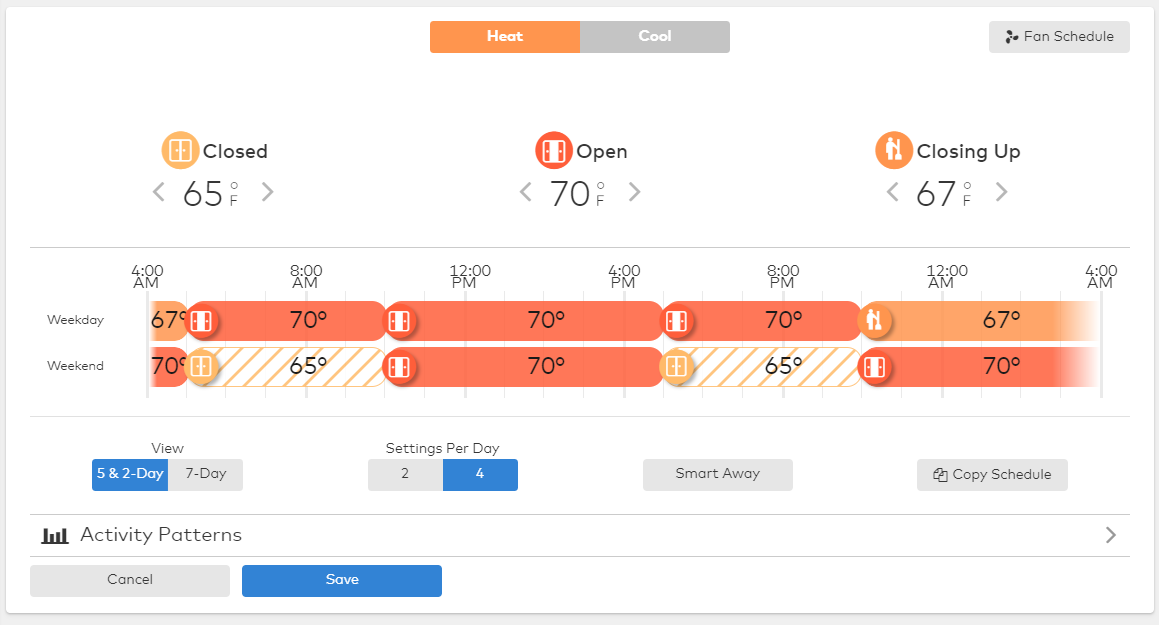
If the target temperature on the schedule is the same on two or more adjacent intervals, it reads those adjacent intervals as one large schedule interval. For example in the preceding image:
If you want each interval to trigger the schedule when manual changes occur, verify that adjacent intervals are set to different target temperatures.
Source and support
For GoSafer Security assistance, visit gosafersecurity.com.
Original Alarm.com reference: https://answers.alarm.com/Customer/Website_and_App/Home_Automation/Thermostats/Edit_a_Thermostat_Schedule
Always verify safety, installation, compatibility, and current UI details against the original manufacturer documentation before operational use.