
Configure a Video Analytics rule
GoSafer Security Knowledge Base
This operational reference is organized for GoSafer Security customers and staff. Alarm.com product names are retained where required for technical accuracy.
Overview
Video Analytics continuously scans your property and notifies you when a person, vehicle, or animal is detected. Advanced detection rules enhance perimeter security by alerting you when someone's …
Procedure
Step-by-step guide: Screenshots and videos are placed with the instruction they illustrate.
Feature Notice: Business Activity Analytics (BAA) uses the monitoring capability of Video Analytics to help business owners understand traffic patterns and improve their business operations. For more information about BAA, see Business Activity Analytics (BAA) Setup.
Overview
Video Analytics continuously scans your property and notifies you when a person, vehicle, or animal is identified. Advanced detection rules enhance perimeter security by alerting you when someone's coming or going, or even loitering on your property.
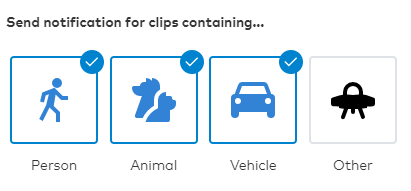
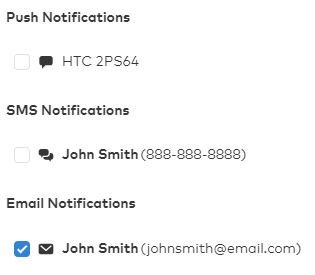
With Video Analytics, you'll get enhanced notifications with thumbnail images showing people, vehicles, and animals. You can also use advanced detection rules to draw virtual tripwires across your driveway and virtual fenced-in zones on your property. Receive email and text notifications whenever:
Video Analytics can spot what’s important, even if there’s a lot going on.
Requirements
The following video devices are compatible with Video Analytics:
For information about these cameras and the requirements to use Video Analytics, contact your service provider.
Video tutorials for creating a Video Analytics rule
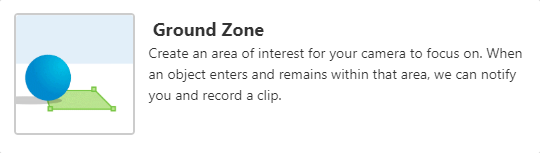
Use a Tripwire rule to capture movement through a specified area. Use a Ground Zone rule to capture an object lingering in a specified area.
To create a Tripwire rule using the GoSafer Security customer portal (powered by Alarm.com):Icn Chevron Down
If this video is blocked by the publisher's privacy settings, open it on the original Alarm.com article.
To create a Ground Zone rule using the GoSafer Security customer portal (powered by Alarm.com):Icn Chevron Down
If this video is blocked by the publisher's privacy settings, open it on the original Alarm.com article.
To use Video Analytics to control lights using the GoSafer Security customer portal (powered by Alarm.com):Icn Chevron Down
If this video is blocked by the publisher's privacy settings, open it on the original Alarm.com article.
Camera setup
Camera placement
Camera location
Video Analytics detects objects and classifies them as people, animals, and vehicles. Position the camera with a clear view over an area of interest.
Successful camera positions include:
Avoid:
Create a rule with Video Analytics
Up to three Video Analytics rules per camera can be configured using the GoSafer Security customer portal (powered by Alarm.com) or Alarm.com app. Each rule includes either one Ground Zone or one Trip Wire.
Note: If you are planning to create Privacy Zones on your camera, it is recommended to configure the Privacy Zones before creating a Video Analytics rule. For more information, see Configure Privacy Zones.
Add the Video Analytics rule
A Video Analytics rule can be created using the Alarm.com app and GoSafer Security customer portal (powered by Alarm.com).
To create a rule using the Alarm.com appapp:Icn Chevron Up
To create a rule using the GoSafer Security customer portal (powered by Alarm.com):Icn Chevron Up
Rule selection
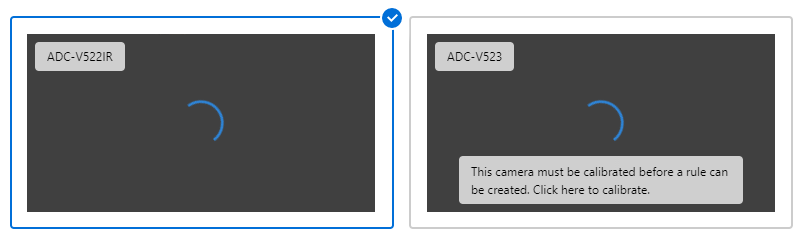
Click to select the rule type.
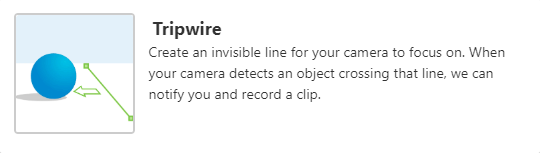
Use a Ground Zone rule when you expect a target to loiter in the camera’s field of view (e.g., a person delivering a package on your front porch).
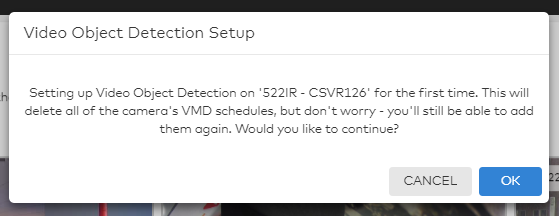
All Video Motion Detection (VMD) schedules associated with a camera must be deleted before setting up a Video Analytics rule. When prompted with this warning, click OK to continue.
Click Next.
Select the camera scene
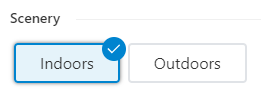
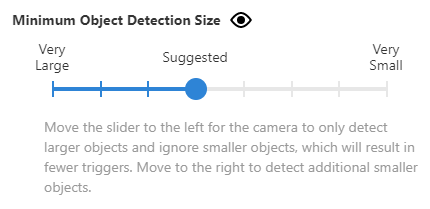
Use the Minimum Object Detection Size slider to adjust how small an object can be and still trigger a recording. It is recommended to keep this at its suggested value upon initial rule creation. Very Large captures the fewest recordings only of the largest objects, and Very Small captures the most recordings including large and small objects.
Configure the Video Analytics rule
Once the rule type and scene are selected, you can configure the rule settings.
To configure a Ground Zone rulerule:Icn Chevron Up
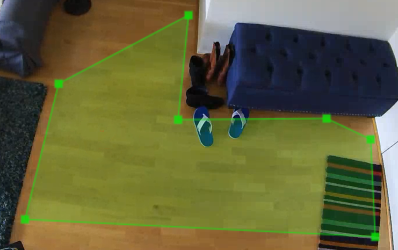
- Click and drag the corners of the shape to cover only the ground where the target’s feet will be. To clear the current area of interest and restart, click Clear ground zone to create a new area of interest with up to 28 points.
[
[
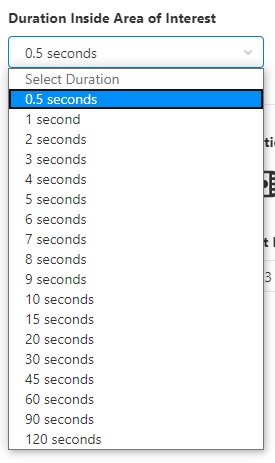
To configure a Tripwire rulerule:Icn Chevron Up
- Click and drag the Tripwire to cover only the ground where the target's feet cross. The arrow determines which direction the object must be moving to trigger a recording. To clear the current Tripwire and restart, click Clear
Tripwire.
[
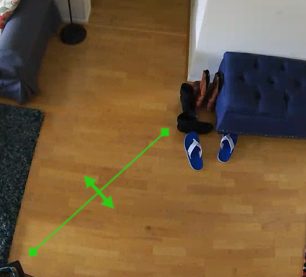
[
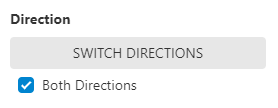
- Click to select Both Directions to record when an object crosses the Tripwire regardless of which direction it is moving.
To ensure rule accuracy
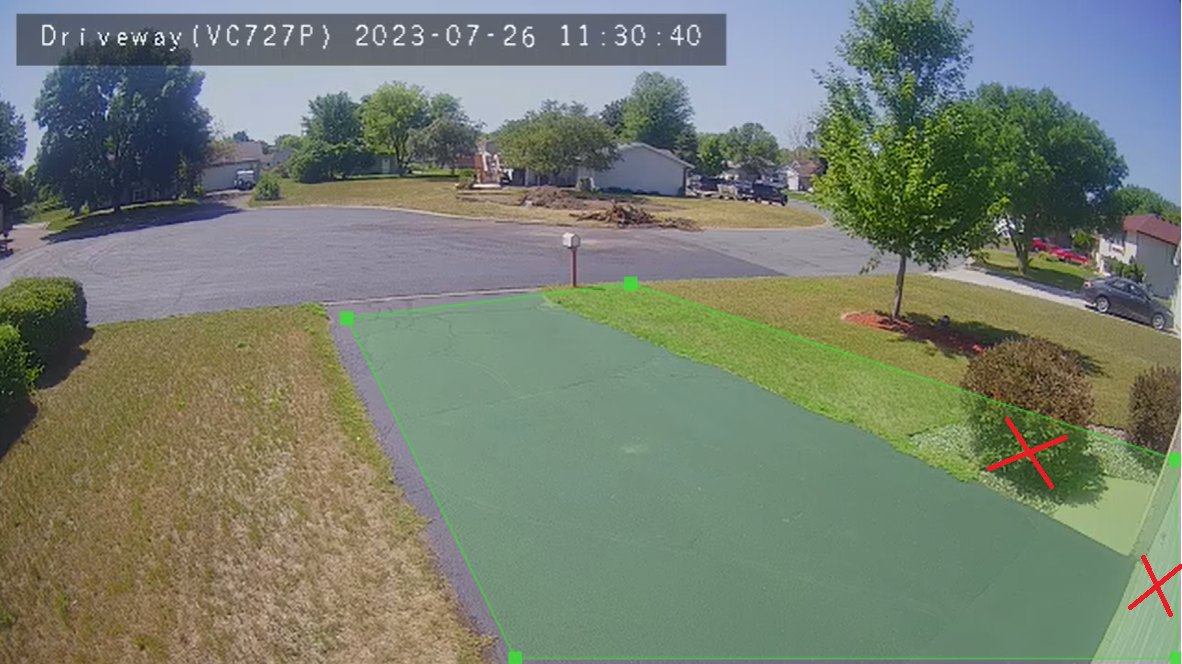
Including the bush and garage door in the ground zone can make it difficult for the Video Analytics to positively classify subjects. In this case, reduce the size of the ground zone to only cover the driveway.
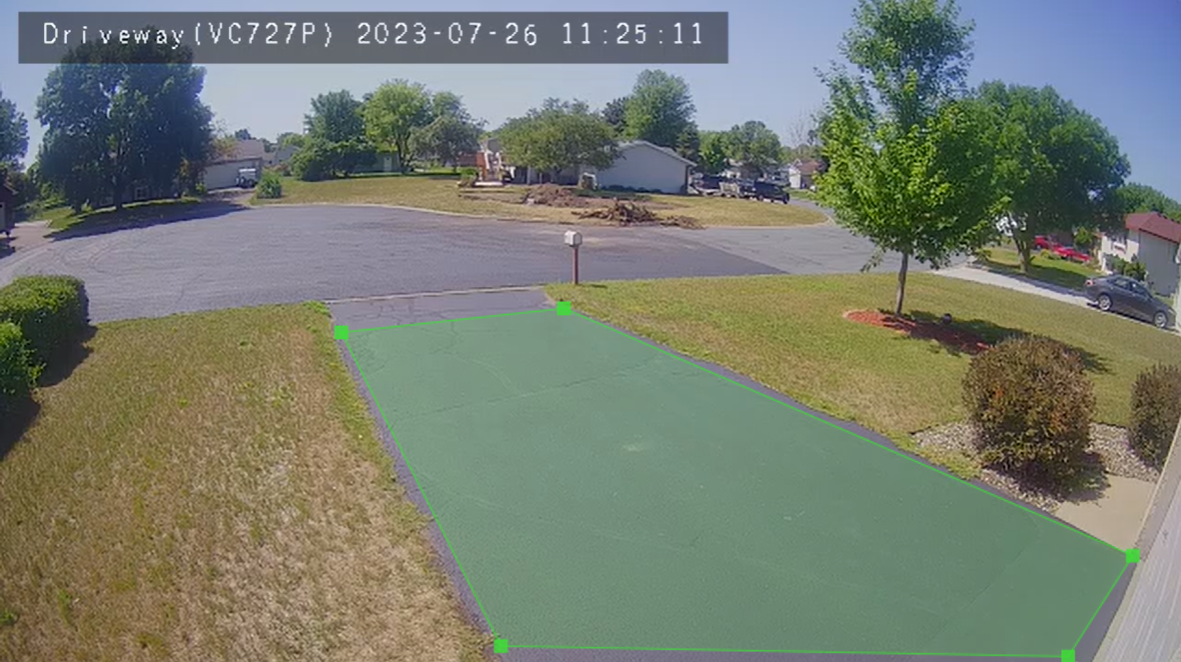
This is a properly drawn ground zone that only covers the driveway, and excludes the bush and garage door.
Create up to three Video Analytics rules to capture separate areas of interest (e.g., a camera that monitors two entrances might need two tripwire rules, each one covering one of the entrances). After observing what the rule detects over a few days, consider adjusting either the Minimum Object Detection Size slider or recalibrating the camera.
Note: Certain video devices have a calibration process that replaces the Minimum Object Detection Size setting. Minimum Object Detection Size will not appear on this page for those cameras. For more information about the calibration process, see Calibrate a device for Video Analytics.
Rule scheduling and notifications
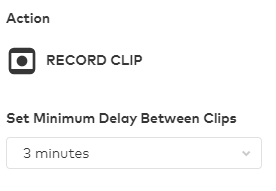
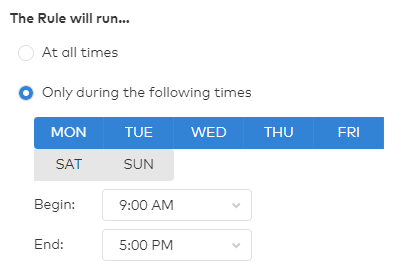
In The Rule will run..., click to select At all times or Only during the following times.
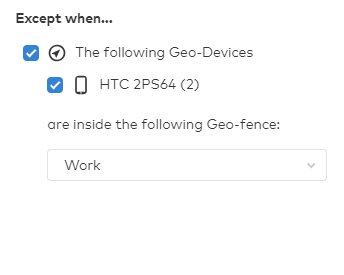
In Except when..., click to select any available exceptions that turn the rule off regardless of the schedule. Options depending on the equipment include: the panel is armed away, the panel is armed stay, and Geo-Device is inside a specified Geo-Fence.
Create a light automation rule
Camera-driven light automation rules require at least one light device enrolled on the account.
Note: Lights cannot be enabled during a time when the Video Analytics rule is not set to record (e.g., if a tripwire rule is drawn on a driveway and set to record only at night, lights cannot be set to turn on during the daytime because no clip would have been recorded).
.PNG?revision=1)
Perimeter Guard™
Perimeter Guard™ sounds an alert and flashes the camera's status LED when unwanted visitors are detected.
For more information about Perimeter Guard™ and compatible video devices, see Perimeter Guard™ for video devices.
Enable the alerts
Set the alert delay
Package Alerts for the ADC-VDB770
You can be the first to know when a package is delivered to your home or business with Package Alerts for the Alarm.com Video Doorbell (ADC-VDB770). Using Video Analytics, the ADC-VDB770 can identify when a visitor leaves a parcel on your doorstep—notifying you immediately.
Package Alerts can be configured to notify you right when a delivery is made, remind you if the box is not picked up, or alert you if it goes missing.
For more information about Package Alerts, see Package Alerts fortheAlarm.com Video Doorbell (ADC-VDB770).
View saved video clips
To view saved video clips using the Alarm.com appapp:Icn Chevron Up
[
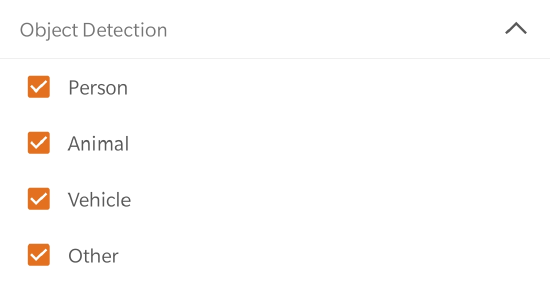
Tap
To view saved video clips using the GoSafer Security customer portal (powered by Alarm.com):Icn Chevron Up
[
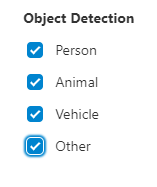
Click
Source and support
For GoSafer Security assistance, visit gosafersecurity.com.
Original Alarm.com reference: https://answers.alarm.com/Customer/Website_and_App/Video/Video_Settings/Configure_a_Video_Analytics_rule
Always verify safety, installation, compatibility, and current UI details against the original manufacturer documentation before operational use.