# What is Pro HVAC Monitoring?
**GoSafer Security Knowledge Base**
*This operational reference is organized for GoSafer Security customers and staff. Alarm.com product names are retained where required for technical accuracy.*
## Overview
HVAC Pro Monitoring allows Alarm.com customers to be connected directly to an HVAC professional in the event of a system failure. After opting into the program, alerts for HVAC system-specific are sent out to you and a trusted Alarm.com-certified HVAC professional. This allows for quicker resolutions to any HVAC trouble condition.
Platform
App + Web
Content type
Troubleshooting
Source last updated
2025-09-30
## Procedure
**Step-by-step guide:** Screenshots and videos are placed with the instruction they illustrate.
HVAC Pro Monitoring allows Alarm.com customers to be connected directly to an HVAC professional in the event of a system failure. After opting into the program, alerts for HVAC system-specific are sent out to you and a trusted Alarm.com-certified HVAC professional. This allows for quicker resolutions to any HVAC trouble condition.
### Requirements
- An eligible thermostat
**Note**: Nest Thermostats are not compatible with Pro HVAC Monitoring.
- An eligible HVAC professional in your service area
If the option to opt into the Pro HVAC Monitoring does not appear, contact your service provider for more information.
### Features
After opting into the Pro HVAC Monitoring program:
- Your information will be shared with a partnered HVAC professional in your service area.
- You will be automatically subscribed to receive Severe HVAC Alerts to your primary email.
**Note**: These alerts are not available to customers who do not opt into the Pro HVAC Monitoring program.
- The partnered HVAC professional will also receive alerts when there is a Severe HVAC Alert for your system, who can then contact you to resolve the alert.
- Schedule service with the Partnered HVAC professional from Severe HVAC Alerts.
### To opt into the Pro HVAC Monitoring program:
If your account meets all of the eligibility requirements for the Pro HVAC Monitoring program, a prompt will appear upon next log in to either the GoSafer Security customer portal (powered by Alarm.com) or Alarm.com app.
The prompt will display information about the program as well as the address and logo of the partnered HVAC professional that will service your area. Clicking or tapping **I agree to the Pro HVAC Monitoring Terms of Service** and **I Agree**, you will be opted into the program.
**Note**: If **I do not agree** is selected, or if the prompt is ignored, you still have the option to do so manually using the GoSafer Security customer portal (powered by Alarm.com).
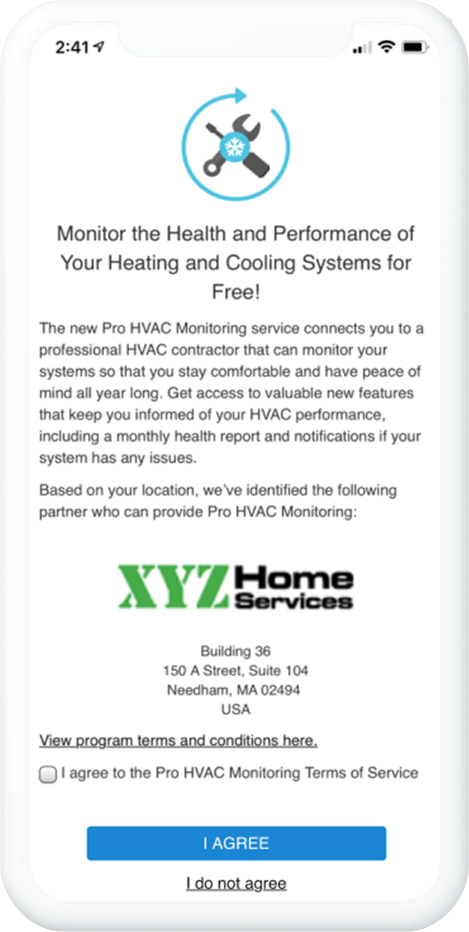Pro HVAC Monitoring Mobile Opt In Option
### To opt in manually using the GoSafer Security customer portal (powered by Alarm.com):
1. Log in to the GoSafer Security customer portal (powered by Alarm.com).
2. In the *Thermostats* card, click Details.
3. Click **Pro HVAC Monitoring**.
4. Click **Settings**.
5. Click the **Enable Pro HVAC Monitoring** toggle to opt into the program.
### To schedule service from a Severe HVAC alert using the Alarm.com app:
**Note**: In order to have this option available, in-app service scheduling must be enabled by the partnered HVAC professional.
1. Log in to the Alarm.com app.
2. If needed, tap to expand **Issues**.
3. Tap the **Severe HVAC** alert.
4. Tap **Contact Support**.
5. Tap **Service Requests**.
6. Follow the on-screen prompts in the partnered HVAC professional's service scheduling utility.
## Source and support
For GoSafer Security assistance, visit [gosafersecurity.com](https://gosafersecurity.com/).
Original Alarm.com reference: [https://answers.alarm.com/Customer/Website\_and\_App/Home\_Automation/Thermostats/What\_is\_Pro\_HVAC\_Monitoring](https://answers.alarm.com/Customer/Website_and_App/Home_Automation/Thermostats/What_is_Pro_HVAC_Monitoring)
Always verify safety, installation, compatibility, and current UI details against the original manufacturer documentation before operational use.