# Use a Remote Temperature Sensor for temperature control
**GoSafer Security Knowledge Base**
*This operational reference is organized for GoSafer Security customers and staff. Alarm.com product names are retained where required for technical accuracy.*
## Overview
Use Remote Temperature Sensors to maintain more precise temperature control throughout the home.
Platform
Customer Website
Content type
How-to / Configuration
Source last updated
2026-04-10
## Procedure
**Step-by-step guide:** Screenshots and videos are placed with the instruction they illustrate.
Get precision comfort with remote temperature sensing. By default, the HVAC system keeps the thermostat’s internal thermometer at a selected target temperature. With Temperature Sensors placed in different rooms around the home, the system is also able to detect the temperature in these other areas, such as an upstairs bedroom or downstairs den. These additional temperature readings can then also be used to regulate the HVAC system.
For more information about adding Remote Temperature Sensors, contact your service provider.
### ****View Temperature Sensors****
**Note**: If the thermostat is in **Off** mode, ****Remote Temperature Sensor**** does not display.
### ****Direct Control: Using Temperature Sensors without thermostat schedules****
Select one or more Temperature Sensors to directly control your HVAC system when there is no thermostat schedule set.
When clicking **Remote Temperature Sensor**, a window appears. From here, one or more Temperature Sensors can be selected. The HVAC system monitors the average temperature reported by the selected sensors and keeps the average steady at the target temperature.
**Example**: The nighttime target temperature is 70 degrees, and all bedroom Temperature Sensors are selected. The average temperature across the bedrooms is maintained at 70 degrees.
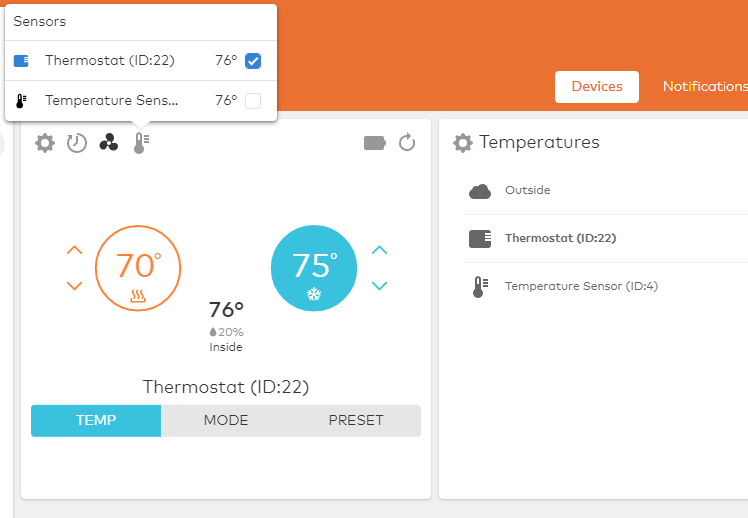temperature sensors web view
### ****Adding Temperature Sensors to thermostat schedules****
Make thermostat schedules even more precise by assigning one or more Temperature Sensors to the Temperature Presets. For example, match the bedroom Temperature Sensor to the Sleep Preset, or the family room Temperature Sensor to the Home Preset. That way, the system is able to cool the right rooms in the house to the target temperature at the times they are in use.
To get started, click Detailson the *Thermostat* card and then click **Schedules**. Schedules can then be edited from this page.
## Source and support
For GoSafer Security assistance, visit [gosafersecurity.com](https://gosafersecurity.com/).
Original Alarm.com reference: [https://answers.alarm.com/Customer/Website\_and\_App/Home\_Automation/Thermostats/Use\_a\_Remote\_Temperature\_Sensor\_for\_temperature\_control](https://answers.alarm.com/Customer/Website_and_App/Home_Automation/Thermostats/Use_a_Remote_Temperature_Sensor_for_temperature_control)
Always verify safety, installation, compatibility, and current UI details against the original manufacturer documentation before operational use.