# Turn off system trouble beeps using the app
**GoSafer Security Knowledge Base**
*This operational reference is organized for GoSafer Security customers and staff. Alarm.com product names are retained where required for technical accuracy.*
## Overview
System trouble beeps coming from the security panel can be turned off using the mobile app.
Platform
Mobile App
Content type
Troubleshooting
Source last updated
2025-06-04
## Procedure
**Step-by-step guide:** Screenshots and videos are placed with the instruction they illustrate.
System trouble beeps coming from the security panel can be turned off using the Alarm.com app when an active trouble condition is reported. This feature disables trouble beeps for 7 days, but it can be re-enabled at any time.
System trouble beeps can only be turned off using the Alarm.com app. It cannot be turned off using the GoSafer Security customer portal (powered by Alarm.com). Turning off trouble beeps using the Alarm.com app disables beeps at the panel, but the trouble condition remains on the Alarm.com app and website until it is resolved.
### Feature compatibility
- This feature is supported on most Alarm.com compatible security panels.
- Some panels require the system to be disarmed to successfully turn off the trouble beeps.
- This feature functions differently on 2GIG panels since there is no way to indefinitely disable trouble beeps at all times.
- If there is a smoke or carbon monoxide detector associated with the system, this feature is not available and will not appear in the Alarm.com app.
If this feature does not appear in the Alarm.com app when a trouble condition is present, contact your service provider for assistance.
### Turn off System Trouble Beeps
You can access the Trouble Beeps page when there is an active trouble condition on the security system using one of the following methods:
- By tapping **Silence Trouble Beeps** in the *Issues* card on the Home screen.
- This option only appears if one of the following troubles is present:
- *Panel Power Failure*
- *Device Low Battery*
- *Panel Low Battery*
- *Sensor Tamper*
- *Dual-Path Communication Failure - Broadband*
- *Dual-Path Communication Failure – Cellular*
- By accessing the *Security System* page.
If the system trouble beeps continue at the security panel after performing the following steps, verify the panel and module are communicating properly. If the panel and module are not communicating, trouble beeps cannot be turned off using remote commands. Contact your service provider for further assistance.
### To turn off System Trouble Beeps from the Issues card:
1. Log in to the Alarm.com app.
2. Tap **Silence Trouble Beeps** in the **Issues** card on the Home screen when an active trouble condition is reported on the system.
- If you do not see this option, try to turn off system trouble beeps by accessing the **Security System** settings page. For more information, see [To turn off System Trouble Beeps from the *Security System* card](https://answers.alarm.com/Customer/Website_and_App/System_Management/System_Usage/Turn_off_system_trouble_beeps_using_the_app#To_turn_off_System_Trouble_Beeps_from_the_Security_System_card:) .
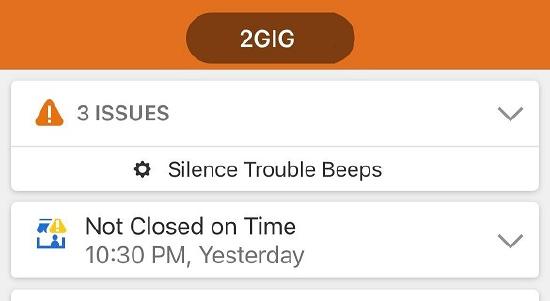Silence Trouble Beeps
**Important**: For 2GIG panels, the following message for *Silence System Troubles* displays. Tap **Ok** to disable all trouble beeps for currently active trouble conditions until there is a new trouble detected. This is the only step available to take for 2GIG panels.
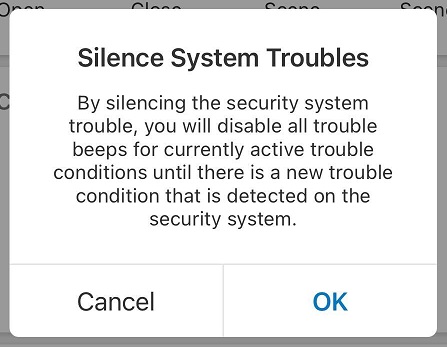2GIG Silence System Troubles message
3. Tap **Trouble Beeps**.
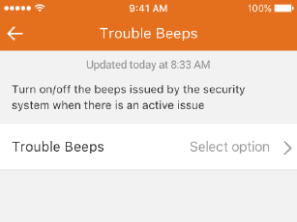Trouble beeps page on app
4. Tap **Turn Off** to select it.
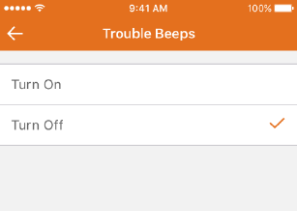Trouble beeps turn on off options
5. Tap **Turn Off** to confirm the selection. This turns off the trouble beeps for any current or future issues that occur during the next 7 days, or until it is manually turned on again.
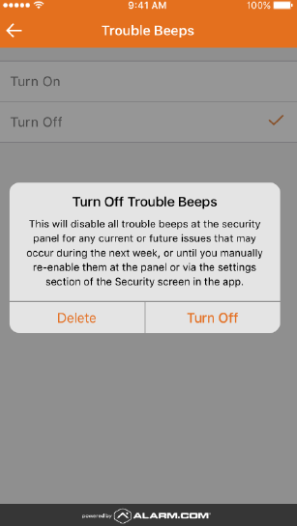Turn off trouble beeps confirmation on app
### To turn off System Trouble Beeps from the Security System card:
**Note**: 2GIG panels do not have this option.
1. Log in to the Alarm.com app.
2. Tap **Security System**.
3. Tap Settings to access the **Trouble Beeps** page.
- If you do not see this option, your panel may not be compatible. For information about compatibility, see[ Feature compatibility](https://answers.alarm.com/Customer/Website_and_App/System_Management/System_Usage/Turn_off_system_trouble_beeps_using_the_app#Feature_compatibility).
4. Tap ****Turn Off**** to select it.
5. Tap ****Turn Off**** to confirm the selection. This turns off the trouble beeps for any current or future issues that occur during the next 7 days, or until it is manually turned on again.
**Note**: If the system trouble beeps continue at the security panel after performing the preceding steps, contact your service provider.
## Source and support
For GoSafer Security assistance, visit [gosafersecurity.com](https://gosafersecurity.com/).
Original Alarm.com reference: [https://answers.alarm.com/Customer/Website\_and\_App/System\_Management/System\_Usage/Turn\_off\_system\_trouble\_beeps\_using\_the\_app](https://answers.alarm.com/Customer/Website_and_App/System_Management/System_Usage/Turn_off_system_trouble_beeps_using_the_app)
Always verify safety, installation, compatibility, and current UI details against the original manufacturer documentation before operational use.