# Troubleshooting Alarm.com Places
**GoSafer Security Knowledge Base**
*This operational reference is organized for GoSafer Security customers and staff. Alarm.com product names are retained where required for technical accuracy.*
## Overview
By enabling Location Services on mobile devices, the device is allowed to check-in and relay its location relative to the radio tower or router the device connected to. For this feature, enable Alarm.com Places on your mobile devices and ensure that you have a data connection (e.g., 3G, 4G LTE, Wi-Fi).
Platform
App + Web
Content type
Troubleshooting
Source last updated
2025-06-04
## Procedure
**Step-by-step guide:** Screenshots and videos are placed with the instruction they illustrate.
By enabling Location Services on mobile devices, the device is allowed to check-in and relay its location relative to the radio tower or router the device connected to. For this feature, enable Alarm.com Places on your mobile devices and ensure that you have a data connection (e.g., 3G, 4G LTE, Wi-Fi).
### ****Alarm.com Places tips****
- The lower the data connection and/or coverage in the area, the less accurate Alarm.com Places will be. The more data connection and/or coverage in the areas, the more accurate Alarm.com Places will be.
- Staying close to Geo-Fences, or only barely crossing it can mean that the Geo-Device will never triangulate outside of the Geo-Fence. This can cause notifications or actions to incorrectly trigger or not trigger occur at all.
- Increasing the Geo-Fence radius provides more accurate notifications based on location.
- Wi-Fi can be used as data connection for triangulation. The device does not need to be connected for triangulation to occur.
- The more accurate Geo-Fence radius sizes are around or larger than 2 to 2.5 miles radius. The minimum radius can be one mile but is not recommended.
**Note**: If the customer account is in Canada, the minimum distance is 1.5 kilometers for a Geo-Fence.
### ****To manage Alarm.com Places using the GoSafer Security customer portal (powered by Alarm.com):****
1. Log in to the GoSafer Security customer portal (powered by Alarm.com).
2. Click ****Settings****.
3. Click **Places**.
**Important**: Only the login permissions of Master Control, Full Control, and Custom with **Notification settings** enabled can manage Alarm.com Places on a customer account.
### ****Troubleshooting Alarm.com Places:****
### **Verify Alarm.com Places is set up properly**
Verify you have the proper Alarm.com Places notifications and rules set up on your account. For more information, see [Configure Alarm.com Places](https://answers.alarm.com/Partner/Installation_and_Troubleshooting/Website_and_Apps/General_Website_and_Apps_Information/Configure_Alarm.com_Places).
### **Verify Location Services is turned on**
Verify Location Services is turned on for the device and also for the Alarm.com app. For more information on enabling Alarm.com Places in the app, see [Add a new Geo-Device](https://answers.alarm.com/Partner/Installation_and_Troubleshooting/Website_and_Apps/General_Website_and_Apps_Information/Add_a_new_Geo-Device).
**Important**: iPhones and Android phones also require Location Services to be turned on specifically for the Alarm.com app through phone settings.
### ******To enable Location Services on an Android phone:******
**Note**: These steps may vary depending on the model of the Android phone.
1. Tap to open the ****Settings**** application.
2. Tap ****Connections****.
3. Tap the ****Location**** toggle switch to enable Location Services.
### ******To enable Location Services on an iPhone:******
**Important**: In order for this option to appear, Alarm.com Places needs to be enabled on the app.
1. Tap to open the iPhone's ****Settings**** application.
2. Tap ****Alarm.com****.
3. Tap ****Location****.
4. In **Allow Location Access**, tap ****Always****.
### **Verify the correct device is enabled for Alarm.com Places**
The user can verify the correct device is enabled by turning Alarm.com Places off in the app, then log in to the website to verify a correlating device was paused. A device that is paused will be grayed out.
In the following image, the Geo-Device named *iPhone* is enabled and the Geo-Device named *Samsung* is disabled.
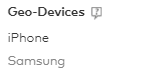Geo Device Samsung is disabled
**Important**: Remember to re-enable the Geo-Device in the Alarm.com app after this test.
### **Increase the Geo-Fence size**
Increase the Geo-Fence size to a minimum of 2 to 2.5-mile radius. If it is already set to a 2.5-mile radius, increase the Geo-Fence radius to 5 miles.
### **Enable Wi-Fi on the Geo-Device**
Enable Wi-Fi on the phone that is a Geo-Device on the account. This may help with triangulation if there are not many towers in that area. Turning on Bluetooth can also help.
**Note**: The Geo-Device is not required to be connected to a Wi-Fi or Bluetooth network to function.
### **Verify settings that can affect Alarm.com Places on Android devices**
For Android phones, there are several settings that can affect consistent Alarm.com Places functionality. The Alarm.com app also displays possible settings that are affecting functionality.
### ****To verify Alarm.com app settings on an Android device:****
1. Log in to the Alarm.com app.
2. Tap ********Menu********.
3. Tap ****Places****.
4. Tap ****Manage my location settings****.
5. In **Location Services**, tap ****Resolve detected issues****.
Android Places1
6. In **Resolve Issues**, tap ********Details******** next to an existing issue to resolve it.
Android Places2
### Verify the Android device settings have the best corresponding values:
**Note**: The names of settings may vary on Android devices.
- *Location* or *Location services* should be toggled on.
- *Locating method* or *Location mode* should be set to high accuracy.
- *Wi-Fi scanning* and *Bluetooth scanning*, which may be in the *Improve accuracy* setting, should both be toggled on.
- *Power saving mode* and *Ultra power saving mode* should both be toggled off.
- *Battery optimization* or *Optimize battery usage*, which may be in the menu option of the *Battery* setting*,* should be toggled off for the Alarm.com app, Google Play Services, Wi-Fi, and Bluetooth.
- When selecting the option to *Turn Battery Optimization for this App* *Off* from the Alarm.com app, the phone displays the devices that do not have optimization on. Tap the arrow under *Battery optimization* to select **All Apps,** then tap **Alarm.com** to verify that *Don't Optimize* is selected.
The following image is an example of turning off battery optimization on an Android device:
Battery Optimization on Android
For information on how to clear Geo-Device malfunctions, see [Geo-Service device is malfunctioning](https://answers.alarm.com/Customer/Website_and_App/Mobile_Features/Alarm.com_Places/Geo-Service_device_is_malfunctioning).
### ****If the issue is still unresolved:****
**Important**: Perform the following steps in this order:
1. Disable Alarm.com Places in the Alarm.com app.
- To disable Alarm.com Places:
1. Log in to the Alarm.com app.
2. Tap Menu.
3. Tap **Places**.
4. Tap **Manage my location settings**.
5. Tap the *Location Services* toggle switch to disable it.
2. Delete the Geo-Device on the GoSafer Security customer portal (powered by Alarm.com).
3. Force close the Alarm.com app.
4. Re-enable Alarm.com Places in the Alarm.com app.
5. Add the device back to the Geo-Fence rules or notifications.
6. Sync the Geo-Device by crossing in and out of the Geo-Fence.
7. Test by crossing the fence again.
**Note**: Alarm.com Places uses triangulation to conserve battery power. The device should pass a significant distance over the Geo-Fence in either direction to register crossing the Geo-Fence.
## Source and support
For GoSafer Security assistance, visit [gosafersecurity.com](https://gosafersecurity.com/).
Original Alarm.com reference: [https://answers.alarm.com/Customer/Website\_and\_App/Mobile\_Features/Alarm.com\_Places/Troubleshooting\_Alarm.com\_Places](https://answers.alarm.com/Customer/Website_and_App/Mobile_Features/Alarm.com_Places/Troubleshooting_Alarm.com_Places)
Always verify safety, installation, compatibility, and current UI details against the original manufacturer documentation before operational use.