# Remotely arm and disarm multiple partitions at once
**GoSafer Security Knowledge Base**
*This operational reference is organized for GoSafer Security customers and staff. Alarm.com product names are retained where required for technical accuracy.*
## Overview
Users can remotely arm and disarm separate partitions individually using the website or app.
Platform
App + Web
Content type
Reference
Source last updated
2025-06-04
## Procedure
**Step-by-step guide:** Screenshots and videos are placed with the instruction they illustrate.
If the system has multiple partitions, users can remotely arm and disarm separate partitions individually using the Alarm.com app or GoSafer Security customer portal (powered by Alarm.com). Partitions are listed in alphabetical order in the Alarm.com app to help organize systems with large amounts of partitions.
### **To arm/disarm multiple partitions using the Alarm.com app:**
1. Log in to the Alarm.com app.
2. In the *Security System* card, swipe to navigate to the partition to adjust. Then tap to select the partition.
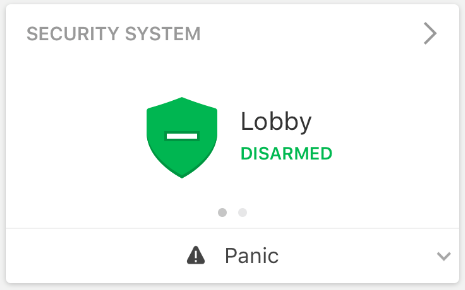clipboard e21710cf6593caa5e33f65fbfd0d0a70b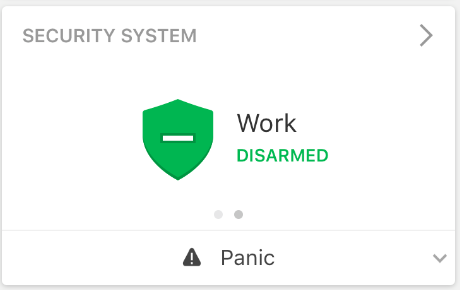clipboard efba193167b19eb04d005206291564d1a
**Note**: The arming states can also be changed from the *Security System* page by tapping Detailsin the *Security System* card.
3. Tap to select the desired arming state.
### **To arm/disarm multiple partitions using the GoSafer Security customer portal (powered by Alarm.com):**
1. Log in to the GoSafer Security customer portal (powered by Alarm.com).
2. In the *Security System* card, click any partition.
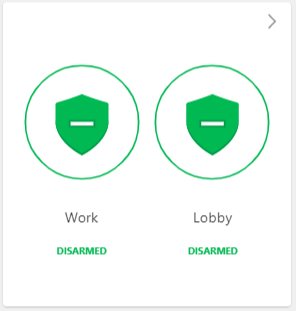Security System card
**Note**: The arming states can also be changed from the *Partitions* page by clicking Detailsin the *Security System* card.
3. Click to select the desired arming state.
## Source and support
For GoSafer Security assistance, visit [gosafersecurity.com](https://gosafersecurity.com/).
Original Alarm.com reference: [https://answers.alarm.com/Customer/Website\_and\_App/System\_Management/System\_Usage/Remotely\_arm\_and\_disarm\_multiple\_partitions\_at\_once](https://answers.alarm.com/Customer/Website_and_App/System_Management/System_Usage/Remotely_arm_and_disarm_multiple_partitions_at_once)
Always verify safety, installation, compatibility, and current UI details against the original manufacturer documentation before operational use.