# Password protect the ADC-CSVR126 local interface
**GoSafer Security Knowledge Base**
*This operational reference is organized for GoSafer Security customers and staff. Alarm.com product names are retained where required for technical accuracy.*
## Overview
The user can set up a password that must be entered to interact with the Commercial Stream Video Recorder (CSVR) local user interface.
Platform
Customer Website
Content type
Reference
Source last updated
2025-12-08
## Procedure
**Step-by-step guide:** Screenshots and videos are placed with the instruction they illustrate.
The user can set up a password that must be entered to interact with the Commercial Stream Video Recorder (CSVR) local user interface.
### **To set a password for the ADC-CSVR126 local interface:**
**Note**: The primary login for the account will be sent an email notification whenever the password is changed.
1. Log in to the GoSafer Security customer portal (powered by Alarm.com).
2. Click **Video**.
3. Click **Settings**.
4. Select the desired Stream Video Recorder.
5. Click **Local Display**.
6. In *Local Device Password*, enter the desired password.
- Click Icn Visible to show the password temporarily.
Show password
- Click Icn Invisible to hide the password again.
Hide password
7. In *Password Protection*, click to select **Enabled**.
8. Click **Save**.
### **Log in using the local interface**
A connected mouse or the ADC-CSVR126's navigation buttons can be used to log in to the local interface.
### **Use a connected mouse:**Icn Chevron Up
1. Right-click anywhere on the screen.
2. Click the *Password* field.
3. Use the virtual keyboard to enter the password.
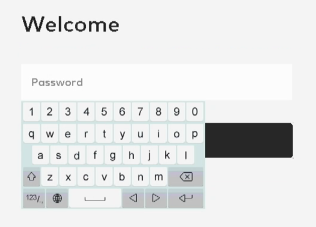Enter password
4. Click **Log in**.
5. To exit the login screen without entering a password, right-click.
### **Use the ADC-CSVR126's navigation buttons:**Icn Chevron Up
1. Press **\[Menu\]**.
2. Press and release the down button until the *Password* field is highlighted.
3. Press the center button.
4. Use the virtual keyboard to enter the password.
Enter password
5. Press **\[Esc\]**.
6. Press the down button.
7. With **Continue** highlighted, press the center button.
8. To exit the login screen without entering a password, press **\[Esc\]** until the live video reappears.
### **Local interface too many login attempts**
When the user submits an incorrect password more than five times in a row, the local interface is locked for 60 seconds. Once the 60-second timer expires, the interface is unlocked and the user can attempt to enter the password another five times.
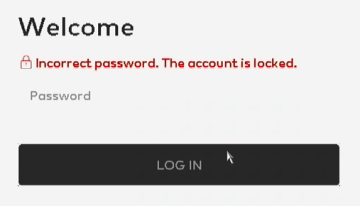locked out
### **To disable the password for the ADC-CSVR126 local interface:**
**Important**: The currently configured password is always required after the ADC-CSVR126 loses its connection to the Internet or power.
1. Log in to the GoSafer Security customer portal (powered by Alarm.com).
2. Click Video.
3. Click Settings.
4. Select the desired Stream Video Recorder.
5. Click **Local Display**.
6. In *Local Device* *Password*, enter the desired password.
7. In *Password Protection*, click to select Disabled.
### Configure the local display password
If a password was already created, the current password can be configured using the GoSafer Security customer portal (powered by Alarm.com).
## Source and support
For GoSafer Security assistance, visit [gosafersecurity.com](https://gosafersecurity.com/).
Original Alarm.com reference: [https://answers.alarm.com/Customer/Website\_and\_App/Video/Video\_Settings/Password\_protect\_the\_ADC-CSVR126\_local\_interface](https://answers.alarm.com/Customer/Website_and_App/Video/Video_Settings/Password_protect_the_ADC-CSVR126_local_interface)
Always verify safety, installation, compatibility, and current UI details against the original manufacturer documentation before operational use.