# Package Alerts for Alarm.com Video Doorbells
**GoSafer Security Knowledge Base**
*This operational reference is organized for GoSafer Security customers and staff. Alarm.com product names are retained where required for technical accuracy.*
## Overview
Be the first to know when a package is delivered to your home or business with Package Alerts for the Alarm.com Video Doorbell (ADC-VDB770).
Platform
App + Web
Content type
How-to / Configuration
Source last updated
2025-12-01
## Procedure
**Step-by-step guide:** Screenshots and videos are placed with the instruction they illustrate.
Be the first to know when a package is delivered to your home or business with Package Alerts for the Alarm.com Video Doorbell (ADC-VDB770) and Alarm.com Premium Video Doorbell Camera (ADC-VDB775). Using Video Analytics, the ADC-VDB770 and ADC-VDB775 can identify when a visitor leaves a parcel on your doorstep—notifying you immediately.
Package Alerts can be configured to notify you right when a delivery is made, remind you if the box is not picked up, or alert you if it goes missing. The feature can be set up in seconds from the Recording Rules section of the GoSafer Security customer portal (powered by Alarm.com) and Alarm.com app.
For more information about configuring a Video Analytics rule, see [Configure a Video Analytics rule](https://answers.alarm.com/Customer/Website_and_App/Video/Video_Settings/Configure_a_Video_Analytics_rule).
### Feature details
- Quick and easy set up as part of any ADC-VDB770 or ADC-VDB775 recording rule
- Separate notifications for when the package is delivered and removed
- Can be configured for SMS, email, and push notifications
- A delivery notification is a package alert with a thumbnail of the parcel
- A removal notification is a person alert with a thumbnail of the individual
- Package events are searchable on the SVR and 24/7 Onboard Recording timelines, as well as Saved Clips
- Clips of package deliver and remove events can be easily viewed in Highlights
### Configure Package Alerts for the ADC-VDB770 and ADC-VDB775
**Note**: Package Alerts will not trigger unless a person is detected.
People detection recording rules are automatically created when a doorbell is installed, but they are disabled by default. You can enable and configure these recording rules to utilize Package Alerts using the Alarm.com app and GoSafer Security customer portal (powered by Alarm.com).
**Important**: To ensure the timeliness of Package Alerts, the minimum delay between Video Analytics notifications is set to 30 seconds. If this setting is changed, it may negatively affect the awareness value of the feature.
Expand all
### For the Alarm.com Video Doorbell (ADC-VDB770):Icn Chevron Up
### Alarm.com app
1. Log in to the Alarm.com app.
2. Tap **Video**.
3. Tap Settings.
4. Tap **Recording Rules**.
5. Tap Edit to edit the desired recording rule.
6. In *Notification triggers*:
- Tap the *Package Delivery* toggle switch to enable notifications when a person has left a package in the camera's field of view.
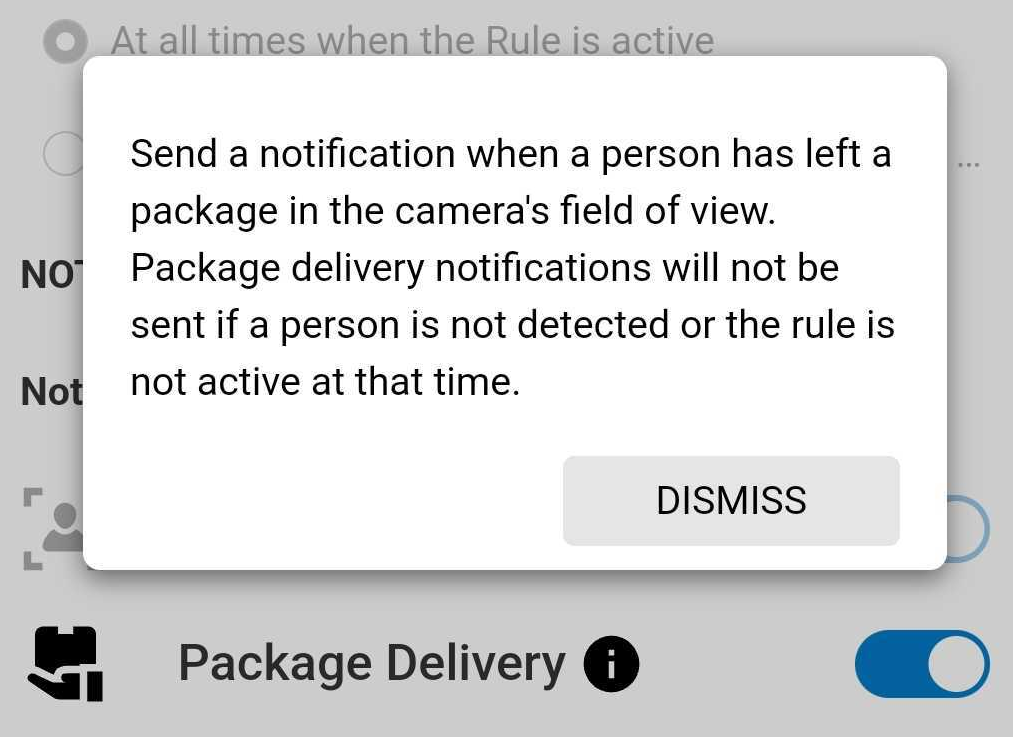Package Delivery toggle app
- Tap the *Package Retrieval* toggle switch to enable notifications when a person has removed a package from a camera's field of view.
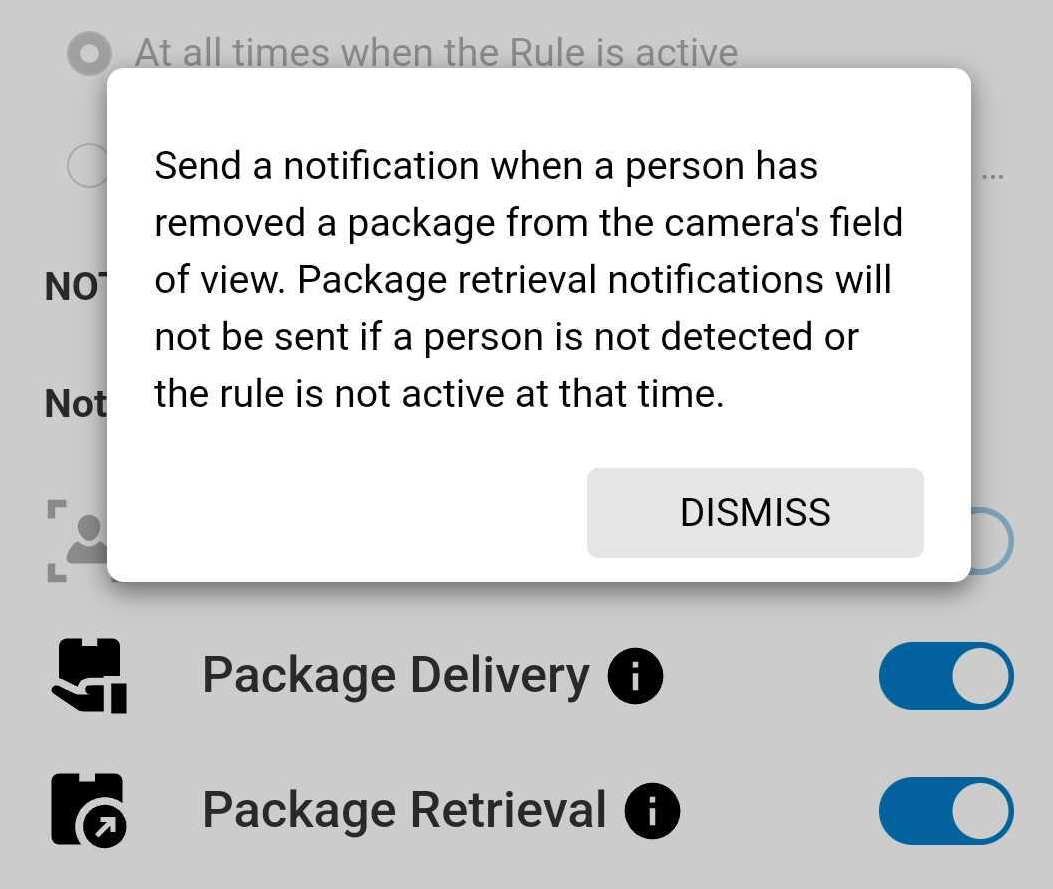Package Retrieval toggle app
7. Configure the recording rule as desired.
8. Tap **Save**.
### GoSafer Security customer portal (powered by Alarm.com)
1. Log in to the GoSafer Security customer portal (powered by Alarm.com).
2. Click **Video**.
3. Click **Recording Rules**.
4. Click Edit to edit the desired recording rule.
5. In *Notification triggers*:
- Click the *Package Delivery* toggle switch to enable notifications when a person has left a package in the camera's field of view.
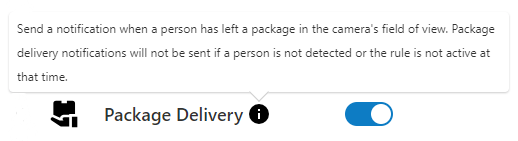Package Delivery toggle
- Click the *Package Retrieval* toggle switch to enable notifications when a person has removed a package from the camera's field of view.
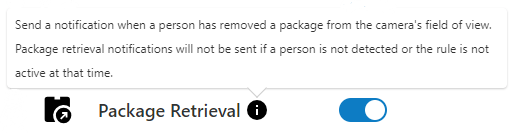Package Retrieval toggle
6. Configure the recording rule as desired.
7. Click **Save**.
### For the Alarm.com Premium Video Doorbell Camera (ADC-VDB775):Icn Chevron Up
### Alarm.com app
1. Log in to the Alarm.com app.
2. Tap **Video**.
3. Tap Settings.
4. Tap **Recording Rules**.
5. Tap Edit to edit the desired recording rule.
6. In *Notification triggers*:
- Tap the *Package Delivery* toggle switch to enable notifications when a person has left a package in the camera's field of view.
Package Delivery toggle app
- Tap the *Package Retrieval* toggle switch to enable notifications when a person has removed a package from a camera's field of view.
Package Retrieval toggle app
7. Configure the recording rule as desired.
8. Tap **Save**.
### GoSafer Security customer portal (powered by Alarm.com)
1. Log in to the GoSafer Security customer portal (powered by Alarm.com).
2. Click **Video**.
3. Click **Recording Rules**.
4. Click Edit to edit the desired recording rule.
5. In *Notifications*:
- Click **Package Delivery** to enable notifications when a person has left a package in the camera's field of view.
- Click **Package Retrieval** to enable notifications when a person has removed a package from the camera's field of view.
6. Configure the recording rule as desired.
7. Click **Save**.
### View Package Alert saved video clips
Saved video clips can be filtered to search for Package Alerts using the GoSafer Security customer portal (powered by Alarm.com) and Alarm.com app.
### Alarm.com app
1. Log in to the Alarm.com app.
2. Tap **Video**.
3. Tap **Saved**.
4. Tap Filter.
5. Using the *Cameras* dropdown menu, select the desired video doorbell and any other desired parameters for the search.
6. Tap **Apply**.
### GoSafer Security customer portal (powered by Alarm.com)
1. Log in to the GoSafer Security customer portal (powered by Alarm.com).
2. Click **Video**.
3. Click **Saved Video Clips**.
4. Click **Filter**.
5. Using the *Cameras* dropdown menu, select the desired video doorbell and any other desired parameters for the search.
6. Click **Apply**.
## Source and support
For GoSafer Security assistance, visit [gosafersecurity.com](https://gosafersecurity.com/).
Original Alarm.com reference: [https://answers.alarm.com/Customer/Website\_and\_App/Video/Video\_Settings/Package\_Alerts\_for\_the\_Alarm.com\_Video\_Doorbell\_(ADC-VDB770)](https://answers.alarm.com/Customer/Website_and_App/Video/Video_Settings/Package_Alerts_for_the_Alarm.com_Video_Doorbell_(ADC-VDB770))
Always verify safety, installation, compatibility, and current UI details against the original manufacturer documentation before operational use.