iPhone's Home Screen Quick Actions feature for the Alarm.com app
GoSafer Security Knowledge Base
This operational reference is organized for GoSafer Security customers and staff. Alarm.com product names are retained where required for technical accuracy.
Overview
The Alarm.com app takes advantage of Apple's Home Screen Quick Actions and gives you access to various Quick Actions right from the home screen. Important: Home Screen Quick Actions are only available on iPhones with iOS version 13.0+.
| Platform | Mobile App |
|---|---|
| Content type | How-to / Configuration |
| Source last updated | 2025-06-04 |
Procedure
Step-by-step guide: Screenshots and videos are placed with the instruction they illustrate.
The Alarm.com app takes advantage of Apple's Home Screen Quick Actions and gives you access to various Quick Actions right from the home screen.
Important: Home Screen Quick Actions are only available on iPhones with iOS version 13.0+.
Quick Actions available
- Arm Away
- Arm Stay
- Disarm
- Lock or Unlock Locks
- Open or Close Garage Doors
- View Cameras
- View Thermostats
- View Lights
- View Doorbells
How to configure Home Screen Quick Actions:
Note: Up to four items can be added to the Home Screen Quick Actions.
- Log in to the Alarm.com app.
- Tap Menu.
- Tap App Settings.
- Tap Home Screen Quick Actions.
- Tap Edit.
- A prompt to enter your password may appear if Keep me logged in was not selected at login. This is required for Home Screen Quick Actions features to work.
- In More Items, perform any of the following:
- Tap Add to add items to the Home Screen Quick Actions list.
- Tap Remove to remove items from the Home Screen Quick Actions list.
- Drag Menu on the right side of the Home Screen Quick Actions list to reorder items.
Note: To configure arming settings, tap Settings on the desired arming setting.
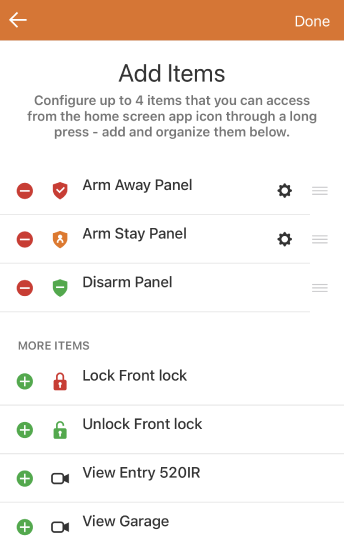
Home Screen Quick Actions
- When finished, tap Done.
How to use Home Screen Quick Actions:
- From the home screen, press and hold the Alarm.com app icon to reveal the Quick Actions.
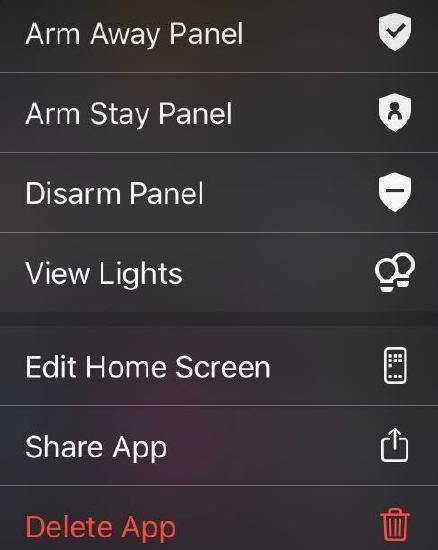
Quick Action Menu
- Tap the desired Quick Action.
- There may be a prompt to enter an app PIN or provide a Touch ID, if applicable.
Important: The Thermostat, Light, Doorbells, and Camera Quick Actions will open the app to the corresponding view, where it is possible to view or control the desired item.
Source and support
For GoSafer Security assistance, visit gosafersecurity.com.
Original Alarm.com reference: https://answers.alarm.com/Customer/Website_and_App/User_Management/Web_App_Users/iPhone's_Home_Screen_Quick_Actions_feature_for_the_Alarm.com_app
Always verify safety, installation, compatibility, and current UI details against the original manufacturer documentation before operational use.