# How do I connect a video camera to a hidden Wi-Fi network?
**GoSafer Security Knowledge Base**
*This operational reference is organized for GoSafer Security customers and staff. Alarm.com product names are retained where required for technical accuracy.*
## Overview
You can connect a video device to a hidden (i.e., not broadcasting) Wi-Fi network by configuring its network settings manually using the GoSafer Security customer portal (powered by Alarm.com) or the camera's access point network. Important: When attempting to manually connect to a wireless network, it is necessary to type in all information about the network. Accuracy is crucial, so it is advisable to confirm the network information is correct. If you are uncertain, confirm with the person who set up the network.
Platform
App + Web
Content type
How-to / Configuration
Source last updated
2025-12-08
## Procedure
**Step-by-step guide:** Screenshots and videos are placed with the instruction they illustrate.
You can connect a video device to a hidden (i.e., not broadcasting) Wi-Fi network by configuring its network settings manually using the GoSafer Security customer portal (powered by Alarm.com) or the camera's access point network.
**Important**: When attempting to manually connect to a wireless network, it is necessary to type in all information about the network. Accuracy is crucial, so it is advisable to confirm the network information is correct. If you are uncertain, confirm with the person who set up the network.
### Manually configure a video device's wireless network
- If the video device is currently connected to the Internet with an Ethernet cable and installed on the account, proceed to [To manually configure a video device's wireless network using an Ethernet cable](https://answers.alarm.com/Customer/Website_and_App/Video/Video_Settings/How_do_I_connect_a_video_camera_to_a_hidden_Wi-Fi_network#To_manually_configure_a_video_device's_wireless_network_using_an_Ethernet_cable:).
- If the video device is not currently connected to the Internet and cannot be connected temporarily using an Ethernet cable, proceed to [To manually configure a video device's wireless network using AP mode](https://answers.alarm.com/Customer/Website_and_App/Video/Video_Settings/How_do_I_connect_a_video_camera_to_a_hidden_Wi-Fi_network#To_manually_configure_a_video_device's_wireless_network_using_AP_mode:).
Expand all
### To manually configure a video device's wireless network using an Ethernet cable:Icn Chevron Up
Use this method when the video device is already installed on the account and connected with an Ethernet cable.
1. Log in to the GoSafer Security customer portal (powered by Alarm.com).
2. Click **Video**.
3. Click **Settings**.
4. Select the desired video device.
5. Click **Network**.
6. Click **Change Network**.
7. Click **Manual**.
8. In the *Wireless Network Name (SSID)* field, enter the Wi-Fi name. This is case-sensitive.
9. Using the *Encryption Type* dropdown menu. select the encryption type.
10. Using the *Algorithm* dropdown menu, select the encryption algorithm.
11. In the *Password* field, enter the Wi-Fi password. This is case-sensitive.
- If you want these settings to apply to all wireless cameras on the account, click **Advanced**. Then click to select **Apply these settings to all wireless cameras on this account**.
12. Click **Continue**.
13. After the correct information is saved in these fields, remove the power cable from the camera, then remove the Ethernet cable.
14. Reconnect the power cable and wait for the status LED to turn solid green.
### To manually configure a video device's wireless network using AP mode:Icn Chevron Up
Use this method when the video device is not installed on the account and cannot be installed temporarily with an Ethernet cable.
1. Put the camera into access point mode.
1. Press and hold the WPS button on the camera for 5 to 7 seconds. The camera LED will first blink blue before blinking white.
2. Release the button immediately once the LED begins to blink white.
2. From a Wi-Fi-enabled device, connect to the Wi-Fi network named *ALARM (##:##:##)*.
- The numbers in parentheses should be the last six digits of the camera’s MAC address.
3. Open a web browser on the Wi-Fi-enabled device (e.g., Chrome, Firefox, Edge, etc.).
4. In the browser address bar, enter **192.168.1.1**.
5. Press **Enter** to go to the web address.
6. Click to select a language.
7. Manually enter the Wi-Fi information:
1. In the SSID field, enter the Wi-Fi name. This is case-sensitive.
2. Using the *Security* dropdown menu, select the encryption type.
3. Select the *Key Format,* which is the algorithm.
4. In the *Security Key* field, enter the Wi-Fi password. This is case-sensitive.
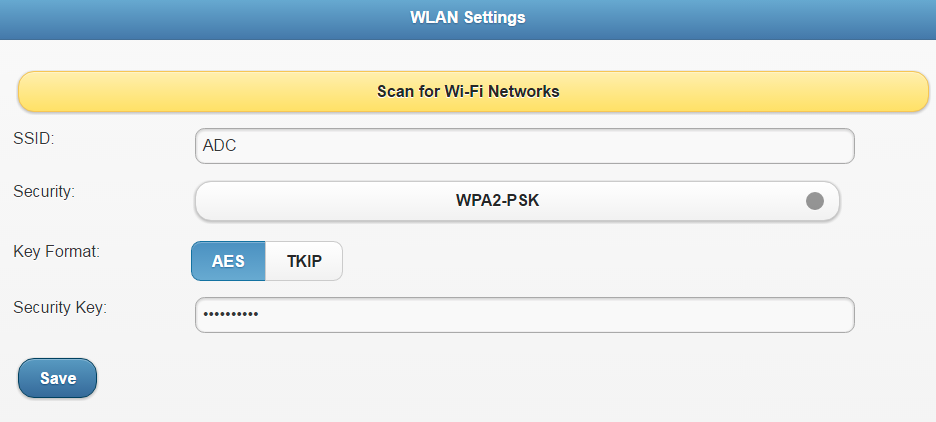AP mode options
8. Click **Save**.
9. If the video device is not already installed on your account, proceed to the Alarm.com app or GoSafer Security customer portal (powered by Alarm.com) to install the video device.
### **Need more help?**
If you have attempted the previous steps but are still unable to connect your camera to your hidden network, contact your service provider for further assistance. To learn more about where you can find your service provider's contact information, see [Contact your service provider](https://answers.alarm.com/Customer/Website_and_App/User_Management/Web_App_Users/Contact_your_service_provider).
## Source and support
For GoSafer Security assistance, visit [gosafersecurity.com](https://gosafersecurity.com/).
Original Alarm.com reference: [https://answers.alarm.com/Customer/Website\_and\_App/Video/Video\_Settings/How\_do\_I\_connect\_a\_video\_camera\_to\_a\_hidden\_Wi-Fi\_network](https://answers.alarm.com/Customer/Website_and_App/Video/Video_Settings/How_do_I_connect_a_video_camera_to_a_hidden_Wi-Fi_network)
Always verify safety, installation, compatibility, and current UI details against the original manufacturer documentation before operational use.