# Export saved video from Onboard Recording (SD card)
**GoSafer Security Knowledge Base**
*This operational reference is organized for GoSafer Security customers and staff. Alarm.com product names are retained where required for technical accuracy.*
## Overview
Onboard Recording saved video can be downloaded using the GoSafer Security customer portal.
Platform
App + Web
Content type
Troubleshooting
Source last updated
2026-05-05
## Procedure
**Step-by-step guide:** Screenshots and videos are placed with the instruction they illustrate.
Onboard Recording saved video can be downloaded using the GoSafer Security customer portal (powered by Alarm.com).
### To download saved video from Onboard Recording:
**Important**: The ADC-V730, ADC-VDB770 and ADC-VDB775 support downloads up to and including a 15 minute duration.
1. Log in to the GoSafer Security customer portal (powered by Alarm.com).
2. Click **Video**.
3. Click **Onboard 24/7 Timeline.**
4. Click ****Download**** to export direct video.
Download
5. Click **Export Video**.
6. Using the camera selection dropdown menu, select the desired device.
7. In the *Download Video* pop-up window, choose the day, start time, whether to include audio, and a duration of up to 60 minutes.
clipboard e994c59e83d015e92f08e70b46cfed9c9
8. Click Export.
9. Click ********Ok********.
10. The requested clip will begin downloading to the computer being used.
### To download timelapse frames from Onboard Recording:
1. Log in to the GoSafer Security customer portal (powered by Alarm.com).
2. Click **Video**.
3. Click **Onboard 24/7 Timeline.**
4. Click ****Download**** to export direct video.
Download
5. Click **Timelapse Frames**.
6. Using the camera selection dropdown menu, select the desired device.
7. In *Download Thumbnails,* choose the day, start time, and duration of up to 1 day.
clipboard ef0da01f05f3ed5d1b86cd98699d8d33e
8. Click Download.
9. Click **OK**.
10. The requested timelapse will begin downloading to the device.
### Manage exports in the Unified Download Manager
Users can track current export progress and view details for all exports on the customer account over the last 24 hours from the Unified Download Manager page using the GoSafer Security customer portal (powered by Alarm.com). The Download Manager syncs export requests across devices, so it is possible to request a clip export on the GoSafer Security customer portal (powered by Alarm.com) and view the progress of that export using the GoSafer Security customer portal (powered by Alarm.com) on a different device as needed.
**Important**: While it is possible to view download entries and their corresponding download link on all platforms, the actual video file will only be saved to the specific device where the export process was started.
- Track download progress and file download details across devices
- Retry downloads that fail, or re-download a file that was successfully downloaded on a different device
- Clear completed or failed downloads from the list to keep the page organized and up to date
- Bulk actions allow for retrying or clearing multiple or all downloads on the page
### Feature limitations
- This feature is for downloading clips to the local disk drive. This feature does not include exporting clips to the Alarm.com cloud from an SVR.
- This feature is only available using the GoSafer Security customer portal (powered by Alarm.com). Clip downloads are not supported using the Alarm.com app.
- Exports for the ADC-SVR100, ADC-SVR122, and ADC-CSVR126 cannot display thumbnail previews on the Unified Download Manager page.
- The download progress bar is not available for SVR clip exports at this time.
### To view the Unified Download Manager
1. Log in to the GoSafer Security customer portal (powered by Alarm.com).
2. Click **Settings**.
3. Click **Download Manager**.
### To retry an export from the Unified Download Manager
**Note**: If you have already navigated to the *Download Manager* page, start at Step 4.
1. Log in to the GoSafer Security customer portal (powered by Alarm.com).
2. Click **Settings**.
3. Click **Download Manager**.
4. Click Options.
5. Click **Retry** to attempt to export the file to the current device.
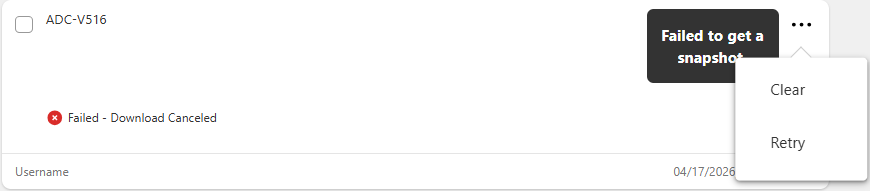Unified Download Manager Retry/Clear
**Important**: If you are unable to retry the export process and see the error *Source Unavailable* pop up on the page, the original footage is no longer available for access on the local hardware (e.g., it has been overwritten). In this case, the footage cannot be retrieved.
### To clear exports from the Unified Download Manager
**Note**: If you have already navigated to the *Download Manager* page, start at Step 4.
1. Log in to the GoSafer Security customer portal (powered by Alarm.com).
2. Click **Settings**.
3. Click **Download Manager**.
4. Click Options.
5. Click **Clear** to remove the download card for a completed or failed export.
Unified Download Manager Retry/Clear
**Important**: The *Clear* action removes the entry from the Download Manager list, but it does not delete the saved video file from your device's local storage.
## Source and support
For GoSafer Security assistance, visit [gosafersecurity.com](https://gosafersecurity.com/).
Original Alarm.com reference: [https://answers.alarm.com/Customer/Website\_and\_App/Video/Saved\_Video/Export\_saved\_video\_from\_Onboard\_Recording\_(SD\_card)](https://answers.alarm.com/Customer/Website_and_App/Video/Saved_Video/Export_saved_video_from_Onboard_Recording_(SD_card))
Always verify safety, installation, compatibility, and current UI details against the original manufacturer documentation before operational use.