# Enable/configure business hours
**GoSafer Security Knowledge Base**
*This operational reference is organized for GoSafer Security customers and staff. Alarm.com product names are retained where required for technical accuracy.*
## Overview
Business hours make it easier to setup and manage commercial features like reporting, arming schedules, auto re-arming and notifications.
Platform
Customer Website
Content type
How-to / Configuration
Source last updated
2025-06-04
## Procedure
**Step-by-step guide:** Screenshots and videos are placed with the instruction they illustrate.
Add new locations to an existing group to manage and make changes across multiple properties at once. There is no limit to the number of locations that can be added to an Enterprise group.
Note: The accounts must be with the same dealer to be added to the same group. For accounts with different dealers, Cross-Dealer Enterprise Groups are supported in some cases. For more information, see [Cross-Dealer Groups](https://answers.alarm.com/Customer/Website_and_App/Commercial/Multi-Location_Management/Cross-Dealer_Groups).
### **To add a new location to a group:**
**Note**: The login used must have *Administrator* permissions in the group where the new location will be added.
1. Log in to the GoSafer Security customer portal (powered by Alarm.com).
2. Verify the Enterprise name is selected, and not a location name. When the Enterprise group is selected, a ********Locations******** option shows in the menu instead of ********Home********.
- If a location is selected, use the dropdown menu to select the Enterprise group. Enterprise groups have Group Property next to the Enterprise name, whereas locations will have Icn Enterprise Open for commercial accounts or Single Property for residential accounts next to the location name.
- If the option to select an Enterprise group is not showing, verify the login being used has access to the Enterprise group.
3. Click **Manage Groups**.
4. Click Add next to the desired group.
5. Enter an Administrator login name and password for the location.
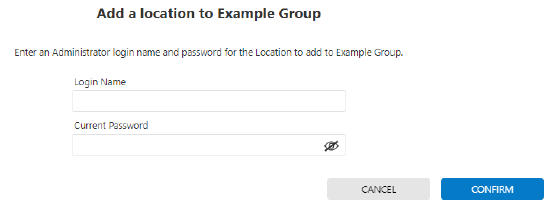Add Location1
**Note**: The login used must have *Administrator* permissions in the group where the new location will be added.
6. Click **Confirm**.
## Source and support
For GoSafer Security assistance, visit [gosafersecurity.com](https://gosafersecurity.com/).
Original Alarm.com reference: [https://answers.alarm.com/Customer/Website\_and\_App/Commercial/Commercial\_Management/Enable\_configure\_business\_hours](https://answers.alarm.com/Customer/Website_and_App/Commercial/Commercial_Management/Enable_configure_business_hours)
Always verify safety, installation, compatibility, and current UI details against the original manufacturer documentation before operational use.