Enable or edit Smarter Business Reports
GoSafer Security Knowledge Base
This operational reference is organized for GoSafer Security customers and staff. Alarm.com product names are retained where required for technical accuracy.
Overview
Smarter Business Reports can be enabled using the website.
| Platform | App + Web |
|---|---|
| Content type | Troubleshooting |
| Source last updated | 2025-06-04 |
Procedure
Step-by-step guide: Screenshots and videos are placed with the instruction they illustrate.
Smarter Business Reports can be enabled and edited using the Alarm.com app and GoSafer Security customer portal (powered by Alarm.com). For more information about how to generate a Smarter Business Report, see Generate a Smarter Business Report.
Enable or edit Smarter Business Reports
To enable or edit Smarter Business Reports using the Alarm.com app:Icn Chevron Down
- Log in to the Alarm.com app.
- Tap Menu.
- Tap Reports.
- Create a new report or edit an existing one.
- To create a new report, tap Add, then select the type of report to be generated.
- The following reports are recommended for optimum awareness of any issues, trends, and peak activity times at your business:
- To edit an existing report, tap More options next to the desired report, then tap Edit.
Note: To delete an existing report, tap More options next to the desired report, then tap Delete.
- To create a new report, tap Add, then select the type of report to be generated.
- Enter the desired name for the report.
- Configure the notification.
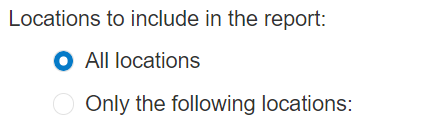
- In Locations to include in the report, select All Locations to have the report apply to all locations or Only the following locations to select the desired locations.
Report
Note: Selecting locations to include in a report is only available with Business Activity Analytics reports (i.e., Occupancy + People Counting, Crowd Gathering, and Queue Monitoring) or with specific reports (i.e., Location Summary, Sensor Activity, SBTM Temperature History, Arming Disarming, Access History, Alarms Issues, Location Open/Close, and Video Health). For more information, contact your service provider.
- In Locations to include in the report, select All Locations to have the report apply to all locations or Only the following locations to select the desired locations.
- In Recipients, click Add to select report recipients in the Address Book or click New to add a new Address Book entry.
- Click Save.
Note: For reports that include all locations, recipients will receive notifications from all locations in the group. If a recipient only wants notifications from one location in the group, the notification needs to be created at the single system level. For more information about how to create a notification for a single system or location, see Configure notification recipients. - Configure the report, then tap Save.
To enable or edit Smarter Business Reports using the GoSafer Security customer portal (powered by Alarm.com):Icn Chevron Down
- Log in to the GoSafer Security customer portal (powered by Alarm.com).
- Click Activity.
- Click Reports.
- Create a new report or edit an existing one.
- To create a new report, click Add, then select the type of report to be generated.
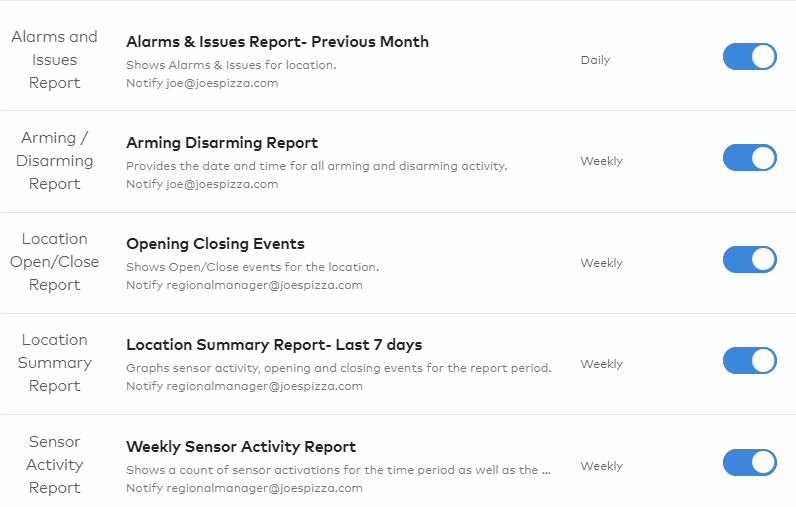
- The following reports are recommended for optimum awareness of any issues, trends, and peak activity times at your business:
Add reports 2
- The following reports are recommended for optimum awareness of any issues, trends, and peak activity times at your business:
- To edit an existing report, click Edit next to the desired report.
Note: To delete an existing report, click Delete next to the desired report.
- To create a new report, click Add, then select the type of report to be generated.
- Enter the desired name for the report.
- Configure the notification.
- In Locations to include in the report, select All Locations to have the report apply to all locations or Only the following locations to select the desired locations.
Report
Note: Selecting locations to include in a report is only available with Business Activity Analytics reports (i.e., Occupancy + People Counting, Crowd Gathering, and Queue Monitoring) or with specific reports (i.e., Location Summary, Sensor Activity, SBTM Temperature History, Arming Disarming, Access History, Alarms Issues, Location Open/Close, and Video Health). For more information, contact your service provider.
- In Locations to include in the report, select All Locations to have the report apply to all locations or Only the following locations to select the desired locations.
- In Recipients, click Add to select report recipients in the Address Book or click New to add a new Address Book entry.
- Click Save.
Note: For reports that include all locations, recipients will receive notifications from all locations in the group. If a recipient only wants notifications from one location in the group, the notification needs to be created at the single system level. For more information about how to create a notification for a single system or location, see Configure notification recipients.
Additional resources
If this video is blocked by the publisher's privacy settings, open it on the original Alarm.com article.
Source and support
For GoSafer Security assistance, visit gosafersecurity.com.
Original Alarm.com reference: https://answers.alarm.com/Customer/Website_and_App/Commercial/Multi-Location_Management/Enable_or_edit_Smarter_Business_Reports
Always verify safety, installation, compatibility, and current UI details against the original manufacturer documentation before operational use.