Create a system user code
GoSafer Security Knowledge Base
This operational reference is organized for GoSafer Security customers and staff. Alarm.com product names are retained where required for technical accuracy.
Overview
New system user codes can be created using the app or the website.
| Platform | App + Web |
|---|---|
| Content type | How-to / Configuration |
| Source last updated | 2025-06-04 |
Procedure
Step-by-step guide: Screenshots and videos are placed with the instruction they illustrate.
New system user codes can be created using the Alarm.com app or GoSafer Security customer portal (powered by Alarm.com).
Important: User codes cannot be edited while the security system is armed. Verify the security system is disarmed before attempting to edit a user code remotely.
Create new system user codes
The following processes will allow for user codes to be set with a manually entered user code. For more information about creating a randomly generated user code, see Generate and share system user codes.
To create new system user codes for single systems using the Alarm.com app:Icn Chevron Up
- Log in to the Alarm.com app.
- Tap Menu.
- Tap Users.
- Tap Add.
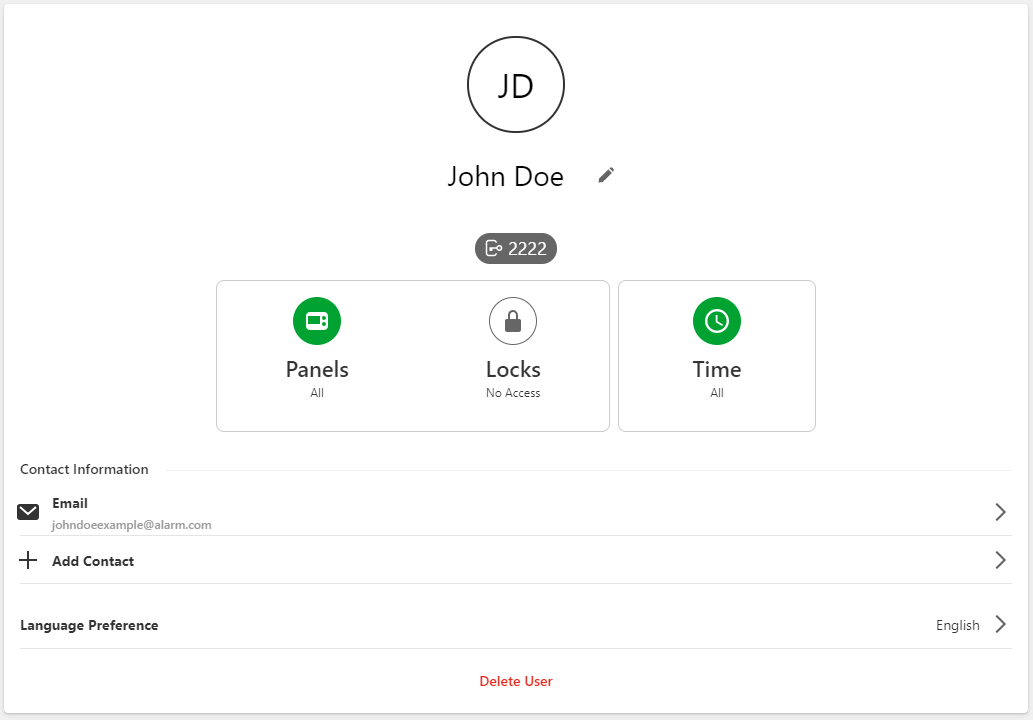
- Enter the user's first and last name, and then tap Create.
- In Access Code, enter the user's desired code.
- Tap the toggle switch for the devices (i.e., panel partitions and locks) to enable/disable access for the user's code.
- Tap Save. Allow a few minutes for the new user code to be active at the panel.
- To add user contact information, tap Add Contact.
- Then tap either:
- Mobile Number. Enter the mobile number, and select the Country and Carrier using the dropdown menus.
- Email Address. Enter the email address, and select the Email Format using the dropdown menu.
- Tap Save to add the new contact information.
- Then tap either:
Allow a few minutes for new user codes to be active at the panel. If the new user code does not work at the panel or you have additional questions, contact your service provider.
If this video is blocked by the publisher's privacy settings, open it on the original Alarm.com article.
To create new system user codes for single systems using the GoSafer Security customer portal (powered by Alarm.com):Icn Chevron Up
- Log in to the GoSafer Security customer portal (powered by Alarm.com).
- Click Users.
- Click Add User.
- Enter the user's first and last name, and then click Create.
- In Access Code, enter the user's desired code.
- Click the toggle switch for the devices (i.e., panel partitions and locks) to enable/disable access for the user's code.
- Click Save. Allow a few minutes for the new user code to be active at the panel.
- To add user contact information, click Add Contact.
- Then click either:
- Mobile Number to add a mobile number. Then enter the mobile number and select the Country and Carrier using the dropdown menus.
- Email Address to add an email address. Then enter the email address and select the Email Format using the dropdown menu.
- Click Save to add the new contact information.
- Then click either:
Allow a few minutes for new user codes to be active at the panel. If the new user code does not work at the panel or you have additional questions, contact your service provider.
If this video is blocked by the publisher's privacy settings, open it on the original Alarm.com article.
Source and support
For GoSafer Security assistance, visit gosafersecurity.com.
Original Alarm.com reference: https://answers.alarm.com/Customer/Website_and_App/User_Management/System_Users/Create_a_system_user_code
Always verify safety, installation, compatibility, and current UI details against the original manufacturer documentation before operational use.