# Change the brightness or color of a SkyBell Doorbell Camera's LED
**GoSafer Security Knowledge Base**
*This operational reference is organized for GoSafer Security customers and staff. Alarm.com product names are retained where required for technical accuracy.*
## Overview
Alarm.com Doorbell Cameras have an LED with variable color and brightness which can be adjusted from the website or app.
Platform
App + Web
Content type
Reference
Source last updated
2025-12-08
## Procedure
**Step-by-step guide:** Screenshots and videos are placed with the instruction they illustrate.
SkyBell Doorbell Cameras have an LED with variable color and brightness that can be adjusted from the Alarm.com app or GoSafer Security customer portal (powered by Alarm.com).
Expand all
### To change the brightness/color of a SkyBell's LED using the Alarm.com app:Icn Chevron Up
1. Log in to the Alarm.com app.
2. Tap Doorbell Video Call or Video.
3. Tap Settings.
4. Tap **LED**.
1. Use the Brightness slider to adjust the brightness.
2. Drag the selector on the color palette to the desired color to change the LED color.
5. Tap Check to save the changes.
### To change the brightness/color of a SkyBell's LED using the GoSafer Security customer portal (powered by Alarm.com):Icn Chevron Up
1. Log in to the GoSafer Security customer portal (powered by Alarm.com).
2. Click **Video**.
3. Click **Settings**.
4. Select the desired SkyBell device.
5. Click **General**.
6. Drag the *LED Brightness* slider to adjust the brightness.
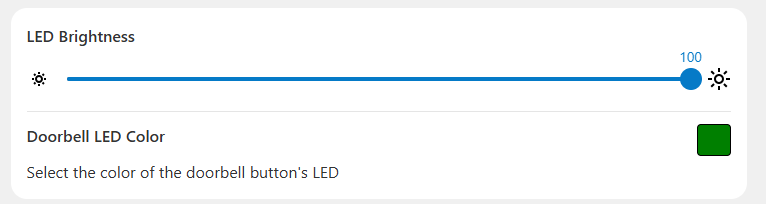SkyBell LED settings
7. Click the *Doorbell LED Color* swatch and drag the selector to change the LED color.
8. Click **Save**.
## Source and support
For GoSafer Security assistance, visit [gosafersecurity.com](https://gosafersecurity.com/).
Original Alarm.com reference: [https://answers.alarm.com/Customer/Website\_and\_App/Video/Video\_Settings/Change\_the\_brightness\_or\_color\_of\_a\_SkyBell\_Doorbell\_Camera's\_LED](https://answers.alarm.com/Customer/Website_and_App/Video/Video_Settings/Change_the_brightness_or_color_of_a_SkyBell_Doorbell_Camera's_LED)
Always verify safety, installation, compatibility, and current UI details against the original manufacturer documentation before operational use.