# Change how the Welcome card appears on the website
**GoSafer Security Knowledge Base**
*This operational reference is organized for GoSafer Security customers and staff. Alarm.com product names are retained where required for technical accuracy.*
## Overview
The Welcome card on the GoSafer Security customer portal (powered by Alarm.com) can be collapsed and expanded, but what appears on the card cannot be changed. The following image is an example of how the Welcome card appears by default: Note: If you have video devices, Today's Activity and the weather forecast are replaced by video clips.
Platform
App + Web
Content type
Reference
Source last updated
2025-06-04
## Procedure
**Step-by-step guide:** Screenshots and videos are placed with the instruction they illustrate.
The *Welcome* card on the GoSafer Security customer portal (powered by Alarm.com) can be collapsed and expanded, but what appears on the card cannot be changed.
The following image is an example of how the *Welcome* card appears by default:
**Note**: If you have video devices, *Today's Activity* and the weather forecast are replaced by video clips.
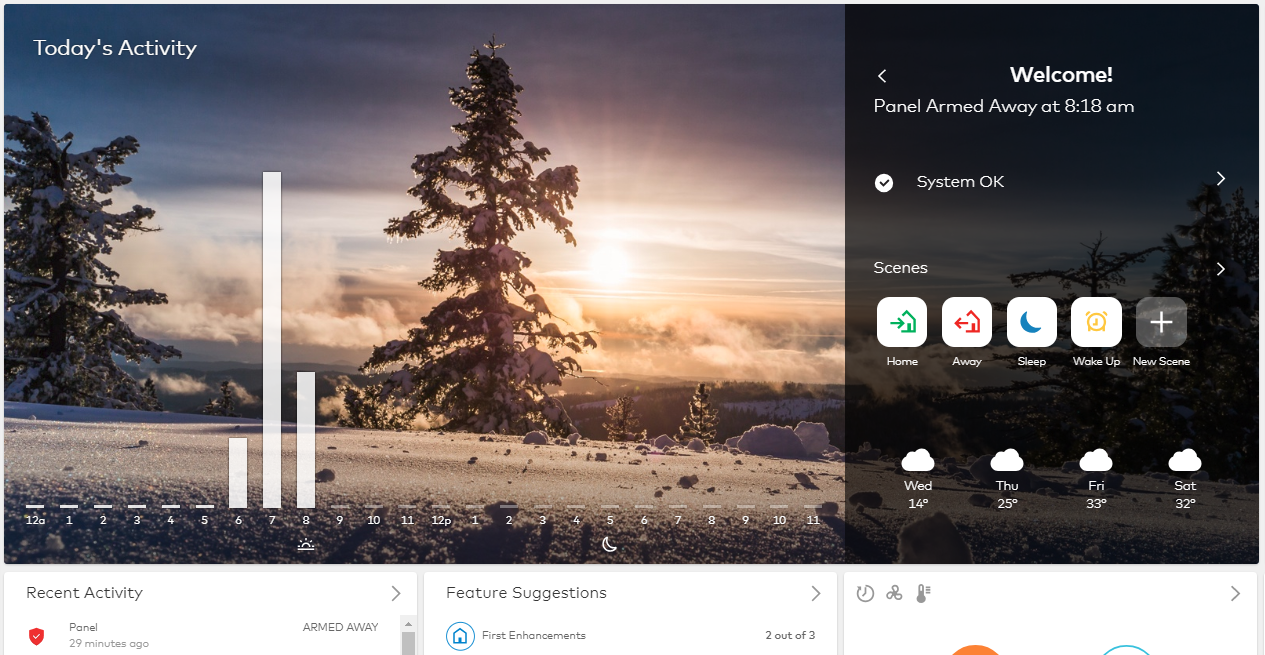Welcome card with weather
### **To collapse the *Welcome* card:**
1. Log in to the GoSafer Security customer portal (powered by Alarm.com).
2. To hide *Today's Activity* or saved video clips on the *Home* page, click Collapse on the *Welcome* card to collapse the section. The system saves the selection for the user's login (e.g., if the user selects to collapse the *Welcome* card, it stays collapsed when the user logs out and logs back in to view the system).
**Note**: User logins are not affected by another user login's selection.
The *Welcome* card can also be hidden. For more information about hiding the *Welcome* card, see [Rearrange Home page of GoSafer Security customer portal (powered by Alarm.com) or Alarm.com app](https://answers.alarm.com/Customer/Website_and_App/User_Management/Web_App_Users/Rearrange_Home_page_of_website_or_app).
## Source and support
For GoSafer Security assistance, visit [gosafersecurity.com](https://gosafersecurity.com/).
Original Alarm.com reference: [https://answers.alarm.com/Customer/Website\_and\_App/User\_Management/Web\_App\_Users/Change\_how\_the\_Welcome\_card\_appears\_on\_the\_website](https://answers.alarm.com/Customer/Website_and_App/User_Management/Web_App_Users/Change_how_the_Welcome_card_appears_on_the_website)
Always verify safety, installation, compatibility, and current UI details against the original manufacturer documentation before operational use.