# Can I restrict a secondary login to see only specific video devices
**GoSafer Security Knowledge Base**
*This operational reference is organized for GoSafer Security customers and staff. Alarm.com product names are retained where required for technical accuracy.*
## Overview
Yes. You can create secondary logins and choose which video devices the login has access to.
Platform
Customer Website
Content type
How-to / Configuration
Source last updated
2025-06-04
## Procedure
**Step-by-step guide:** Screenshots and videos are placed with the instruction they illustrate.
Yes. You can create secondary logins and choose which video devices the login has access to.
### ****Page access for restricted logins****
The secondary login can only access video pages related to the video devices they have access to.
**Example**: A secondary login can only see the **Onboard Recording** page if they have access to a video device that uses Onboard Recording.
### ****To restrict video access to specific devices:****
1. Log in to the GoSafer Security customer portal (powered by Alarm.com).
2. Click ****Users****.
3. Click ****Manage Logins****.
4. In ****Login Name****, click the desired login to change permissions for. Otherwise, create a new login. For more information about how to create a new secondary login, see [Create a new login](https://answers.alarm.com/Customer/Website_and_App/User_Management/Web_App_Users/Create_a_secondary_login).
**Note**: Login names that are underlined can be edited.
5. Click to select ****Limited Device Access****.
6. Click to select ****Video Cameras****.
7. Using the **Video Cameras** dropdown menu, select the desired video devices.
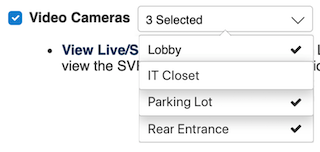Restrict video access
8. Click ********Save********.
## Source and support
For GoSafer Security assistance, visit [gosafersecurity.com](https://gosafersecurity.com/).
Original Alarm.com reference: [https://answers.alarm.com/Customer/Website\_and\_App/Video/Video\_Settings/Can\_I\_restrict\_a\_secondary\_login\_to\_see\_only\_specific\_video\_devices](https://answers.alarm.com/Customer/Website_and_App/Video/Video_Settings/Can_I_restrict_a_secondary_login_to_see_only_specific_video_devices)
Always verify safety, installation, compatibility, and current UI details against the original manufacturer documentation before operational use.