# App settings transfer
**GoSafer Security Knowledge Base**
*This operational reference is organized for GoSafer Security customers and staff. Alarm.com product names are retained where required for technical accuracy.*
## Overview
The Mobile App Settings Transfer Wizard allows users to maintain consistent service, even when changing over to a new device. Users can easily transfer existing notification and Alarm.com Places location settings to new mobile phones or tablets using the transfer wizard. The wizard also helps users properly remove old devices from their accounts, when applicable, to ensure a smooth transition.
Platform
App + Web
Content type
How-to / Configuration
Source last updated
2025-06-04
## Procedure
**Step-by-step guide:** Screenshots and videos are placed with the instruction they illustrate.
The Mobile App Settings Transfer Wizard allows users to maintain consistent service, even when changing over to a new device. Users can easily transfer existing notification and Alarm.com Places location settings to new mobile phones or tablets using the transfer wizard. The wizard also helps users properly remove old devices from their accounts, when applicable, to ensure a smooth transition.
### ****Considerations****
- The Passcode, Touch ID, Fingerprint, and Face ID will not transfer. To change these settings, tap Menu and then **App Settings**.
- This wizard can be accessed by primary account logins and any secondary logins given Master Control permission by the primary login.
- Transfer of Alarm.com Places location settings on iPads is not available.
- The wizard works even if the user switches app stores (i.e., Android to iPhone or the other way around).
### **To transfer app settings to a new device:**
1. Log in to the Alarm.com app on the new device. The Alarm.com app will trigger the Alarm.com app settings migration process.
2. Tap to select **Copy settings from another device** on iOS or **Copy settings from an existing device** on Android.
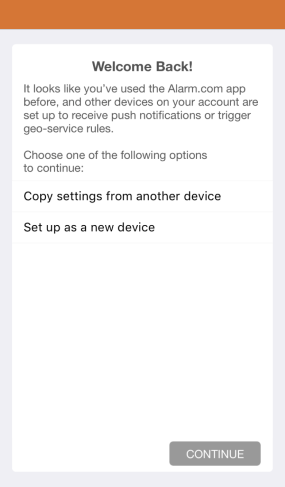Copy settings
3. Tap **Continue**.
4. Tap the device you would like to copy.
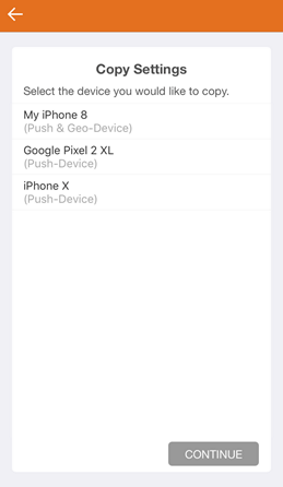Copy settings 2
5. Tap **Continue**. This process steps through turning on each option available for the device requested to copy settings from.
6. For each option, tap **Turn On** or **No Thanks** depending on preference.
- If **Turn On** is selected, tap **OK** to allow the settings to take effect.
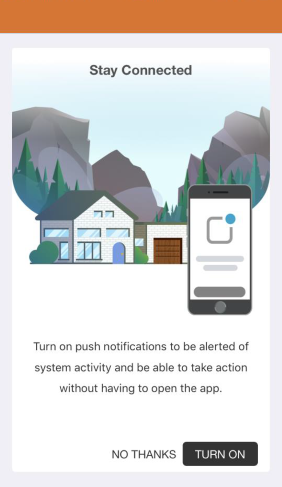Stay connected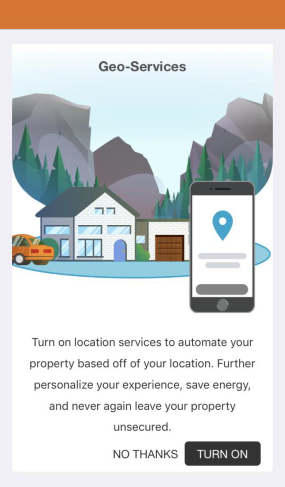Geo services
7. Once copying the settings from the old device is completed, select either to remove the old device from the push notifications and Alarm.com Places or keep it active.
**Note**: If the device is no longer in use, it is recommended to remove the old device to avoid confusion. If the old instance is not deleted, it will still appear under *Push Devices,* notifications previously set up with the old push device, and as a Geo-Device.
- To remove the device, select ****Remove my old device from this account after my settings have been copied****.
- To keep the device, select ****I want to keep using my old device in addition to the new device****, then click ****Ok****.
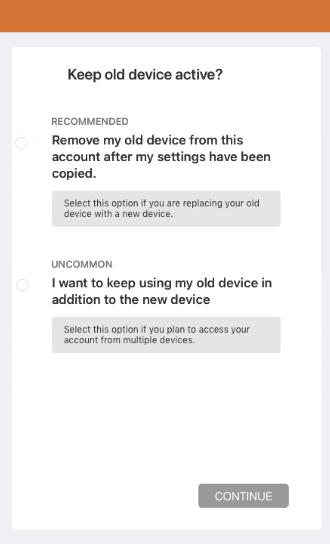Keep old device active
8. Tap **Continue**.
9. Tap **Finish**.
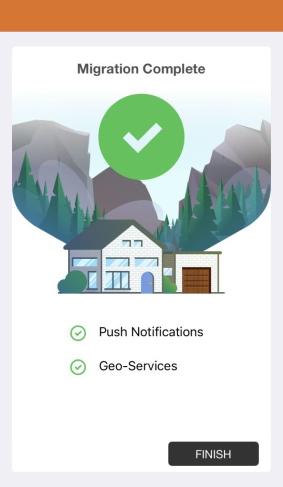Migration complete
Once the *Apps Settings Migration* is complete, the initial setup screen will appear.
**Important**: The Passcode, Touch ID, Fingerprint, and Face ID will not transfer. To change these settings, tap Menu and then **App Settings**.
## Source and support
For GoSafer Security assistance, visit [gosafersecurity.com](https://gosafersecurity.com/).
Original Alarm.com reference: [https://answers.alarm.com/Customer/Website\_and\_App/User\_Management/Web\_App\_Users/App\_settings\_transfer](https://answers.alarm.com/Customer/Website_and_App/User_Management/Web_App_Users/App_settings_transfer)
Always verify safety, installation, compatibility, and current UI details against the original manufacturer documentation before operational use.