Access trouble condition help
GoSafer Security Knowledge Base
This operational reference is organized for GoSafer Security customers and staff. Alarm.com product names are retained where required for technical accuracy.
Overview
By simply tapping a trouble condition wherever it appears, you can access more information about the issue. The information provided may include basic troubleshooting steps, launching additional …
| Platform | Mobile App |
|---|---|
| Content type | Troubleshooting |
| Source last updated | 2025-06-04 |
Procedure
Step-by-step guide: Screenshots and videos are placed with the instruction they illustrate.
Some trouble conditions can be resolved without the need to involve your service provider. By simply tapping a trouble condition wherever it appears, you can access more information about the issue. The information provided may include basic troubleshooting steps, launching additional troubleshooting wizards, and your service provider info for further assistance.
Trouble condition explanations and help are available wherever trouble condition alerts appear:
- The GoSafer Security customer portal (powered by Alarm.com)
- The Alarm.com app
- Trouble condition emails
To access trouble condition help:
- Log in to the Alarm.com app.
- In Issues, tap the trouble condition.
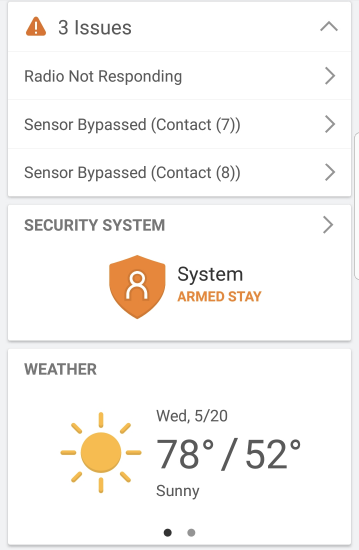
Issues screen
- On this page, more information about what the trouble condition means and what caused it is found.
- For trouble conditions with simple solutions (e.g., Sensor Bypassed), the page includes information about how to resolve the issue.
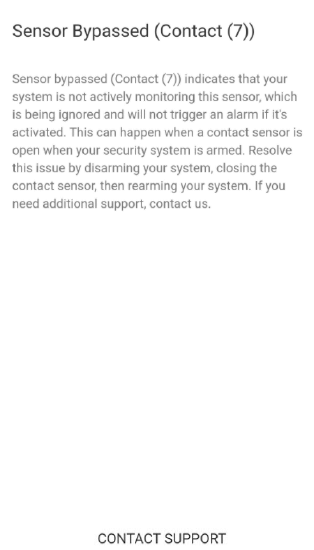
Sensor Bypassed
- For common trouble conditions (e.g., Device Low Battery), a Watch Tutorial button is available to view videos for more information.
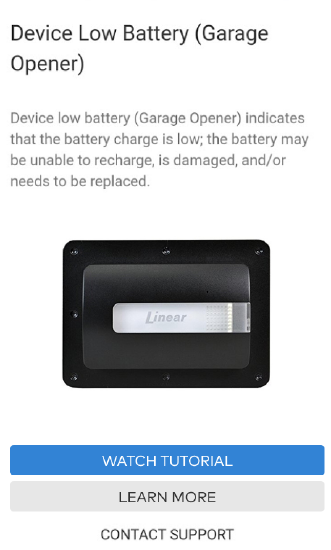
Device Low Battery
- Some trouble conditions (e.g., Video Device Not Responding) include a Fix It button that launches any related troubleshooting wizards.
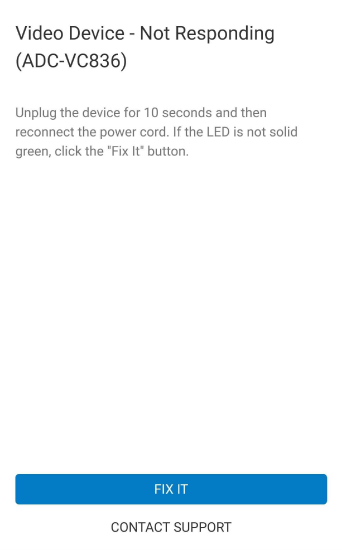
Fix It
- For trouble conditions with simple solutions (e.g., Sensor Bypassed), the page includes information about how to resolve the issue.
Trouble condition help also contains a link to Contact Support, so you can receive additional guidance from your service provider if needed.
Example trouble condition explanations and help text
Front Door Sensor Bypassed: Indicates that your system is not actively monitoring this sensor, which is being ignored and will not trigger an alarm if it's activated. This can happen when a contact sensor is open when your security system is armed. Resolve this issue by disarming your system, closing the contact sensor, then rearming your system. If you need additional support, contact us.
Image Sensor Tamper: Indicates that this image sensor was moved, opened, or shaken. Image sensors have an accelerometer that senses when it is in motion or tilted. Any time your image sensor is moved or something causes it to vibrate (like a door closing hard), you will see this issue. Make sure your image sensor is upright and leave it motionless for at least 5 minutes. If this does not resolve the issue, contact us for support.
Panel Low Battery: Indicates that the backup battery in your security panel is drained, which typically happens after an AC power failure. To resolve the issue, let the battery recharge. If the battery cannot recharge, it may need to be replaced by support.
Thermostat Too Warm: Indicates that the temperature reported by your thermostat is higher than the threshold that you have specified in the Temperature Notification rule. Check your thermostat and rule settings. If you need additional support, contact us.
Source and support
For GoSafer Security assistance, visit gosafersecurity.com.
Original Alarm.com reference: https://answers.alarm.com/Customer/Website_and_App/System_Management/Trouble_Condition_Help/Access_trouble_condition_help
Always verify safety, installation, compatibility, and current UI details against the original manufacturer documentation before operational use.