Access Control Mobile Credentials
GoSafer Security Knowledge Base
This operational reference is organized for GoSafer Security customers and staff. Alarm.com product names are retained where required for technical accuracy.
Overview
Smarter Access Control supports mobile credentials, enabling you to use your smartphone to access doors instead of carrying a separate badge or key fob. Using mobile credentials saves time, money, and eliminates the need to manage separate physical credentials, which are easier to misplace or steal. Mobile credentials are exclusively supported by Alarm.com Access Control readers.
| Platform | App + Web |
|---|---|
| Content type | How-to / Configuration |
| Source last updated | 2025-06-04 |
Procedure
Step-by-step guide: Screenshots and videos are placed with the instruction they illustrate.
Smarter Access Control supports mobile credentials, enabling you to use your smartphone to access doors instead of carrying a separate badge or key fob. Using mobile credentials saves time, money, and eliminates the need to manage separate physical credentials, which are easier to misplace or steal. Mobile credentials are exclusively supported by Alarm.com Access Control readers.
Requirements
- An Access Control account with Alarm.com will require the Mobile Credentials service plan add-on
- Up to 2,500 mobile credentials maximum per account
- An Alarm.com Access Control Reader
- The Alarm.com app downloaded on the user's device
Note: A Mobile Credential user is not required to have a login or be logged into the Alarm.com app.
Assign a mobile credential
Mobile credentials can be assigned using the Alarm.com app or website.
To assign a mobile credential to a user using the app:Icn Chevron Down
Note: When adding new user credentials, allow 2 minutes after the last user credential change is made for changes to go into effect. When revoking a user's access, the change goes into effect immediately after saving.
- Log in to the app.
- Tap Icn Menu .
- Tap User Access.
- Tap Icn Chevron Down next to Access Plans.
- Tap Users.
- Add a new user or edit an existing one.
- To add a new user, tap Add.
- To edit an existing user, tap Icn More H, then tap Icn Edit.
- Tap Add Credential.
Note: If there are already credentials associated with the user, click Add. - In More Options, tap Mobile Credential to set the user's required credentials.
- Select either an email or SMS text invitation.
Note: If the user does not have a valid email or phone number, follow the steps to add contact information to the user. - Select the Access Plans the user will be a part of from this page. Alternatively, a user can be added to the desired plan on the Access Plans page.
- Once an invite has been sent, you will see a banner displaying the status of the mobile credential. You can also select Resend if needed.
- For steps on accepting and using a mobile credential invite, see To accept a mobile credential invitation and begin using your mobile credential.
To assign a mobile credential to a user using the website:Icn Chevron Down
Note: When adding new user credentials, allow 2 minutes after the last user credential change is made for changes to go into effect. When revoking a user's access, the change goes into effect immediately after saving.
- Log in to the website.
- Click User Access.
- Click Users.
- Add a new user or edit an existing one.
- To add a new user, click Add User.
- To edit an existing user, click Icn More H, then click Icn Edit.
- Click Add Credential.
Note: If there are already credentials associated with the user, click Add. - Click Mobile Credential to start the Mobile Credential invitation process.
- Select either an email or SMS text invitation.
Note: If the user does not have a valid email or phone number, follow the steps to add contact information to the user. - Select the Access Plans the user will be a part of from this page. Alternatively, a user can be added to the desired plan on the Access Plans page.
- Once an invite has been sent, you will see a banner displaying the status of the mobile credential. You can also select Resend if needed.
- For steps on accepting and using a mobile credential invite, see To accept a mobile credential invitation and begin using your mobile credential.
Accept a mobile credential invitation and begin using the mobile credential
A mobile credential invitation and Alarm.com app can be used to begin using a mobile credential.
To accept a mobile credential invitation and begin using the mobile credential:Icn Chevron Down
- When the invitation is received, follow the instructions in the invite to download and install the Alarm.com app.
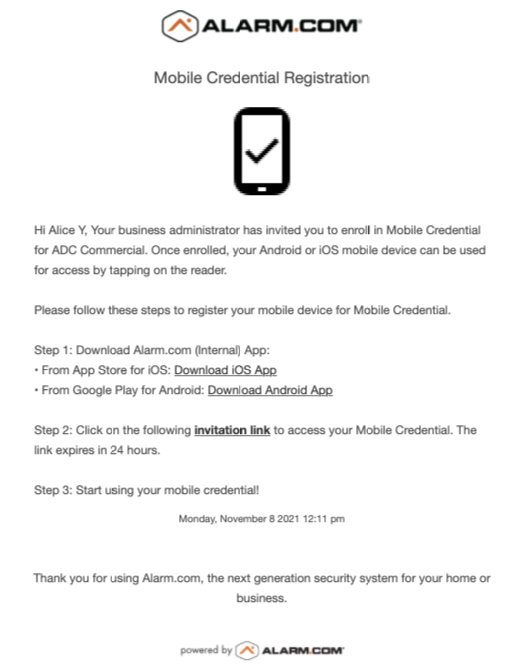
Email invitation
- Once the app is installed and the invite is accepted, a mobile credential screen or a Wallet menu (if the user is logged in to a system) will become available.
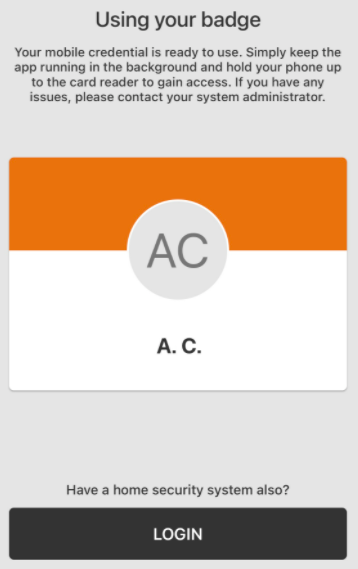
Using your badge
- After accepting the mobile credential invitation, allow 2 minutes for access plan processing before attempting to use it on an Access Control door.
- Refer to the examples below as there may be a minimum distance requirement depending on the operating system used by your mobile device (i.e., Android or iOS):
- Android NFC:
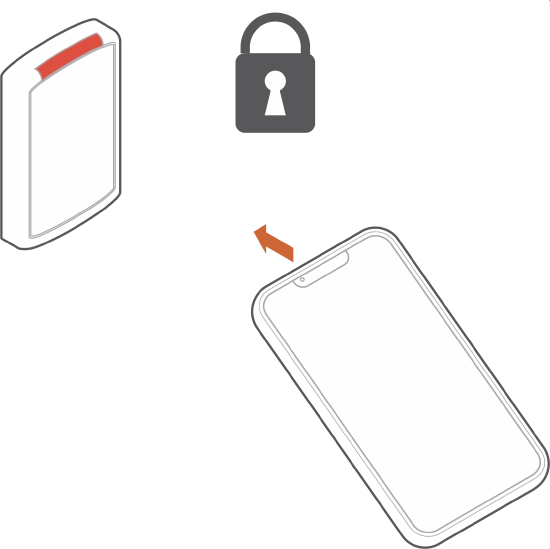
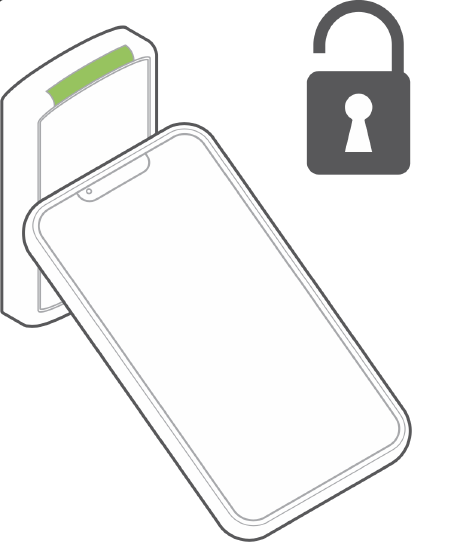
- iOS Bluetooth:
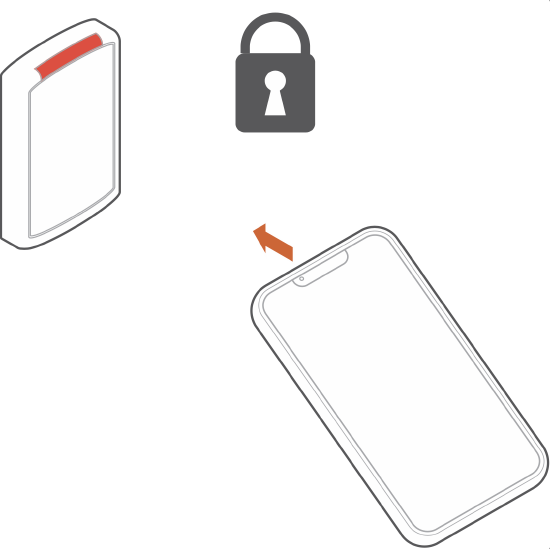
BluetoothLocked 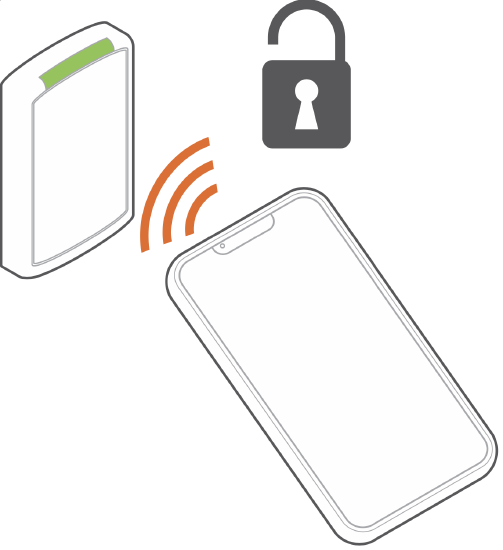
Bluetooth Unlocked
Delete a mobile credential
Mobile credentials can be deleted using the Alarm.com app or website.
To delete a mobile credential to a user using the app:Icn Chevron Down
- Log in to the app.
- Tap Icn Menu .
- Tap User Access.
- Tap Icn Chevron Down next to Access Plans.
- Tap Users.
- Select the desired user.
- Tap Mobile Credential.
- In More Options, tap Delete.
To delete a mobile credential to a user using the website:Icn Chevron Down
- Log in to the website.
- Click User Access.
- Click Users.
- Select the desired user.
- Click Mobile Credential.
- Click Delete.
Frequently asked questions
General Questions
Can I add or remove Mobile Credentials using Bulk User Management?Icn Chevron Down
Yes. Mobile Credentials can be added or removed using Bulk User Management.
For more information, see Add Access Control users in bulk.
What are mobile credentials?Icn Chevron Down
Mobile credentials enable you to use your mobile device to gain entry to an Access Control door with a supported Alarm.com reader.
How do I use my mobile credentials?Icn Chevron Down
After accepting the mobile credential invitation, your Android or iOS device can be used by tapping it on the reader just like a physical badge. Make sure NFC (for Android devices) or Bluetooth (for iOS devices) is enabled on your device. For more information about iOS devices, see For iOS. For more information about Android devices, see For Android.
When can I start using my mobile credential?Icn Chevron Down
After accepting the mobile credential invitation, allow 2 minutes for access plan processing before attempting to use it with an Access Control door.
Can I use my mobile credential to trigger a double swipe rule?Icn Chevron Down
No. A mobile credential cannot trigger a double swipe rule.
Can I use my mobile credential in place of a badge for a reader with a Badge + Pin requirement?Icn Chevron Down
Yes. A mobile credential can be used in place of a badge for a Badge + Pin requirement.
Note: A mobile credential essentially acts as a card, so you will not be able to use a mobile credential in place of a pin code.
Will my mobile credential still work if I delete and reinstall the Alarm.com app?Icn Chevron Down
No. Deleting the app will remove the mobile credential from your phone. If the app gets deleted after a mobile credential has been accepted, the administrator will need to delete the user's mobile credential on the website and then resend a new mobile credential invitation.
What happens if I change phones?Icn Chevron Down
If a user change phones, their mobile credential will no longer work. The administrator will need to delete the user's mobile credential on the website and then resend a new mobile credential invitation.
For iOS
Do I need to open the Alarm.com app to use my mobile credential?Icn Chevron Down
No. You do not need to open the app when using your mobile credential. However, the app must be running in the background on your device.
Do I need to unlock the phone to use my mobile credential?Icn Chevron Down
No. You do not need to unlock your phone to use your mobile credential as long as the app is running in the background.
How do I enable Bluetooth?Icn Chevron Down
- Tap the Settings icon.
- Tap Privacy.
- Tap Bluetooth.
- Tap the toggle switch next to the app to enable Bluetooth.
What version of iOS is needed to support mobile credentials?Icn Chevron Down
Any version of iOS as long as the device supports Bluetooth.
For Android
Do I need to open the Alarm.com app to use my mobile credential?Icn Chevron Down
No. You do not need to open the app to use your mobile credential. Your mobile credential will continue to work even if you close the app.
Do I need to unlock my phone to use my mobile credential?Icn Chevron Down
No. You do not need to unlock your phone to use your mobile credential. However, if you have Secure NFC enabled, you may need the screen to be turned on for your mobile credential to work.
Why am I not able to use my mobile credential when my screen is off?Icn Chevron Down
Certain phone models with Android 10 or higher have a Secure NFC setting which requires the screen to be on for NFC to work.
What version of Android is needed to support mobile credentials?Icn Chevron Down
Any version of Android as long as the device supports either Bluetooth or NFC.
What if my Android phone does not have NFC?Icn Chevron Down
You can still use your mobile credential if your device supports Bluetooth.
Source and support
For GoSafer Security assistance, visit gosafersecurity.com.
Original Alarm.com reference: https://answers.alarm.com/Customer/Website_and_App/Commercial/Access_Control/Access_Control_Mobile_Credentials
Always verify safety, installation, compatibility, and current UI details against the original manufacturer documentation before operational use.