Wellness
GoSafer Security procedures and references for Wellness.
- Wellness
- Edit a Wellness sensor name
- View Wellness behaviors
- View Wellness trends
- View the Wellness activity report
- Wellness Management
- Create/edit a Missed Medication or Sensor Not Activated notification
- Create/edit a Personal Emergency notification
- Create/edit a Safe Inside notification
- Create/edit a Sensor Activity notification
- Create/edit a Sensor Closed or Occupied notification
- Create/edit a Sensor Left Closed or Occupied notification
- Create/edit a Sensor Left Open or Vacant notification
- Create/edit a Still in Bed notification
- Create/edit an Away From Bed notification
- Create/edit an Up and About notification
- Wellness Notifications
- Alarm.com Wellcam Installation - Configure Two-Way Audio
- Alarm.com Wellcam Installation - Connect to Wi-Fi
- Alarm.com Wellcam Installation - Enroll to an account
- Alarm.com Wellcam Installation - Placing the Wellcam
- Alarm.com Wellcam Installation - Using Two-Way Audio
- Wellness video
Wellness
GoSafer Security Knowledge Base
This operational reference is organized for GoSafer Security customers and staff. Alarm.com product names are retained where required for technical accuracy.
Overview
This GoSafer Security section brings together resources for Wellness, including setup, configuration, everyday use, and troubleshooting. Choose the related page that matches your device, feature, or task, and follow the current manufacturer guidance linked on that page.
| Platform | General / Device |
|---|---|
| Content type | How-to / Configuration |
| Source last updated | 2022-01-31 |
Procedure
Source and support
For GoSafer Security assistance, visit gosafersecurity.com.
Original Alarm.com reference: https://answers.alarm.com/Customer/Website_and_App/Wellness
Always verify safety, installation, compatibility, and current UI details against the original manufacturer documentation before operational use.
Edit a Wellness sensor name
GoSafer Security Knowledge Base
This operational reference is organized for GoSafer Security customers and staff. Alarm.com product names are retained where required for technical accuracy.
Overview
Wellness sensor names can be edited for easier system management.
| Platform | Customer Website |
|---|---|
| Content type | How-to / Configuration |
| Source last updated | 2025-06-04 |
Procedure
To edit a wellness sensor name
- Log in to the GoSafer Security customer portal (powered by Alarm.com).
On the Sensors card, click [Details].
In Sensor Name, enter the new sensor name for the sensor to update.
- Click Save.
Source and support
For GoSafer Security assistance, visit gosafersecurity.com.
Original Alarm.com reference: https://answers.alarm.com/Customer/Website_and_App/Wellness/Wellness_Management/Edit_a_Wellness_sensor_name
Always verify safety, installation, compatibility, and current UI details against the original manufacturer documentation before operational use.
View Wellness behaviors
GoSafer Security Knowledge Base
This operational reference is organized for GoSafer Security customers and staff. Alarm.com product names are retained where required for technical accuracy.
Overview
Wellness behaviors help users understand average daily behaviors and if behaviors are deviating from the norm.
| Platform | App + Web |
|---|---|
| Content type | Reference |
| Source last updated | 2025-06-04 |
Procedure
Step-by-step guide: Screenshots and videos are placed with the instruction they illustrate.
The Behaviors are created by gathering information from the sensors around the home. Behaviors are tied to sensors in specific rooms, which allow Wellness to only display relevant information that fits your needs. The dashboard is set up in an intuitive Red, Yellow, Green format, which indicates how close to average that day’s behaviors were. The farther the arrow that points into one of the five sections is from the middle, the more unusual that day’s behaviors were compared to that of an average day.
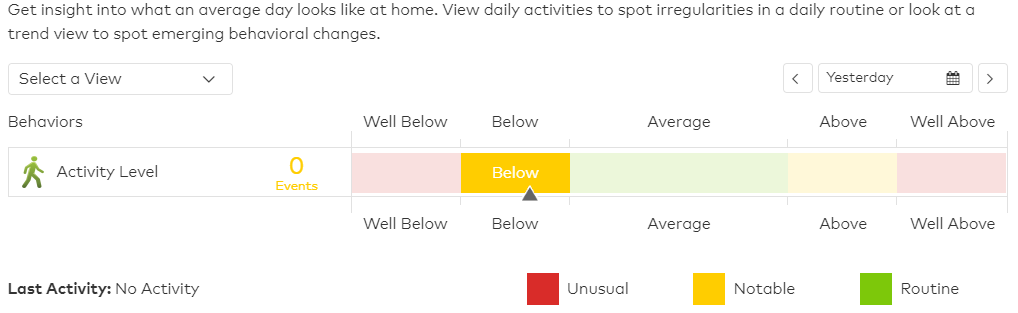
To compare the average and day’s behavior directly, simply scroll over the arrow that correlates to the desired behavior. This displays both the average and the behavior’s actual data.
To see past days, simply click the calendar and choose a date within the previous 2 months.
To view Wellness behaviors using the Alarm.com app:
- Log in to the Alarm.com app.
- Tap Wellness.
- Tap Behaviors.
- The graph with display unusual, notable, and routine behaviors over the specified period of time.
To view Wellness behaviors using the GoSafer Security customer portal (powered by Alarm.com):
- Log in to the GoSafer Security customer portal (powered by Alarm.com).
- Click Activity.
- Click Wellness.
- Click Behaviors.
- The graph with display unusual, notable, and routine behaviors over the specified period of time.
Note: Using the Select a View dropdown menu, click View Behaviors to show possible irregularities in a daily routine.
Source and support
For GoSafer Security assistance, visit gosafersecurity.com.
Original Alarm.com reference: https://answers.alarm.com/Customer/Website_and_App/Wellness/Wellness_Management/View_Wellness_behaviors
Always verify safety, installation, compatibility, and current UI details against the original manufacturer documentation before operational use.
View Wellness trends
GoSafer Security Knowledge Base
This operational reference is organized for GoSafer Security customers and staff. Alarm.com product names are retained where required for technical accuracy.
Overview
Wellness behaviors help users understand changing behavior trends.
| Platform | Customer Website |
|---|---|
| Content type | Reference |
| Source last updated | 2025-06-04 |
Procedure
Step-by-step guide: Screenshots and videos are placed with the instruction they illustrate.
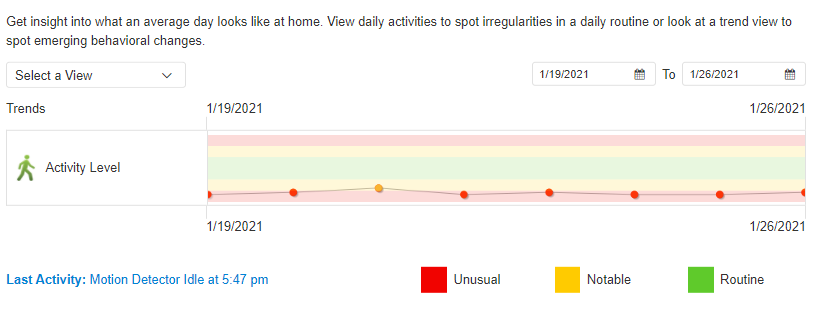
Wellness enables you to look at multiple days’ worth of behaviors to get a better picture of long term behavior trends.
To view wellness trends:
- Log in to the GoSafer Security customer portal (powered by Alarm.com).
- Click Activity.
- Click Wellness.
- Click Behaviors.
- Using the Select a View dropdown menu, click View trends to show possible emerging behavioral changes.
- The Trends page defaults to show the past week’s behaviors. To change the date range of the graph, click on the first calendar Date to select a starting date and then click on the second calendar Date to select an ending date.
While in Trends view, you have the ability to mouse over a specific data point to see the actual value, instead of its relative position on the graph. When you mouse over a specific data point, it displays the date the point represents and the value it represents.
Source and support
For GoSafer Security assistance, visit gosafersecurity.com.
Original Alarm.com reference: https://answers.alarm.com/Customer/Website_and_App/Wellness/Wellness_Management/View_Wellness_trends
Always verify safety, installation, compatibility, and current UI details against the original manufacturer documentation before operational use.
View the Wellness activity report
GoSafer Security Knowledge Base
This operational reference is organized for GoSafer Security customers and staff. Alarm.com product names are retained where required for technical accuracy.
Overview
Wellness activity reports help users understand room and sensor activity.
| Platform | App + Web |
|---|---|
| Content type | Reference |
| Source last updated | 2025-06-04 |
Procedure
To view the wellness activity report using the Alarm.com app
- Log in to the Alarm.com app.
- Tap Wellness.
- Tap Daily Sensor Activity.
View activity based on sensor or room.
- Tap Sensor to view daily sensor activity on an individual sensor level.
- Tap Room to view the daily sensor activity on a room-by-room basis.
To view the wellness activity report using the GoSafer Security customer portal (powered by Alarm.com)
- Log in to the GoSafer Security customer portal (powered by Alarm.com).
- Click Activity.
- Click Wellness.
Using the Select a View dropdown menu, select either
Activity by Sensor to show activity by the specific sensor name.
Activity by Room to show activity by sensors assigned to specific rooms.
Source and support
For GoSafer Security assistance, visit gosafersecurity.com.
Original Alarm.com reference: https://answers.alarm.com/Customer/Website_and_App/Wellness/Wellness_Management/View_the_Wellness_activity_report
Always verify safety, installation, compatibility, and current UI details against the original manufacturer documentation before operational use.
Wellness Management
GoSafer Security Knowledge Base
This operational reference is organized for GoSafer Security customers and staff. Alarm.com product names are retained where required for technical accuracy.
Overview
This GoSafer Security section brings together resources for Wellness Management, including setup, configuration, everyday use, and troubleshooting. Choose the related page that matches your device, feature, or task, and follow the current manufacturer guidance linked on that page.
| Platform | General / Device |
|---|---|
| Content type | How-to / Configuration |
| Source last updated | 2022-01-31 |
Procedure
Source and support
For GoSafer Security assistance, visit gosafersecurity.com.
Original Alarm.com reference: https://answers.alarm.com/Customer/Website_and_App/Wellness/Wellness_Management
Always verify safety, installation, compatibility, and current UI details against the original manufacturer documentation before operational use.
Create/edit a Missed Medication or Sensor Not Activated notification
GoSafer Security Knowledge Base
This operational reference is organized for GoSafer Security customers and staff. Alarm.com product names are retained where required for technical accuracy.
Overview
A missed medication or sensor not activated notification can notify users if a sensor such as a medication cabinet door sensor is not activated during the specified timeframe.
| Platform | App + Web |
|---|---|
| Content type | How-to / Configuration |
| Source last updated | 2025-06-04 |
Procedure
To create/edit a Missed Medication or Sensor Not Activated notification using the Alarm.com app
- Log in to the Alarm.com app.
- Tap [Menu].
- Tap Notifications.
- Tap [Settings].
To edit a notification, tap to select the Missed Medication or Sensor Not Activated notification to configure.
To create a new notification if there is no notification created yet
- Tap [Add].
- Tap Use A Template.
In Wellness, tap More.
- Tap Missed Medication or Sensor Not Activated.
Name the new notification rule.
In When any of these sensors are not activated, tap to select the sensors you would like to receive notifications from.
In During this time frame, select the days of the week the notification is active.
Using the Starting at dropdown menu, select the time the notification begins activation for the selected days of the week.
Using the Ending at dropdown menu, select the time the notification is deactivated for the selected days of the week.
- Tap Add to select recipients to be notified.
- Tap the entries in the Address Book that are to be notified, or tap Add Contact to add a new Address Book entry.
Once all desired recipients are selected, tap Close.
- Verify the notification is configured with the correct settings.
- Tap Save.
To create/edit a Missed Medication or Sensor Not Activated notification using the GoSafer Security customer portal (powered by Alarm.com):
- Log in to the GoSafer Security customer portal (powered by Alarm.com).
- Click Notifications.
To edit a notification, click [Edit] for the Missed Medication or Sensor Not Activated notification to configure.
To create a new notification if there is no notification created yet
- Click New Notification.
- Click Wellness.
- Click Missed Medication or Sensor Not Activated.
Name the notification rule.
In When any of these sensors are not activated, click to select the sensors you would like to receive notifications from.
In During this time frame, select the days of the week the notification is active.
Using the Starting at dropdown menu, select the time the notification begins activation for the selected days of the week.
Using the Ending at dropdown menu, select the time the notification is deactivated for the selected days of the week.
- Click Add to select recipients to be notified.
- Click the entries in the Address Book that are to be notified, or click New to add a new Address Book entry.
Once all desired recipients are selected, click Close.
- Verify the notification is configured with the correct settings.
- Click Save.
Source and support
For GoSafer Security assistance, visit gosafersecurity.com.
Original Alarm.com reference: https://answers.alarm.com/Customer/Website_and_App/Wellness/Wellness_Notifications/Create%2F%2Fedit_a_Missed_Medication_or_Sensor_Not_Activated_notification
Always verify safety, installation, compatibility, and current UI details against the original manufacturer documentation before operational use.
Create/edit a Personal Emergency notification
GoSafer Security Knowledge Base
This operational reference is organized for GoSafer Security customers and staff. Alarm.com product names are retained where required for technical accuracy.
Overview
A personal emergency notification can notify users when a personal emergency button is pressed.
| Platform | App + Web |
|---|---|
| Content type | How-to / Configuration |
| Source last updated | 2025-06-04 |
Procedure
To create/edit a Personal Emergency notification using the Alarm.com app
- Log in to the Alarm.com app.
- Tap [Menu].
- Tap Notifications.
- Tap [Settings].
To edit a notification, tap to select the personal emergency notification to configure.
To create a new notification if there is not an up and about notification yet
- Tap [Add].
- Tap Use A Template.
In Wellness, tap More.
- Tap Personal Emergency.
Name the new notification rule.
In When Alarm type of, tap to select the alarm type you would like to receive notifications from.
Using the Is reported by dropdown menu, select the sensors that affect the notification.
- Tap Add to select recipients to be notified.
- Tap the entries in the Address Book that are to be notified, or tap Add Contact to add a new Address Book entry.
Once all desired recipients are selected, tap Close.
- Verify the notification is configured with the correct settings.
- Tap Save.
To create/edit a Personal Emergency notification using the GoSafer Security customer portal (powered by Alarm.com)
- Log in to the GoSafer Security customer portal (powered by Alarm.com).
- Click Notifications.
To edit a notification, click [Edit] for the personal emergency notification to configure.
To create a new notification if there is not an away from bed notification yet
- Click New Notification.
- Click Wellness.
- Click Personal Emergency.
Name the notification rule.
In When Alarm type of, click to select the alarm type you would like to receive notifications from.
Using the Is reported by dropdown menu, select the sensors that affect the notification.
- Click Add to select recipients to be notified.
- Click the entries in the Address Book that are to be notified, or click New to add a new Address Book entry.
Once all desired recipients are selected, click Close.
- Verify the notification is configured with the correct settings.
- Click Save.
Source and support
For GoSafer Security assistance, visit gosafersecurity.com.
Original Alarm.com reference: https://answers.alarm.com/Customer/Website_and_App/Wellness/Wellness_Notifications/Create-edit_a_Personal_Emergency_notification
Always verify safety, installation, compatibility, and current UI details against the original manufacturer documentation before operational use.
Create/edit a Safe Inside notification
GoSafer Security Knowledge Base
This operational reference is organized for GoSafer Security customers and staff. Alarm.com product names are retained where required for technical accuracy.
Overview
A safe inside notification can notify users when a sensor is open or activated.
| Platform | App + Web |
|---|---|
| Content type | How-to / Configuration |
| Source last updated | 2025-06-04 |
Procedure
To create/edit a Safe Inside notification using the Alarm.com app
- Log in to the Alarm.com app.
- Tap [Menu].
- Tap Notifications.
- Tap [Settings].
To edit a notification, tap to select the safe inside notification to configure.
To create a new notification if there is not an up and about notification yet
- Tap [Add].
- Tap Use A Template.
In Wellness, tap More.
- Tap Safe Inside.
Name the new notification rule.
In When any of these sensors open or are activated, tap to select the sensors you would like to receive notifications from.
In During this time frame, select either
At All Times to notify you any time of the day when it is triggered.
Only During the Following Times to set up notifications to only take place during certain hours of the day.
In Notification Filtering, tap to select desired settings.
- Tap Add to select who is notified.
- Tap the entries in the Address Book that are to be notified, or tap Add Contact to add a new Address Book entry.
Once all desired recipients are selected, tap Close.
- Verify the notification is configured with the correct settings.
- Tap Save.
To create/edit a Safe Inside notification using the GoSafer Security customer portal (powered by Alarm.com)
- Log in to the GoSafer Security customer portal (powered by Alarm.com).
- Click Notifications.
To edit a notification, click [Edit] for the safe inside notification to configure.
To create a new notification if there is not a safe inside notification yet
- Click New Notification.
- Click Wellness.
- Click Safe Inside.
Name the notification rule.
In When any of these sensors open or are activated, click to select the sensors you would like to receive notifications from.
In During this time frame, select either
At All Times to notify you any time of the day when it is triggered.
Only During the Following Times to set up notifications to only take place during certain hours of the day.
In Notification Filtering, click to select desired settings.
- Click Add to select recipients to be notified.
- Click the entries in the Address Book that are to be notified, or click New to add a new Address Book entry.
Once all desired recipients are selected, click Close.
- Verify the notification is configured with the correct settings.
- Click Save.
Source and support
For GoSafer Security assistance, visit gosafersecurity.com.
Original Alarm.com reference: https://answers.alarm.com/Customer/Website_and_App/Wellness/Wellness_Notifications/Create-edit_a_Safe_Inside_notification
Always verify safety, installation, compatibility, and current UI details against the original manufacturer documentation before operational use.
Create/edit a Sensor Activity notification
GoSafer Security Knowledge Base
This operational reference is organized for GoSafer Security customers and staff. Alarm.com product names are retained where required for technical accuracy.
Overview
A sensor activity notification can notify users if a contact sensor is opened or a motion sensor is activated.
| Platform | App + Web |
|---|---|
| Content type | How-to / Configuration |
| Source last updated | 2025-06-04 |
Procedure
To create/edit a Sensor Activity notification using the Alarm.com app
- Log in to the Alarm.com app.
- Tap [Menu].
- Tap Notifications.
- Tap [Settings].
To edit a notification, tap to select the sensor activity notification to configure.
To create a new notification if there is not an up and about notification yet
- Tap [Add].
- Tap Use A Template.
In Wellness, tap More.
- Tap Sensor Activity.
Name the new notification rule.
In When any of these sensors open or are activated, tap to select the sensors you would like to receive notifications from.
In During this time frame, select either
At All Times to notify you any time of the day when it is triggered.
Only During the Following Times to set up notifications to only take place during certain hours of the day.
- Tap Add to select who is notified.
- Tap the entries in the Address Book that are to be notified, or tap Add Contact to add a new Address Book entry.
Once all desired recipients are selected, tap Close.
- Verify the notification is configured with the correct settings.
- Tap Save.
To create/edit a Sensor Activity notification using the GoSafer Security customer portal (powered by Alarm.com)
- Log in to the GoSafer Security customer portal (powered by Alarm.com).
- Click Notifications.
To edit a notification, click [Edit] for the sensor activity notification to configure.
To create a new notification if there is not one created yet
- Click New Notification.
- Click Wellness.
- Click Sensor Activity.
Name the notification rule.
In When any of these sensors open or are activated, click to select the sensors you would like to receive notifications from.
In During this time frame, select either
At All Times to notify you any time of the day when it is triggered.
Only During the Following Times to set up notifications to only take place during certain hours of the day.
- Click Add to select who is notified.
- Click the entries in the Address Book that are to be notified, or click New to add a new Address Book entry.
Once all desired recipients are selected, click Close.
- Verify the notification is configured with the correct settings.
- Click Save.
Source and support
For GoSafer Security assistance, visit gosafersecurity.com.
Original Alarm.com reference: https://answers.alarm.com/Customer/Website_and_App/Wellness/Wellness_Notifications/Create%2F%2Fedit_a_Sensor_Activity_notification
Always verify safety, installation, compatibility, and current UI details against the original manufacturer documentation before operational use.
Create/edit a Sensor Closed or Occupied notification
GoSafer Security Knowledge Base
This operational reference is organized for GoSafer Security customers and staff. Alarm.com product names are retained where required for technical accuracy.
Overview
A Sensor Closed or Occupied notification can notify users if a sensor is closed or occupied.
| Platform | App + Web |
|---|---|
| Content type | How-to / Configuration |
| Source last updated | 2025-06-04 |
Procedure
To create/edit Sensor Closed or Occupied notification using the Alarm.com app
- Log in to the Alarm.com app.
- Tap [Menu].
- Tap Notifications.
- Tap [Settings].
To edit a notification, tap to select the sensor closed or occupied notification to configure.
To create a new notification if there is not an up and about notification yet
- Tap [Add].
- Tap Use A Template.
In Wellness, tap More.
- Tap Sensor Closed or Occupied.
Name the new notification rule.
In When any of these sensors close or are occupied, tap to select the sensors you would like to receive notifications from.
In During this time frame, select either
At All Times to notify you any time of the day when the notification is triggered.
Only During the Following Times to set up notifications to only take place during certain hours of the day.
- Tap Add to select who is notified.
- Tap the entries in the Address Book that are to be notified, or tap Add Contact to add a new Address Book entry.
Once all desired recipients are selected, tap Close.
- Verify the notification is configured with the correct settings.
- Tap Save.
To create/edit Sensor Closed or Occupied notification using the GoSafer Security customer portal (powered by Alarm.com):
- Log in to the GoSafer Security customer portal (powered by Alarm.com).
- Click Notifications.
To edit a notification, click [Edit] for the sensor closed or occupied notification to configure.
To create a new notification if there is not a sensor closed or occupied notification yet
- Click New Notification.
- Click Wellness.
- Click Sensor Closed or Occupied.
Name the notification rule.
In When any of these sensors close or are occupied, click to select the sensors you would like to receive notifications from.
In During this time frame, select either
At All Times to notify you any time of the day when it is triggered.
Only During the Following Times to set up notifications to only take place during certain hours of the day.
- Click Add to select who is notified.
- Click the entries in the Address Book that are to be notified, or click New to add a new Address Book entry.
Once all desired recipients are selected, click Close.
- Verify the notification is configured with the correct settings.
- Click Save.
Source and support
For GoSafer Security assistance, visit gosafersecurity.com.
Original Alarm.com reference: https://answers.alarm.com/Customer/Website_and_App/Wellness/Wellness_Notifications/Create%2F%2Fedit_a_Sensor_Closed_or_Occupied_notification
Always verify safety, installation, compatibility, and current UI details against the original manufacturer documentation before operational use.
Create/edit a Sensor Left Closed or Occupied notification
GoSafer Security Knowledge Base
This operational reference is organized for GoSafer Security customers and staff. Alarm.com product names are retained where required for technical accuracy.
Overview
A Sensor Left Closed or Occupied notification can notify users if a sensor is closed or activated for longer than a specified duration.
| Platform | App + Web |
|---|---|
| Content type | How-to / Configuration |
| Source last updated | 2025-06-04 |
Procedure
To create/edit a Sensor Left Closed or Occupied notification using the Alarm.com app
- Log in to the Alarm.com app.
- Tap [Menu].
- Tap Notifications.
- Tap [Settings].
To edit a notification, tap to select the sensor left closed or occupied notification to configure.
To create a new notification if one has not been created yet
- Tap [Add].
- Tap Use A Template.
In Wellness, tap More.
- Tap Sensor Left Closed Or Occupied.
Name the new notification rule.
In When any of these sensors, tap to select the sensors you would like to receive notifications from.
Using the Is Left Closed for this duration dropdown menu, select the amount of time the sensor must remain close to trigger the notification.
In During this time frame, select either
At All Times to notify you any time of the day when it is triggered.
Only During the Following Times to set up notifications to only take place during certain hours of the day.
- Tap Add to select who is notified.
- Tap the entries in the Address Book that are to be notified, or tap Add Contact to add a new Address Book entry.
Once all desired recipients are selected, tap Close.
- Verify the notification is configured with the correct settings.
- Tap Save.
To create/edit a Sensor Left Closed or Occupied notification using the GoSafer Security customer portal (powered by Alarm.com):
- Log in to the GoSafer Security customer portal (powered by Alarm.com).
- Click Notifications.
To edit a notification, click [Edit] for the sensor left closed or occupied notification to configure.
To create a new notification if one has not been created yet
- Click New Notification.
- Click Wellness.
- Click Sensor Left Closed or Occupied.
Name the notification rule.
In When any of these sensors, click to select the sensors you would like to receive notifications from.
Using the Is Left Closed for this duration dropdown menu, select the amount of time the sensor must remain close to trigger the notification.
In During this time frame, select either
At All Times to notify you any time of the day when it is triggered.
Only During the Following Times to set up notifications to only take place during certain hours of the day.
- Click Add to select who is notified.
- Click the entries in the Address Book that are to be notified, or click New to add a new Address Book entry.
Once all desired recipients are selected, click Close.
- Verify the notification is configured with the correct settings.
- Click Save.
Source and support
For GoSafer Security assistance, visit gosafersecurity.com.
Original Alarm.com reference: https://answers.alarm.com/Customer/Website_and_App/Wellness/Wellness_Notifications/Create%2F%2Fedit_a_Sensor_Left_Closed_or_Occupied_notification
Always verify safety, installation, compatibility, and current UI details against the original manufacturer documentation before operational use.
Create/edit a Sensor Left Open or Vacant notification
GoSafer Security Knowledge Base
This operational reference is organized for GoSafer Security customers and staff. Alarm.com product names are retained where required for technical accuracy.
Overview
A Sensor Left Open or Vacant notification can notify users if a sensor is left open or unactivated for a specified duration.
| Platform | App + Web |
|---|---|
| Content type | How-to / Configuration |
| Source last updated | 2025-06-04 |
Procedure
To create/edit a Sensor Left Open or Vacant notification using the Alarm.com app
- Log in to the Alarm.com app.
- Tap [Menu].
- Tap Notifications.
- Tap [Settings].
To edit a notification, tap to select the sensor left open or vacant notification to configure.
To create a new notification if there is not an up and about notification yet
- Tap [Add].
- Tap Use A Template.
In Wellness, tap More.
- Tap Away From Bed.
Name the new notification rule.
In When any of these sensors, tap to select the sensors you would like to receive notifications from.
In Is Left Open, select either
For this duration to select an amount of time in minutes the sensor must remain open before sending the notification.
When selected people cross a Geo-Fence to select Geo-Devices and its action with a specified Geo-Fence that triggers the notification.
In During this time frame, select either
At All Times to notify you any time of the day when it is triggered.
Only During the Following Times to set up notifications to only take place during certain hours of the day.
- Tap Add to select who is notified.
- Tap the entries in the Address Book that are to be notified, or tap Add Contact to add a new Address Book entry.
Once all desired recipients are selected, tap Close.
- Verify the notification is configured with the correct settings.
- Tap Save.
To create/edit a Sensor Left Open or Vacant notification using the GoSafer Security customer portal (powered by Alarm.com):
- Log in to the GoSafer Security customer portal (powered by Alarm.com).
- Click Notifications.
To edit a notification, click [Edit] for the sensor left open or vacant notification to configure.
To create a new notification if there is not a sensor left open or vacant notification yet
- Click New Notification.
- Click Wellness.
- Click Sensor left open or Vacant.
Name the notification rule.
In When any of these sensors, click to select the sensors you would like to receive notifications from.
In Is Left Open, select either
For this duration to select an amount of time in minutes the sensor must remain open before sending the notification.
When selected people cross a Geo-Fence to select Geo-Devices and its action with a specified Geo-Fence that triggers the notification.
In During this time frame, select either
At All Times to notify you any time of the day when it is triggered.
Only During the Following Times to set up notifications to only take place during certain hours of the day.
- Click Add to select who is notified.
- Click the entries in the Address Book that are to be notified, or click New to add a new Address Book entry.
Once all desired recipients are selected, click Close.
- Verify the notification is configured with the correct settings.
- Click Save.
Source and support
For GoSafer Security assistance, visit gosafersecurity.com.
Original Alarm.com reference: https://answers.alarm.com/Customer/Website_and_App/Wellness/Wellness_Notifications/Create%2F%2Fedit_a_Sensor_Left_Open_or_Vacant_notification
Always verify safety, installation, compatibility, and current UI details against the original manufacturer documentation before operational use.
Create/edit a Still in Bed notification
GoSafer Security Knowledge Base
This operational reference is organized for GoSafer Security customers and staff. Alarm.com product names are retained where required for technical accuracy.
Overview
A Still in Bed notification can notify users if a bed sensor is activated longer than a specified duration.
| Platform | App + Web |
|---|---|
| Content type | How-to / Configuration |
| Source last updated | 2025-06-04 |
Procedure
To create/edit a Still in Bed notification using the Alarm.com app
- Log in to the Alarm.com app.
- Tap [Menu].
- Tap Notifications.
- Tap [Settings].
To edit a notification, tap to select the still in bed notification to configure.
To create a new notification if there is not an up and about notification yet
- Tap [Add].
- Tap Use A Template.
In Wellness, tap More.
- Tap Still in Bed.
Name the new notification rule.
In When any of these sensors, tap to select the sensors you would like to receive notifications from.
Using the Is Left Open for this duration dropdown menu, select the amount of time the sensor must remain closed before sending the notification.
In During this time frame, select either
At All Times to notify you any time of the day when it is triggered.
Only During the Following Times to set up notifications to only take place during certain hours of the day.
- Tap Add to select who is notified.
- Tap the entries in the Address Book that are to be notified, or tap Add Contact to add a new Address Book entry.
Once all desired recipients are selected, tap Close.
- Verify the notification is configured with the correct settings.
- Tap Save.
To create/edit a Still in Bed notification using the GoSafer Security customer portal (powered by Alarm.com)
- Log in to the GoSafer Security customer portal (powered by Alarm.com).
- Click Notifications.
To edit a notification, click [Edit] for the still in bed notification to configure.
To create a new notification if one has not been created yet
- Click New Notification.
- Click Wellness.
- Click Still In Bed.
Name the notification rule.
In When any of these sensors, click to select the sensors you would like to receive notifications from.
Using the Is Left Open for this duration dropdown menu, select the amount of time the sensor must remain closed before sending the notification.
In During this time frame, select either
At All Times to notify you any time of the day when it is triggered.
Only During the Following Times to set up notifications to only take place during certain hours of the day.
- Click Add to select who is notified.
- Click the entries in the Address Book that are to be notified, or click New to add a new Address Book entry.
Once all desired recipients are selected, click Close.
- Verify the notification is configured with the correct settings.
- Click Save.
Source and support
For GoSafer Security assistance, visit gosafersecurity.com.
Original Alarm.com reference: https://answers.alarm.com/Customer/Website_and_App/Wellness/Wellness_Notifications/Create-edit_a_Still_in_Bed_notification
Always verify safety, installation, compatibility, and current UI details against the original manufacturer documentation before operational use.
Create/edit an Away From Bed notification
GoSafer Security Knowledge Base
This operational reference is organized for GoSafer Security customers and staff. Alarm.com product names are retained where required for technical accuracy.
Overview
An Away From Bed notification can notify users if a bed sensor is unoccupied for a specified duration in a specific timeframe.
| Platform | App + Web |
|---|---|
| Content type | How-to / Configuration |
| Source last updated | 2025-06-04 |
Procedure
To create/edit an Away From Bed notification using the Alarm.com app
- Log in to the Alarm.com app.
- Tap [Menu].
- Tap Notifications.
- Tap [Settings].
To edit a notification, tap to select the Away From Bed notification to configure.
To create a new notification if there is not an Away From Bed notification yet
- Tap [Add].
- Tap Use A Template.
In Wellness, tap More.
- Tap Away From Bed.
Name the new notification rule.
In When any of these sensors, tap to select the sensors you would like to receive notifications from.
In Is Left Open, select either
For this duration to select an amount of time in minutes the sensor must remain open before sending the notification.
When selected people cross a Geo-Fence to select Geo-Devices and its action with a specified Geo-Fence that triggers the notification.
In During this time frame, select either
At All Times to notify you any time of the day when it is triggered.
Only During the Following Times to set up notifications to only take place during certain hours of the day.
- Tap Add to select who is notified.
- Tap the entries in the Address Book that are to be notified, or tap Add Contact to add a new Address Book entry.
Once all desired recipients are selected, tap Close.
- Verify the notification is configured with the correct settings.
- Tap Save.
To create/edit an Away From Bed notification using the GoSafer Security customer portal (powered by Alarm.com)
- Log in to the GoSafer Security customer portal (powered by Alarm.com).
- Click Notifications.
To edit a notification, click [Edit] for the Away From Bed notification to configure.
To create a new notification if there is not an Away From Bed notification yet
- Click New Notification.
- Click Wellness.
- Click Away From Bed.
Name the notification rule.
In When any of these sensors, click to select the sensors you would like to receive notifications from.
In Is Left Open, select either
For this duration to select an amount of time in minutes the sensor must remain open before sending the notification.
When selected people cross a Geo-Fence to select Geo-Devices and its action with a specified Geo-Fence that triggers the notification.
In During this time frame, select either
At All Times to notify you any time of the day when it is triggered.
Only During the Following Times to set up notifications to only take place during certain hours of the day.
- Click Add to select who is notified.
- Click the entries in the Address Book that are to be notified, or click New to add a new Address Book entry.
Once all desired recipients are selected, click Close.
- Verify the notification is configured with the correct settings.
- Click Save.
Source and support
For GoSafer Security assistance, visit gosafersecurity.com.
Original Alarm.com reference: https://answers.alarm.com/Customer/Website_and_App/Wellness/Wellness_Notifications/Create%2F%2Fedit_an_Away_From_Bed_notification
Always verify safety, installation, compatibility, and current UI details against the original manufacturer documentation before operational use.
Create/edit an Up and About notification
GoSafer Security Knowledge Base
This operational reference is organized for GoSafer Security customers and staff. Alarm.com product names are retained where required for technical accuracy.
Overview
An up and about notification can notify users if there has been a long period of no activity at the home.
| Platform | App + Web |
|---|---|
| Content type | How-to / Configuration |
| Source last updated | 2025-06-04 |
Procedure
To create/edit an Up and About notification using the Alarm.com app
- Log in to the Alarm.com app.
- Tap [Menu].
- Tap Notifications.
- Tap [Settings].
To edit a notification, tap to select the Up and About notification to configure.
To create a new notification if there is not an Up and About notification yet
- Tap [Add].
- Tap Use A Template.
In Wellness, tap More.
- Tap Up And About.
- Enter the desired name for the notification rule.
Using the System is inactive for dropdown menus, configure the required inactivity duration.
In During this time frame, select either
At All Times to notify you any time of the day the system is inactive for the set time.
Only During the Following Times to set up notifications to only take place during certain hours of the day.
In Recipients, tap Add to select recipients to be notified.
- Tap the entries in the Address Book that are to be notified, or tap Add Contact to add a new Address Book entry.
Once all desired recipients are selected, tap Close.
- Verify the notification is configured with the correct settings.
- Tap Save.
To create/edit an Up and About notification using the GoSafer Security customer portal (powered by Alarm.com)
- Log in to the GoSafer Security customer portal (powered by Alarm.com).
- Click Notifications.
To edit a notification, click [Edit] for the Up and About notification to configure.
To create a new notification if there is not an Up and About notification yet
- Click New Notification.
- Click Wellness.
- Click Up And About.
- Enter the desired name for the notification rule.
Using the System is inactive for dropdown menus, configure the required inactivity duration.
In During this time frame, select either
At All Times to notify you any time of the day the system is inactive for the set time.
Only During the Following Times to set up notifications to only take place during certain hours of the day.
In Recipients, click Add to select recipients to be notified.
- Click the entries in the Address Book that are to be notified, or click New to add a new Address Book entry.
Once all desired recipients are selected, click Close.
- Verify the notification is configured with the correct settings.
- Click Save.
Source and support
For GoSafer Security assistance, visit gosafersecurity.com.
Original Alarm.com reference: https://answers.alarm.com/Customer/Website_and_App/Wellness/Wellness_Notifications/Create_edit_an_Up_and_About_notification
Always verify safety, installation, compatibility, and current UI details against the original manufacturer documentation before operational use.
Wellness Notifications
GoSafer Security Knowledge Base
This operational reference is organized for GoSafer Security customers and staff. Alarm.com product names are retained where required for technical accuracy.
Overview
This GoSafer Security section brings together resources for Wellness Notifications, including setup, configuration, everyday use, and troubleshooting. Choose the related page that matches your device, feature, or task, and follow the current manufacturer guidance linked on that page.
| Platform | General / Device |
|---|---|
| Content type | How-to / Configuration |
| Source last updated | 2022-01-31 |
Procedure
Source and support
For GoSafer Security assistance, visit gosafersecurity.com.
Original Alarm.com reference: https://answers.alarm.com/Customer/Website_and_App/Wellness/Wellness_Notifications
Always verify safety, installation, compatibility, and current UI details against the original manufacturer documentation before operational use.
Alarm.com Wellcam Installation - Configure Two-Way Audio
GoSafer Security Knowledge Base
This operational reference is organized for GoSafer Security customers and staff. Alarm.com product names are retained where required for technical accuracy.
Overview
The Wellcam allows you to stay connected to your families while away and establish peace of mind. Stay closer to loved ones even when they might not be present. Use the Wellcam’s Video …
| Platform | App + Web |
|---|---|
| Content type | How-to / Configuration |
| Source last updated | 2022-01-31 |
Procedure
Step-by-step guide: Screenshots and videos are placed with the instruction they illustrate.
The Wellcam allows you to stay connected to your families while away and establish peace of mind. Stay closer to loved ones even when they might not be present.
Use the Wellcam’s Video Callout feature to maintain interactions from a distance.
The following videos explain how to set up this option using the Alarm.com app or the GoSafer Security customer portal (powered by Alarm.com).
Configure Two-Way Audio calls using the Alarm.com app
If this video is blocked by the publisher's privacy settings, open it on the original Alarm.com article.
Configure Two-Way Audio calls using the GoSafer Security customer portal (powered by Alarm.com)
If this video is blocked by the publisher's privacy settings, open it on the original Alarm.com article.
Source and support
For GoSafer Security assistance, visit gosafersecurity.com.
Original Alarm.com reference: https://answers.alarm.com/Customer/Website_and_App/Wellness/Wellness_video/04Alarm.com_Wellcam_Installation_-_Configure_Two-Way_Audio
Always verify safety, installation, compatibility, and current UI details against the original manufacturer documentation before operational use.
Alarm.com Wellcam Installation - Connect to Wi-Fi
GoSafer Security Knowledge Base
This operational reference is organized for GoSafer Security customers and staff. Alarm.com product names are retained where required for technical accuracy.
Overview
When adding the Wellcam to the account, first connect the camera to the location’s network. The following videos explain the steps needed to successfully pair the camera to the router using either Access Point (AP) Mode or WPS Mode.
| Platform | General / Device |
|---|---|
| Content type | Reference |
| Source last updated | 2024-07-30 |
Procedure
Step-by-step guide: Screenshots and videos are placed with the instruction they illustrate.
When adding the Wellcam to the account, first connect the camera to the location’s network.
The following videos explain the steps needed to successfully pair the camera to the router using either Access Point (AP) Mode or WPS Mode.
Connect to Wi-Fi using AP Mode
If this video is blocked by the publisher's privacy settings, open it on the original Alarm.com article.
Connect to Wi-Fi using WPS Mode
Not all routers support WPS. For further support with pairing the camera, view the AP Mode video.
If this video is blocked by the publisher's privacy settings, open it on the original Alarm.com article.
Source and support
For GoSafer Security assistance, visit gosafersecurity.com.
Original Alarm.com reference: https://answers.alarm.com/Customer/Website_and_App/Wellness/Wellness_video/02Alarm.com_Wellcam_Installation_-_Connect_to_Wi-Fi
Always verify safety, installation, compatibility, and current UI details against the original manufacturer documentation before operational use.
Alarm.com Wellcam Installation - Enroll to an account
GoSafer Security Knowledge Base
This operational reference is organized for GoSafer Security customers and staff. Alarm.com product names are retained where required for technical accuracy.
Overview
Adding the Wellcam to Alarm.com is easy. Before being able to view Live Video and Saved Clips, the camera must be enrolled to the account. The following video explains how to attach the camera to …
| Platform | General / Device |
|---|---|
| Content type | Reference |
| Source last updated | 2022-01-31 |
Procedure
Step-by-step guide: Screenshots and videos are placed with the instruction they illustrate.
Adding the Wellcam to Alarm.com is easy. Before being able to view Live Video and Saved Clips, the camera must be enrolled to the account.
The following video explains how to attach the camera to Alarm.com and begin interacting with loved ones.
Enrolling to the customer account
If this video is blocked by the publisher's privacy settings, open it on the original Alarm.com article.
Source and support
For GoSafer Security assistance, visit gosafersecurity.com.
Original Alarm.com reference: https://answers.alarm.com/Customer/Website_and_App/Wellness/Wellness_video/03Alarm.com_Wellcam_Installation_-_Enroll_to_an_account
Always verify safety, installation, compatibility, and current UI details against the original manufacturer documentation before operational use.
Alarm.com Wellcam Installation - Placing the Wellcam
GoSafer Security Knowledge Base
This operational reference is organized for GoSafer Security customers and staff. Alarm.com product names are retained where required for technical accuracy.
Overview
Before installing the Wellcam, find an ideal location for phoning your family. Maintaining high-quality video calls is important to seeing and hearing loved ones on the other end. Verify that the …
| Platform | General / Device |
|---|---|
| Content type | How-to / Configuration |
| Source last updated | 2022-01-31 |
Procedure
Step-by-step guide: Screenshots and videos are placed with the instruction they illustrate.
Before installing the Wellcam, find an ideal location for phoning your family.
Maintaining high-quality video calls is important to seeing and hearing loved ones on the other end. Verify that the location has sufficient internet bandwidth.
The following video contains details about identifying ideal placement conditions and learning how to run a speed test.
Placing the Wellcam
If this video is blocked by the publisher's privacy settings, open it on the original Alarm.com article.
Source and support
For GoSafer Security assistance, visit gosafersecurity.com.
Original Alarm.com reference: https://answers.alarm.com/Customer/Website_and_App/Wellness/Wellness_video/01Alarm.com_Wellcam_Installation_-_Placing_the_Wellcam
Always verify safety, installation, compatibility, and current UI details against the original manufacturer documentation before operational use.
Alarm.com Wellcam Installation - Using Two-Way Audio
GoSafer Security Knowledge Base
This operational reference is organized for GoSafer Security customers and staff. Alarm.com product names are retained where required for technical accuracy.
Overview
The Wellcam allows you to stay connected to your family while away and establish peace of mind. Stay closer to loved ones even when they might not be present. The following video shows the Video Callout notification in action. For more information about creating a Video Callout notification, see Alarm.com Wellcam Installation - Configure Two-Way Audio.
| Platform | General / Device |
|---|---|
| Content type | How-to / Configuration |
| Source last updated | 2022-01-31 |
Procedure
Step-by-step guide: Screenshots and videos are placed with the instruction they illustrate.
The Wellcam allows you to stay connected to your family while away and establish peace of mind. Stay closer to loved ones even when they might not be present.
The following video shows the Video Callout notification in action. For more information about creating a Video Callout notification, see Alarm.com Wellcam Installation - Configure Two-Way Audio.
Using Two-Way Audio
If this video is blocked by the publisher's privacy settings, open it on the original Alarm.com article.
Source and support
For GoSafer Security assistance, visit gosafersecurity.com.
Original Alarm.com reference: https://answers.alarm.com/Customer/Website_and_App/Wellness/Wellness_video/Alarm.com_Wellcam_Installation_-_Using_Two-Way_Audio
Always verify safety, installation, compatibility, and current UI details against the original manufacturer documentation before operational use.
Wellness video
GoSafer Security Knowledge Base
This operational reference is organized for GoSafer Security customers and staff. Alarm.com product names are retained where required for technical accuracy.
Overview
This GoSafer Security section brings together resources for Wellness video, including setup, configuration, everyday use, and troubleshooting. Choose the related page that matches your device, feature, or task, and follow the current manufacturer guidance linked on that page.
| Platform | General / Device |
|---|---|
| Content type | How-to / Configuration |
| Source last updated | 2022-01-31 |
Procedure
Source and support
For GoSafer Security assistance, visit gosafersecurity.com.
Original Alarm.com reference: https://answers.alarm.com/Customer/Website_and_App/Wellness/Wellness_video
Always verify safety, installation, compatibility, and current UI details against the original manufacturer documentation before operational use.